
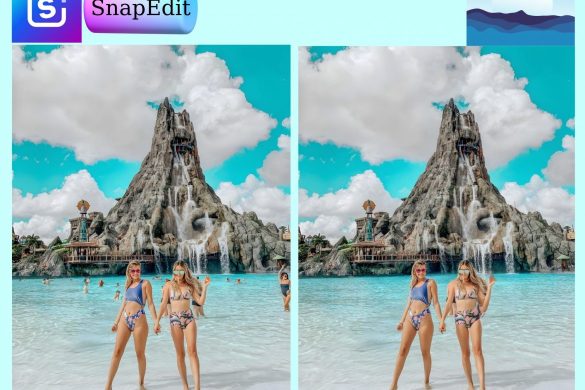
I have a folder of travel photos I never post because a tourist I don't know is standing in the middle of them. Someone checking their phone in front of the fountain I waited ten minutes to photograph. A cyclist who rolled through my one clean shot of an empty street. A stranger at the next café table who ended up in the background of a shot I was trying to get.
None of these are ruined photos. They just have one extra tourist or passerby in them who doesn't belong there.
Removing a tourist or photobomber from a travel photo isn't quite the same job as removing an object, even though it uses the same tool. A trash can doesn't move, doesn't cast a shadow that follows it around the frame, and doesn't overlap with three other trash cans standing next to it. A person does all three. So while the steps are the same as SnapEdit's general object removal process, a few things about removing tourists and photobombers specifically are worth knowing before you start.
What Auto Detect gets right with a crowd of tourists
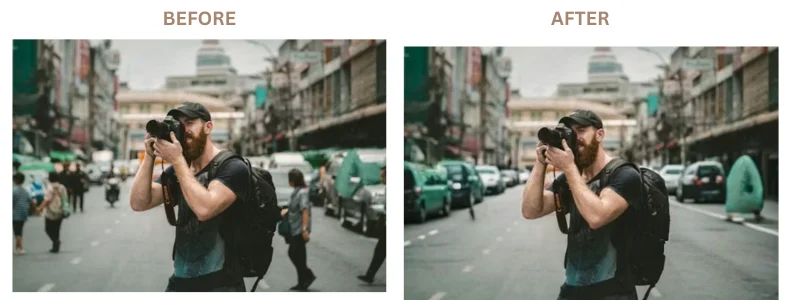
Point SnapEdit's Auto Detect at a photo with a group of people standing close together, or partially overlapping each other, and it's genuinely good at this part. It reads each person as an individual shape and hands back a clean mask, arms, legs, and all, rather than one blobby selection that catches half of everyone. You don't need to carefully outline each person in a crowd by hand or worry that removing one person will nibble into the one standing next to them.
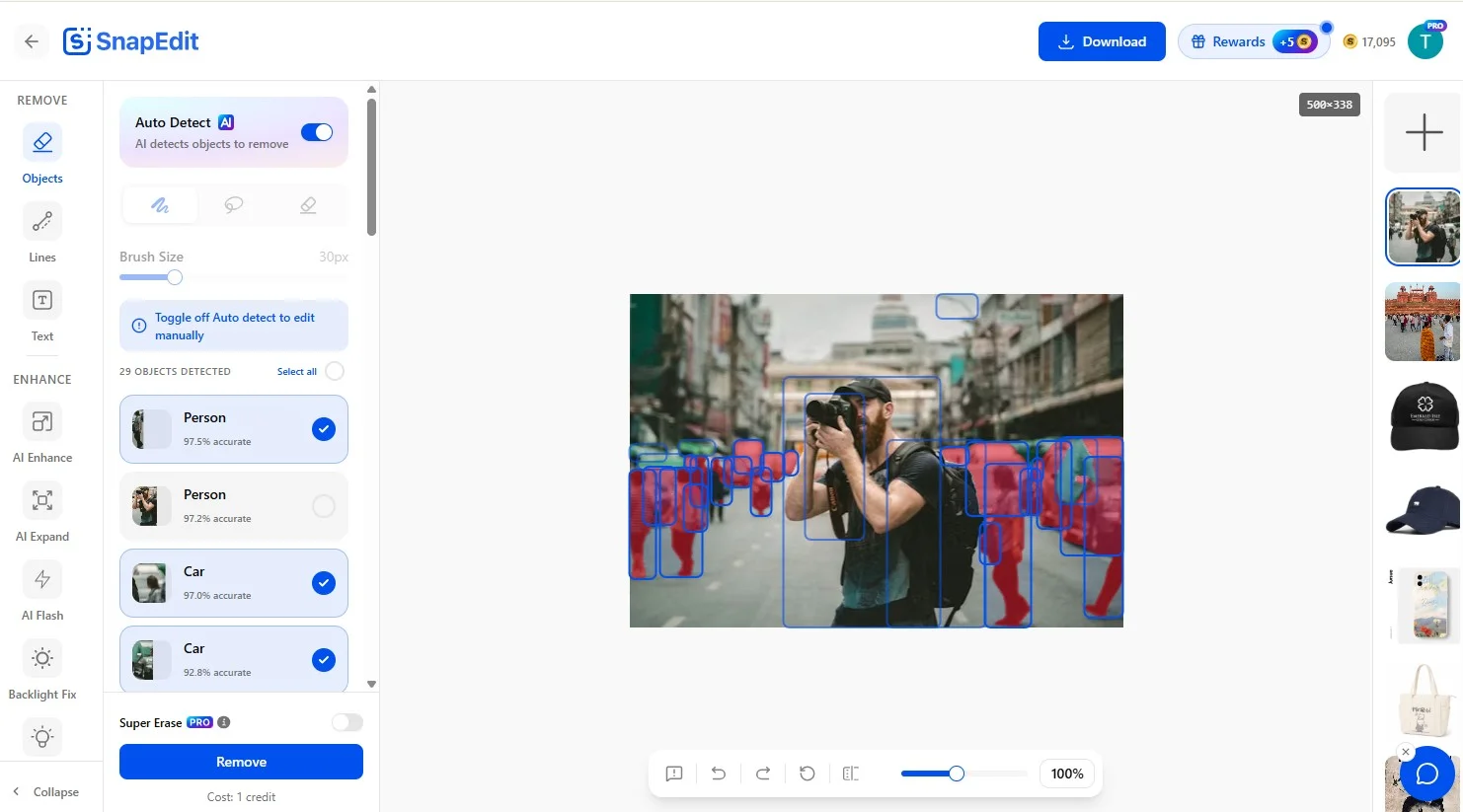
This is the part that "just works." The part that doesn't is the shadow.
The one thing Auto Detect won't catch: the shadow
Here's the honest limitation: Auto Detect selects the person, not the shadow they're casting. Remove someone standing in afternoon sun and you can end up with a clean gap where they stood, and a shadow with nobody attached to it stretching across the pavement next to it.
This isn't a bug so much as a reasonable thing for the AI to miss, a shadow doesn't have a clear outline the way a person does, and it changes shape depending on the light. The fix is a manual one: after removing the person, switch to the manual brush and paint over the leftover shadow separately, then let SnapEdit reconstruct that area too. It's a small extra step, but skipping it is the single most common reason a "clean" removal still looks slightly off on closer inspection.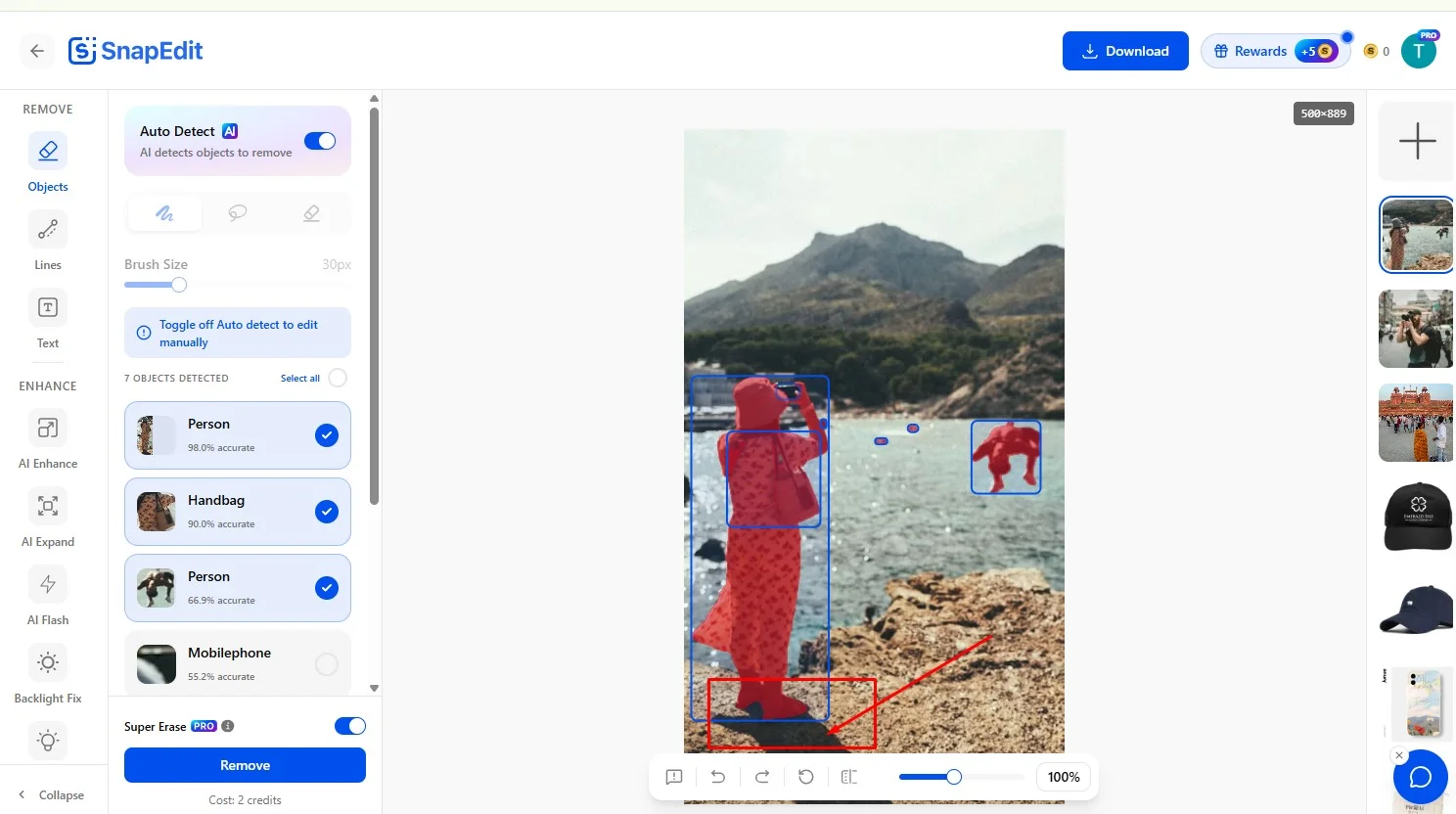
A close photobomber vs. a distant crowd of tourists
Not every unwanted person in a photo is the same size problem. Someone standing right next to your subject at a café table is a small, high-detail selection, worth taking a moment to get the edges right. A crowd of small, distant figures scattered across a landmark photo is a different kind of job, more about clearing a lot of background at once than getting any single person's outline perfect. Both work with the same tool, but it's worth adjusting how much time you spend per person based on which situation you're actually in.
How to actually remove a tourist or photobomber from a photo
The steps themselves are the same as any object removal in SnapEdit:
- Upload your photo to SnapEdit's Remove Object tool.
- Let Auto Detect highlight the person (or people) you want gone, or use the manual brush for more control.
- If the background is busy, textured, or the person was standing against something detailed, switch on Super Erase before generating, it reconstructs complex areas more carefully than the default mode.
- Check the result, then go back with the manual brush for any leftover shadow before downloading.
For the full breakdown of Auto Detect, the manual brush, and Super Erase mode, our general guide to removing objects with SnapEdit covers it step by step.
A shooting tip for scenes you can't fix in editing alone
If a landmark is genuinely packed, wall-to-wall tourists with no clean sightline at all, there's a trick that has nothing to do with AI: stand in one spot and take several photos over a couple of minutes instead of one. People move. The spot blocked by someone in your first shot is often clear thirty seconds later in your third or fourth. Having a slightly less crowded starting photo to begin with makes any removal tool's job easier, SnapEdit included.
When removing someone isn't the right call
Cleaning up your own vacation photos, a street shot, or a candid café picture is a personal editing choice, no different from cropping or adjusting the light. It stops being that simple with photos meant to document something real: an event, a protest, a news moment, anything presented as a factual record. Removing people from those images isn't tidying up a photo anymore, it's changing what the photo says happened. If a photo is meant to show what a place or moment actually looked like, that's the line worth keeping in mind before reaching for the eraser.
If a whole trip's worth of photos needs the same fix
One photo with one stray tourist is a two-minute job. A hundred travel photos with the same problem is a different kind of task. If you're cleaning up an entire trip rather than a single shot, it's worth setting up the same removal steps as a repeatable process instead of doing each photo one at a time, our guide on batch editing with SnapEdit Workflow covers how to apply one editing sequence across a whole folder of photos at once.
FAQ
Why does the shadow still show up after I remove a tourist or photobomber?
Auto Detect selects the person's shape, not their shadow. After removing them, use the manual brush to paint over the leftover shadow separately, then let the AI reconstruct that area too.
Can SnapEdit remove a whole crowd of tourists at once?
Yes, this is one of the stronger parts of Auto Detect. It identifies overlapping people as individual shapes rather than one merged selection, so a crowd doesn't need to be removed person by person.
Will removing a person leave a blurry patch behind?
It can, especially against a detailed or busy background. Switching to Super Erase mode before generating handles complex reconstruction more carefully than the default mode, our guide on fixing blurry object removal covers this in more depth.
Is it okay to remove strangers from my travel photos?
For personal photos, yes, it's an editing choice like any other. It's a different matter for photos meant to document something factual, a news photo or an event record, where removing people changes what the image represents rather than just how it looks.
Got a photo with a stranger standing exactly where you didn't want them? Try SnapEdit's Remove Object tool and see how much of it Auto Detect gets right before you touch the manual brush at all.