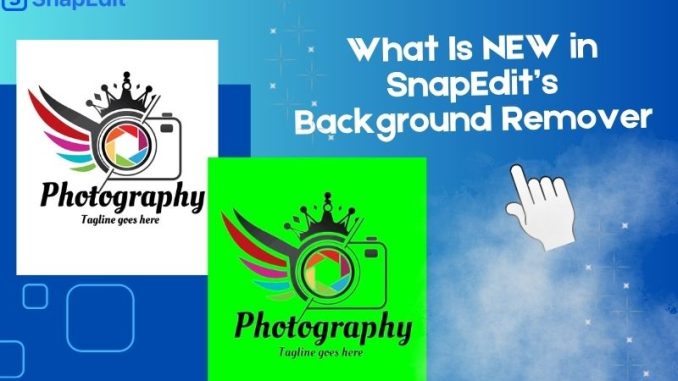
The digital design world moves fast. Creators need tools that deliver clean results without hours of manual work. SnapEdit just released a major upgrade to its background remover. This new AI model was built specifically for graphic images, including logos, icons, text, and anime illustrations.
Most background removal tools struggle with flat colors, sharp lines, and hollow text. They were trained mainly on photos of people and products. The latest SnapEdit background remover solves this problem head-on. It was trained on thousands of graphic assets, so it understands how logos, typography, and illustrations actually work.
The result is professional-grade transparent PNG files in seconds. Whether you design brand assets, create social media graphics, or edit anime art, this update removes the usual headaches. It produces results that rival dedicated tools while staying inside one easy AI photo editor.
What Makes This Background Remover Different from the Rest
Standard background removers often leave white edges or fill in the holes inside letters. They treat every image the same way. SnapEdit took a different approach. The team created a dedicated model trained only on graphic content like logos, stickers, icons, and anime frames.
This focused training lets the tool recognize flat design elements, precise curves, and overlapping shapes. It keeps thin lines crisp and preserves the empty spaces inside letters and symbols. The output stays clean even on complex badges or stylized typography.
Users no longer need to switch between multiple apps. Everything happens inside SnapEdit, the full AI photo editor. You can remove the background, then immediately enhance the image, adjust colors, or add other effects without exporting and re-importing files.
Background Remover for Logos: Sharp Edges and Perfect Transparency
Logos are the face of any brand. A single jagged edge or filled letter can ruin the professional look. The new background remover handles these details with care. It detects the exact boundaries of each shape and keeps every curve smooth.
Many logos contain hollow text or negative space. Older tools often fill those areas incorrectly. This model leaves the interior spaces fully transparent. The final PNG looks exactly as the designer intended, ready for websites, packaging mockups, or presentation slides.
Designers working with app icons or favicon sets also benefit. Small details stay intact even when the image is scaled down. The tool processes both simple wordmarks and intricate multi-color emblems with equal accuracy.

Mastering Text and Typography Isolation
Text in graphic files creates unique challenges. Thin strokes, decorative flourishes, and layered lettering often confuse general AI models. SnapEdit’s graphic background remover was trained to handle these situations cleanly.
The tool isolates individual letters while preserving counters, the enclosed spaces inside characters like “O”, “A”, or “B”. It also manages stylized fonts and handwritten-style titles without cutting into the strokes. This level of precision saves hours compared with manual masking in traditional software.

Content creators who work with thumbnails, quote graphics, or branded social posts will notice the difference immediately. Clean text extraction means faster turnaround and more consistent brand presentation across all materials.
Anime Background Remover Delivers Studio-Quality Cuts
Anime and cartoon illustrations have their own visual language. Flat color regions sit next to detailed line work and soft gradients. A general background remover might clip stray hair strands or thicken outlines unintentionally.
The specialized model understands these characteristics. It follows delicate line art accurately and keeps flat color areas smooth. Artists can upload finished frames or character sheets and receive transparent files that slot straight into animation pipelines or print projects.

Many users combine this tool with SnapEdit’s enhance feature. A quick enhancement pass before background removal can sharpen lines even further. The combination gives results that feel hand-tuned rather than purely automated.
Frankly, the model doesn’t work perfectly on all anime images. Specially, when the image is too complicate with multiple subjects and background.

SnapEdit Background Remover vs Photoroom: Finding the Right Fit
Both tools produce strong results, yet they serve slightly different needs. Photoroom excels at product photography and e-commerce images. SnapEdit’s new graphic model shines when the subject is a logo, icon, or anime illustration.
| Aspect | SnapEdit Graphic Background Remover | Photoroom |
|---|---|---|
| Best suited for | Logos, text, anime, flat graphic design | Product photos, real-world objects |
| Hollow text & negative space | Excellent preservation | Good but less specialized |
| Workflow integration | Full AI photo editor suite in one place | Standalone background focus |
| Output quality on graphics | Sharp edges, clean transparency | Reliable for photos |
| Accessibility | Web + mobile, free to try | Web and app options |
Many creative professionals now keep both tools in their workflow. They use Photoroom for product shots and turn to SnapEdit when the project involves brand assets or illustrated content. The choice comes down to the type of image and how deeply the tool needs to integrate with other editing steps.
How to Remove Background from Graphics in Three Simple Steps
Getting started takes almost no time. The interface stays simple even though the underlying model is advanced. Here is the basic process.
First, open the dedicated graphic background remover tool. You can drag and drop your image or paste it directly with Ctrl+V. The tool accepts JPG and PNG files without extra preparation.
Next, let the AI work. Processing usually finishes in a few seconds. The preview shows the subject cleanly separated from the background. You can zoom in to check fine details like thin lines or small text elements.
Finally, download the transparent PNG. If you need further adjustments, stay inside SnapEdit. Use the object remover for tiny touch-ups, the enhance tool for sharper lines, or the blur background feature for creative effects. Everything stays in one workspace.
Try the new graphic background remover now and see the difference on your own files.
Benefits That Matter for Designers and Content Creators
Speed is the most obvious advantage. What used to require careful masking in Photoshop now happens automatically. Teams can process dozens of assets in the time it once took to finish one.
Consistency improves too. The AI applies the same logic across every image. Brand colors and proportions stay accurate even when multiple people work on the same project. This reliability matters for marketing departments and design agencies.
Cost savings add up quickly. Many users no longer need to outsource simple background removal tasks. The free trial lets individuals and small teams test the quality before committing to any paid plan. The full AI photo editor also reduces the need for multiple separate subscriptions.
Practical Use Cases Across Industries
Graphic designers use the tool daily to prepare client logo variations and icon sets. They export clean files that clients can drop straight into websites or print materials.
Social media managers create branded quote graphics and promotional posts faster. Clean text and logo elements help maintain visual consistency across platforms.
Anime artists and illustrators clean up finished pieces for portfolios or merchandise. Transparent backgrounds make it easy to place characters on different scenes or products.
E-commerce sellers and print-on-demand creators benefit when preparing graphic elements for t-shirts, stickers, or packaging mockups. The precise cuts reduce revision requests from customers.
Educators and students preparing worksheets or presentations appreciate the quick turnaround. They can focus on content instead of wrestling with design software.
Expert Tips to Maximize Your Results with the Background Remover
Start with the highest resolution file you have. Higher detail gives the AI more information to work with, especially on intricate line art or small text.
For very detailed anime pieces, run the enhance tool first. Sharper lines help the background remover make cleaner decisions around edges.
Always check the preview at 100% zoom. Small artifacts are easier to spot before you download. If anything looks off, a quick pass with the object remover usually fixes it.
Experiment with different graphic styles. The model handles bold flat designs and delicate illustrations equally well, but seeing the range helps you predict results on future projects.
Remember that this specialized model works best on graphic content. For regular photos of people or products, the standard background remover in SnapEdit may still be the faster choice.
Experience the Latest from SnapEdit Today
The new background remover for graphics represents a clear step forward. It solves a specific problem that general tools have long struggled with. Clean results on logos, text, and anime now come without extra effort or expensive software.
This release joins other recent additions to the platform, including watermark tools, image conversion, compression, and background blur options. Together they make SnapEdit an even more complete AI photo editor for everyday creative work.
Ready to remove backgrounds from your graphic files with professional precision? Head to SnapEdit and try the new model yourself. The first results will show you why so many designers are making the switch.
For a full list of every tool and feature currently available, visit SnapEdit’s all tools. New updates continue to roll out, so check back often to see what else is new.
SnapEdit keeps its focus on practical tools that save time and deliver quality. The latest background remover continues that tradition with targeted intelligence for graphic content.
Leave a Reply