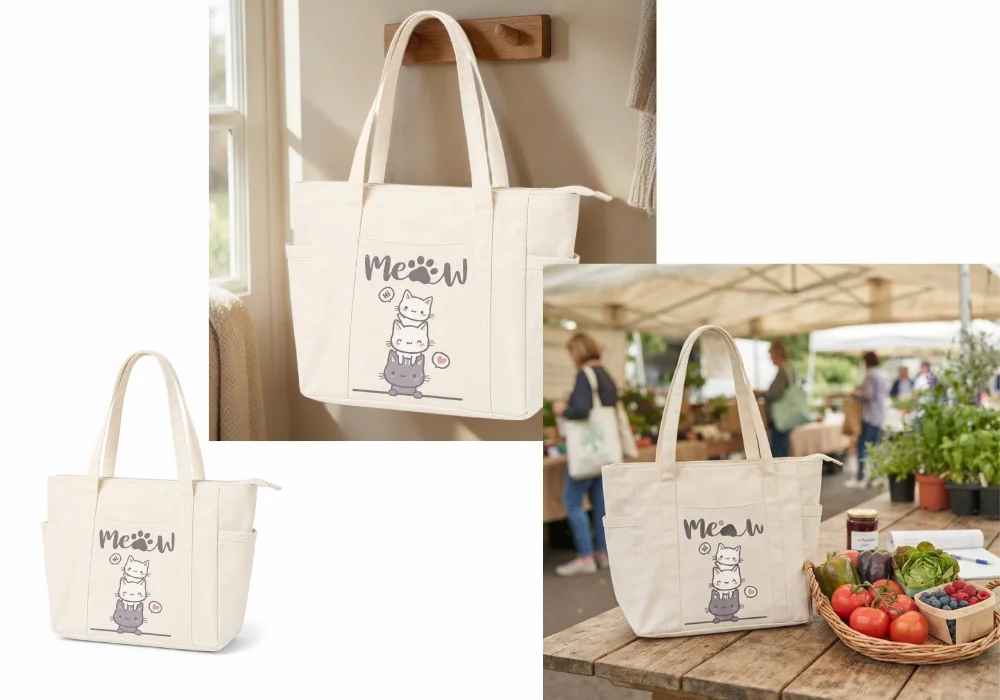

An Amazon main image gets rejected when Amazon's automated check finds something that breaks the main image rules. The five common causes are a background that is not pure white, a product that is cropped or too small in the frame, added text or logos, props or extra items, and a file that is too small or in the wrong format. Amazon then suppresses the listing from search until you upload a compliant image.
This guide shows how to read the rejection reason, fix each cause, and what to do if the listing stays suppressed. If you need to correct hundreds of photos, you can bulk edit Amazon product images instead of fixing them one by one.
One idea explains most rejections. Amazon's check reads pixels, not intentions. A photo that looks white to your eye can still fail, because the system measures the exact color values in the file.
How to Find Out Why Amazon Rejected Your Main Image
Amazon tells you why a listing is suppressed inside Seller Central. Start there before you edit anything, because the message points to the cause.
- Open your inventory. Sign in to Seller Central and go to Inventory, then Manage All Inventory.
- Filter for suppressed listings. Select the Suppressed filter, or open the Fix Your Products page, which groups suppressed listings by issue.
- Read the issue on the listing. Amazon shows a reason next to each listing, such as "Main image does not meet requirements," and usually an edit button.
Amazon also emails you when a listing is suppressed. Menu names in Seller Central change from time to time, so look for the wording above if your screen is laid out differently.
| What the message mentions | What Amazon's check found | Where to go in this guide |
|---|---|---|
| A non-pure white background | Background pixels that are not exactly RGB 255, 255, 255 | The background is not pure white |
| Text, a logo, a graphic, a watermark, or badging | Something that looks added on top of the product photo | The image contains text, logos, or watermarks |
| A general notice that the main image does not meet requirements | Any of the five causes | Check all five causes in order |
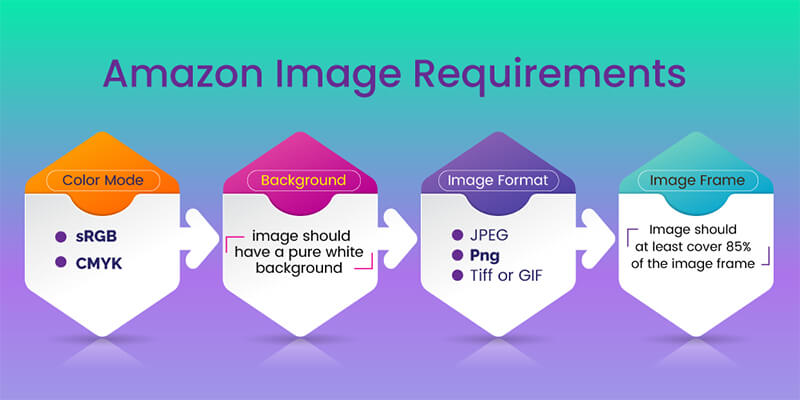
For the full official rules, see Amazon's product image guidelines (Seller Central login required).
How to Fix Each Rejection Cause
Each cause below explains what Amazon's check sees and how to correct the image.
The background is not pure white
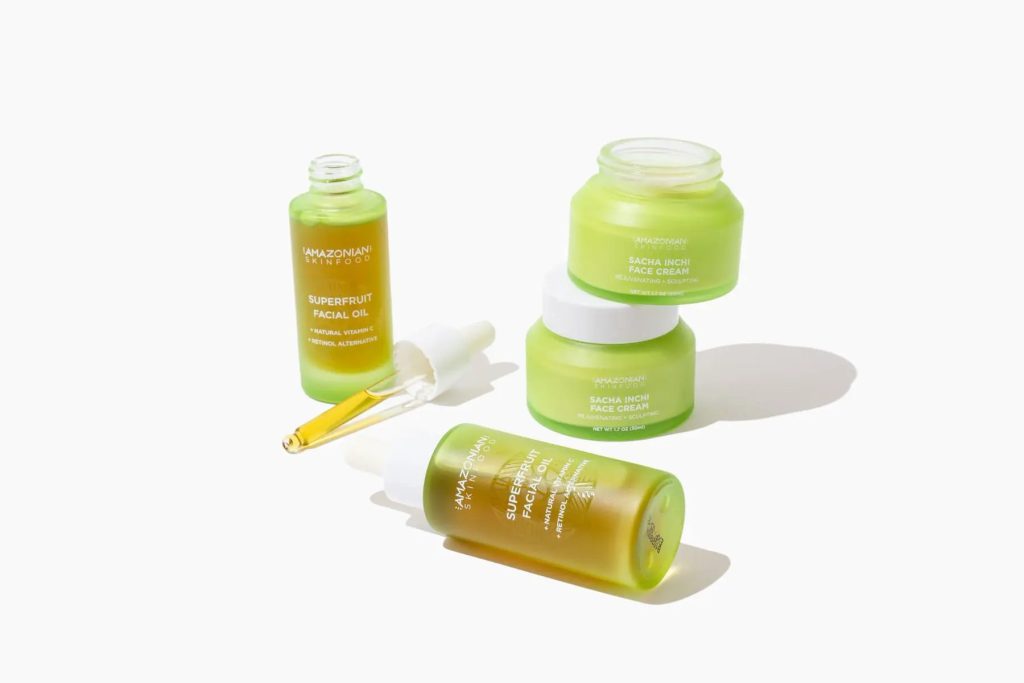
Amazon requires the main image to have a pure white background, which means RGB 255, 255, 255. This standard gives every listing a clean, consistent look in search results.
This is the cause that confuses sellers most, because the photo already looks white. Three things usually go wrong:
- A light box photo is rarely pure white. A white backdrop photographs as light gray or cream, and the product casts a soft shadow.
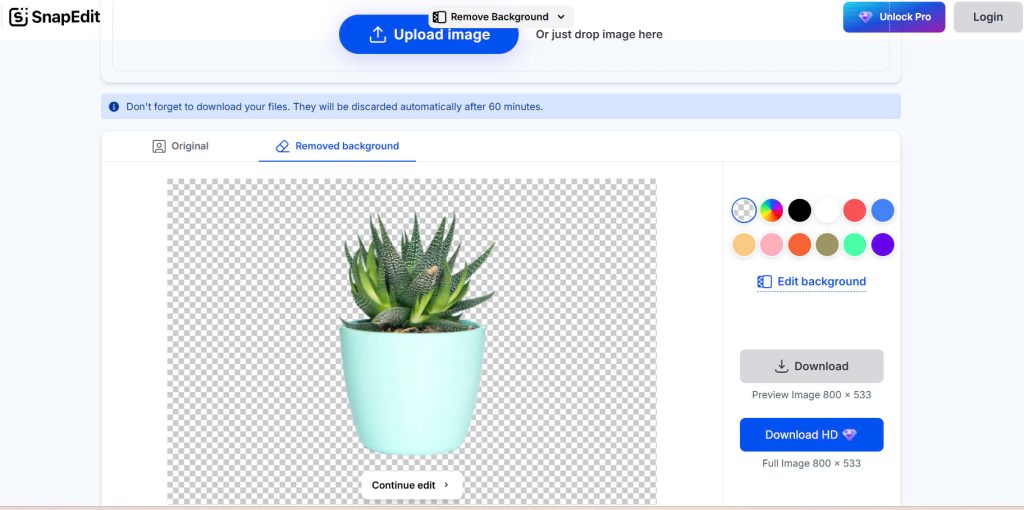
- A transparent background is not a white background. A cutout saved with a checkered or transparent background has no white pixels at all.
- JPEG compression leaves off-white pixels. Heavy compression creates faint gray marks around the product's edges.
Fix: Remove the original background, then fill it with pure white. SnapEdit's AI-powered tool automatically detects and removes the background from your image, allowing you to quickly add a white background. It processes an image in a matter of seconds, and no technical skills are required.
Before you upload, check the result yourself. Open the file in any photo editor, use the color picker on the background near the corners and near the product's edges, and confirm each reading is 255, 255, 255. Export the final image as a high-quality JPEG.
The product touches the edge or fills too little of the frame
Amazon wants the product to fill at least 85% of the image, with the entire product visible and nothing cropped at the edges.
Two opposite mistakes cause this rejection. A product that sits small in a large white canvas fails the 85% rule. A product that runs right to the edge of the photo can look cropped. Sellers on Amazon's forums also report that images with no white margin at the top and bottom get flagged as a non-white background.
Fix: Re-center the product and crop the canvas so the product fills most of the frame, with a thin, even white margin on all four sides. SnapEdit's auto crop tool centers the subject for you.
The image contains text, logos, or watermarks
Amazon's main image can't show text, logos, watermarks, borders, or color blocks. Badges are included in this rule, such as "Best Seller" style stickers and supplier watermarks on photos you received from a manufacturer.
Fix: Remove the overlay from the photo. SnapEdit can remove text from images automatically, which works well for watermarks and promotional labels.
Then move the content, don't delete it. Amazon prohibits text and promotional messaging on the main product image, but infographics can be used in additional images to enhance your listing. The same goes for lifestyle photos, which help customers visualize how a product fits into their daily lives.

One caution: only remove what was added to the photo. Text that is physically printed on the product or its packaging is part of the product, and erasing it would misrepresent what the customer receives.
The image shows props, mannequins, or extra items
The main image must show only what the customer gets. Amazon doesn't allow props or accessories that are not included with the purchase, mannequin parts, or more than one unit of the product.
Fix: Erase the extra items. SnapEdit lets you remove objects from photos, such as a display stand, a hand, or a decorative prop next to the product.
Object removal works best when the prop sits beside the product. If a prop covers a large part of the product itself, a new photo is the more honest fix, because the AI would have to invent the hidden area.
The file is too small or in the wrong format
Amazon accepts JPEG, PNG, TIFF, and non-animated GIF files. The image must be at least 500 pixels on its longest side, and Amazon recommends 2,000 pixels or more so customers can zoom in on details.
Each format has its own strengths:
- JPEG: The most commonly used format for Amazon listings. JPEG offers strong compression that reduces file size without significant loss of quality.
- PNG: Ideal for images that need fine detail. PNG maintains high quality but results in larger file sizes than JPEG.
- TIFF: High quality with a very large file size. It's best used for editing, then converted to JPEG before uploading.

Fix for the wrong format: Use SnapEdit's image converter to switch between JPEG, PNG, and other formats.
Fix for a small or blurry image: Use SnapEdit's photo enhancer to upscale the image and improve sharpness. You upload the photo, and AI does the work. Upscaling improves clarity, but a sharp original photo always gives a better result than a rescued one.
Fix for an oversized file: If the file exceeds Amazon's size limit, SnapEdit's compress tool reduces the file size while keeping the image clear.
How to Handle an Image That Is Still Suppressed After the Fix
A corrected image doesn't always restore the listing right away. Three situations explain most of these cases.
Amazon hasn't re-checked the listing yet. Re-evaluation is not instant. Sellers and agencies commonly report a wait of one to three days after a new upload. Check the listing status again before you change the image a second time.
The live image is not your image. On a shared listing, Amazon may display a main image contributed by another seller or by the brand. Your compliant upload can sit unused while the old image keeps the listing suppressed. Open the product page, confirm which image is live, then contact Seller Support or the brand owner to replace it.
The check flagged part of the product itself. This happens with printed T-shirts, greeting cards, and other items where a design or text is the product. Open a case with Seller Support, explain that the graphic is part of the item, and attach a clear photo. Sellers report that this can take more than one attempt, so keep your message short and specific.
How to Prevent Rejections Across a Whole Catalog
Fixing one image at a time works for a single listing. For a full catalog, set the edits up once and apply them to every photo.
SnapEdit's batch tools apply one edit, such as background removal or a white fill, to up to 50 images at a time. For a longer chain of edits, you can build an AI image editing workflow that removes the background, fills it with pure white, centers the product, and exports an accepted format in one pass. The Amazon solutions page lists the full main image checklist and the batch tools for each rule.
Selling on more than one channel? See also: how to optimize images for Shopify.
Frequently Asked Questions
Why was my Amazon main image rejected when the background is white?
The background is probably near-white, not pure white. Amazon checks for RGB 255, 255, 255, and photos taken on a white backdrop usually measure slightly gray or cream. Remove the background, fill it with pure white, and confirm the values with a color picker.
Can I use lifestyle images as the main image?
No. Amazon's main image must have a pure white background, and it should focus solely on the product. However, lifestyle images are allowed in additional image slots to showcase the product in use, highlighting features or providing context.
Does a transparent PNG count as a white background?
Don't rely on it. A transparent background contains no white pixels, and it can display differently from one screen to another. Fill the background with pure white before you upload.
How long does Amazon take to restore a suppressed listing?
There is no fixed time. Sellers commonly report one to three days after uploading a compliant main image. If the listing is still suppressed after that, check which image is live on the product page and contact Seller Support.