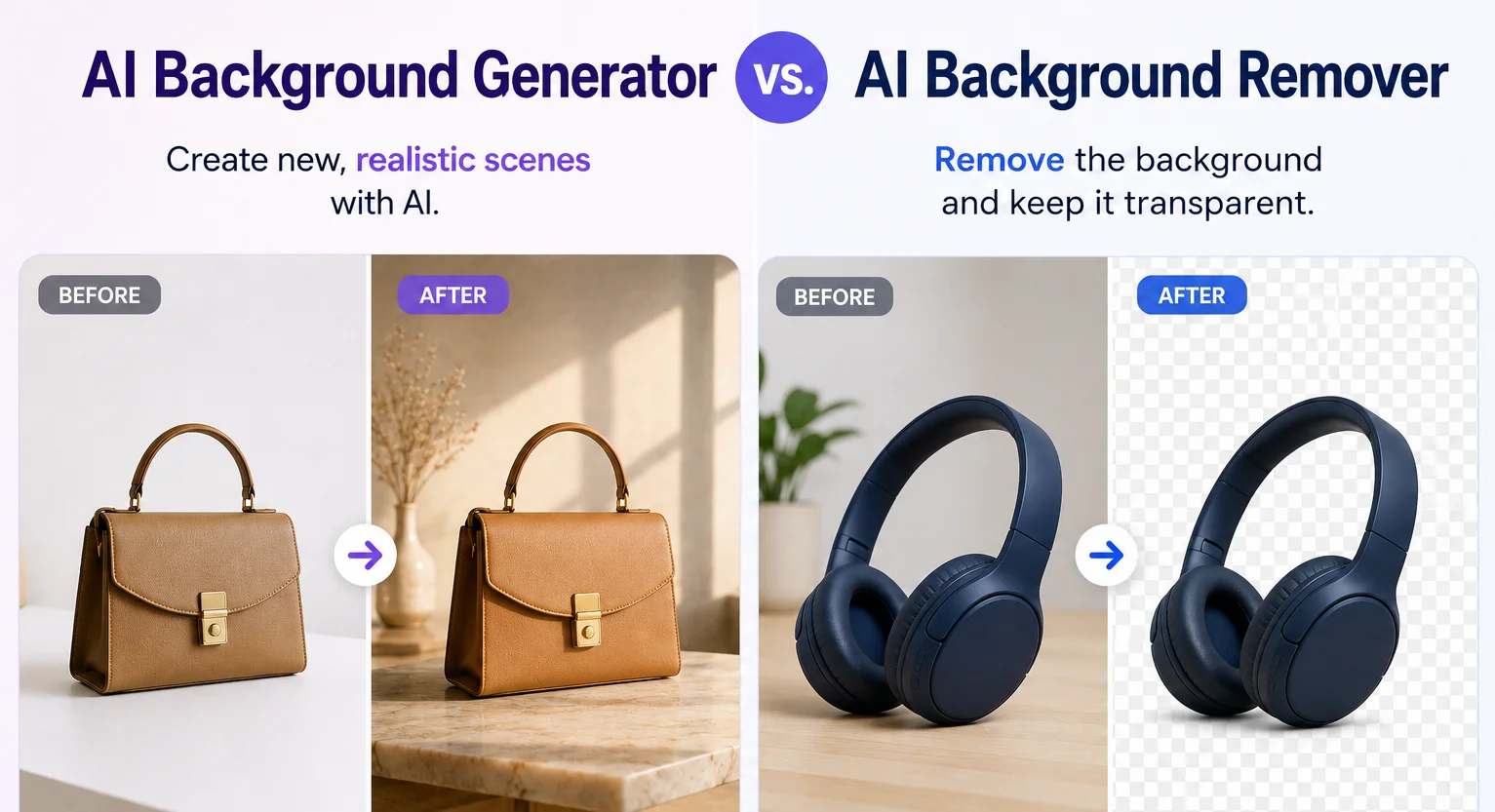
An AI Background Remover cuts away the existing background, giving you a clean subject or a transparent image. An AI Background Generator takes things further by creating a completely new environment around your subject.
Let's compare Background Remover and AI Background Generator, explain when to use each, and show how the two can work together for product photography, e-commerce, and creative content.
AI Background Generator vs. Background Remover: What's the difference?
The easiest way to understand the difference is to think about what you want to do with the existing background.
Background Remover removes it. The AI detects the main subject and separates it from the background, making it useful when you need a transparent cutout, a clean product image, or a subject you can place into another design.
AI Background Generator replaces the context around the subject by creating a new environment from your prompt. Instead of simply cutting out a product, you can place it in a studio, café, bedroom, marble countertop, outdoor setting, or other custom scene.
Put simply: a Background Remover takes the background away, while a Background Generator gives your subject a new one. If you need a clean cutout, go with the Background Remover. If you want to turn an ordinary photo into a finished lifestyle or studio image, the AI Background Generator is the better fit.
Which background actually fits which platform
This is the part that's easy to get backwards, and it has real consequences depending on where the photo is going.
Amazon requires a pure white background for your main product image. It's not a style preference, it's a listing requirement, and images that don't meet it can get rejected or hurt your listing's performance. For that image, a Background Remover set to a white background is the right tool, not a generated scene.
Nike, Adidas, and most large DTC websites follow the same instinct even without a strict rule. Their primary product shots use a plain, consistent background across the entire catalog. It keeps the store looking uniform and keeps attention on the product itself, which is exactly what Background Remover is built for.
Social platforms work the opposite way. An Instagram post or a Facebook ad with a plain white background tends to get scrolled past. Context and mood are what make someone stop, a candle photographed in a cozy, softly lit bedroom will usually outperform the same candle on white. This is where AI Background Generator earns its cost.
And it does cost more. On SnapEdit, removing a background runs 1 credit, while generating a new one runs 5 credits. That's worth knowing upfront: a white-background product shot for your main Amazon listing is the cheaper edit, while a styled lifestyle scene for social costs more per image because there's more for the AI to build. Budget accordingly if you're producing images for both at once.
How SnapEdit's AI Background Remover works
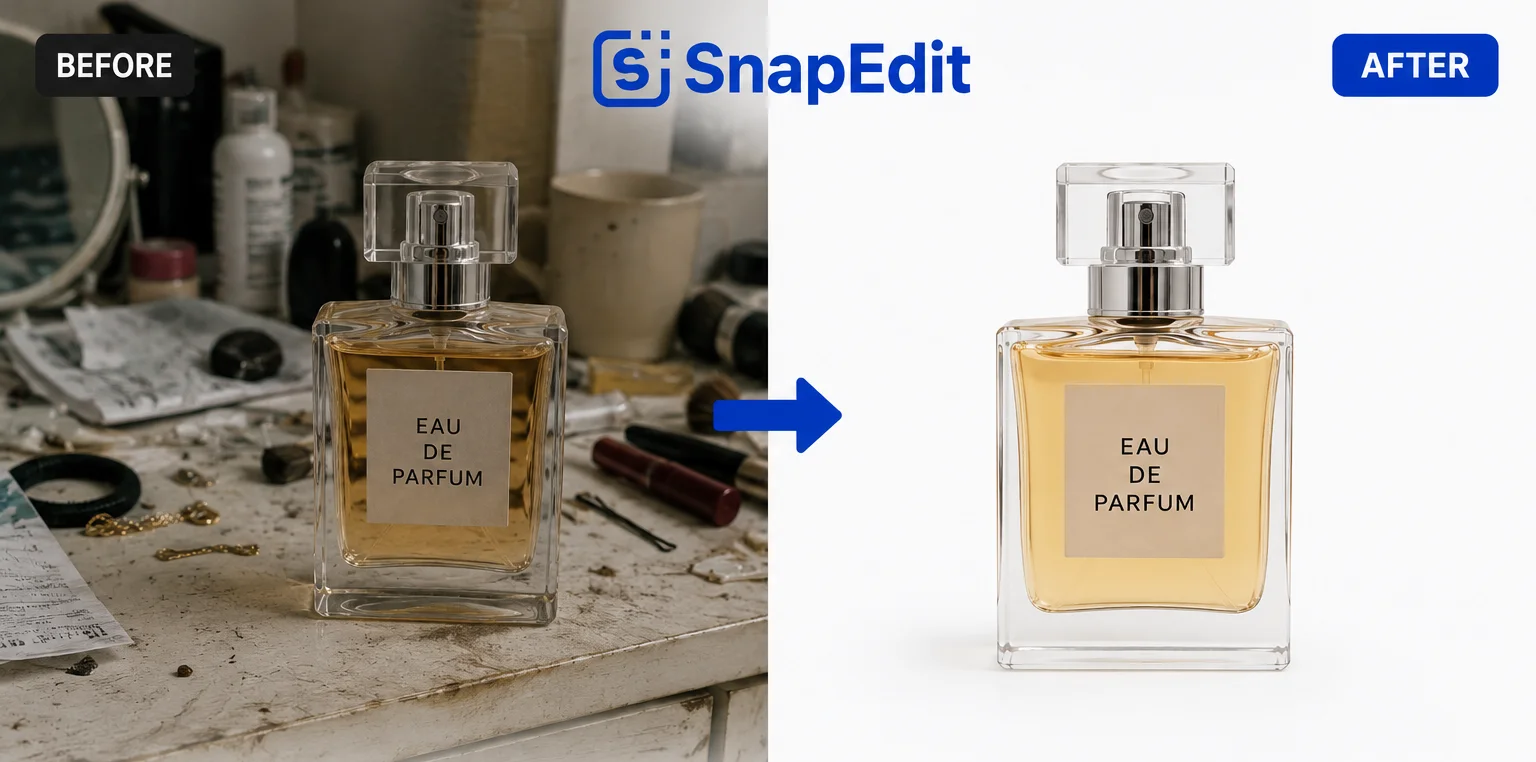
SnapEdit's Background Remover is built for a simple goal: separate the main subject from its existing background. It's useful when you don't need a new scene, you simply want a clean, isolated product or subject.
You can use the result for product listings, catalogs, marketing designs, presentations, or anywhere you need the subject without its original surroundings.
Upload your image, and SnapEdit's AI detects the main subject and removes the surrounding background. This saves you from manually selecting edges or using complicated editing tools.
A transparent background is useful when you want to place the product into your own design, add it to a banner, or build a custom composition. If you don't want transparency, you can replace the removed background with another color, image, or available template, including a plain white background if that's what your platform requires.
Background Remover works particularly well when your goal is simplicity and control, for example, turning a product photo into a clean catalog image or preparing a subject for another design.
How SnapEdit's AI Background Generator works

While Background Remover removes the existing background, SnapEdit's AI Background Generator creates a completely new environment around your subject using a text prompt.
Instead of uploading a background image yourself, you describe the scene you want and let AI generate it. For example, you can generate a seamless white studio, marble countertop, cozy bedroom, modern café, luxury bathroom, or outdoor lifestyle scene from the same product photo.
The same image can become multiple versions for different channels. AI Background Generator is designed for situations where you want to transform the look and feel of a photo, not just remove its background. It's especially useful for product photography, fashion, beauty, Etsy listings, social media, and marketing campaigns.
Background Remover vs. AI Background Generator at a glance
| Background Remover | AI Background Generator | |
|---|---|---|
| What it does | Removes the existing background | Creates a new background from a text prompt |
| Output | Transparent cutout, or a plain/solid color background | A full styled scene around your subject |
| Control | High, you choose exactly what comes next | Guided by your prompt, less pixel-level control |
| Cost on SnapEdit | 1 credit | 5 credits |
| Best for | Amazon and marketplace main images, catalog consistency, custom compositions | Social media, lifestyle shots, brand campaigns |
When to use Background Remover vs. AI Background Generator
The best tool depends on what you want the final image to accomplish.
Use Background Remover when you want to:
- Create a transparent product image: remove the existing background and get a clean cutout for product listings, catalogs, banners, or graphic designs.
- Create a simple, clean product photo: a transparent cutout can easily be placed on a white or solid-color background for straightforward e-commerce images, including marketplaces like Amazon that require it.
- Add the subject to your own design: removing the background gives you full control over what comes next. Place the product in a Canva design, advertisement, presentation, or custom composition.
- Process a large catalog consistently: if your goal is simply to remove distracting backgrounds from dozens of product photos, a dedicated remover is often the more practical and cheaper choice.
Use AI Background Generator when you want to: - Create a lifestyle product photo: turn a basic mug photo into a cozy breakfast scene, or a candle into a spa-inspired bathroom setting.
- Create a professional studio environment: generate seamless white, warm beige, marble, concrete, or other custom studio backgrounds without setting up a physical studio.
- Create multiple variations from one photo: use different prompts to create separate visuals for product pages, social media, ads, and seasonal campaigns.
- Add creative context to your product: instead of simply removing what's behind the product, you can create an environment that communicates its style, purpose, or brand identity.
Using both together
Background Remover and AI Background Generator can complement each other, especially when you want more control over the final image.
For example, you might first use the Background Remover to create a clean cutout of a product. Then, instead of placing it on a plain background, you can use the AI Background Generator to create a new environment around it. This is especially useful when the original background is messy or distracting, or when you want to separate the product from its original surroundings before creating a completely different visual direction.
The two tools aren't competing versions of the same feature. One gives you a clean subject, the other gives you a new environment. Used together, they give you more flexibility over the final image, and since removal only costs 1 credit, cleaning up the subject first before generating a new scene barely changes your total cost.
FAQ
Will a generated AI background get my listing rejected on Amazon?
Amazon's main image requirement is a pure white background, which is a Background Remover job, not a Background Generator one. Save the AI Background Generator for secondary images, social posts, or ads where a styled scene is actually welcome.
Do I need both tools, or can one do everything?
Most sellers end up using both, just for different images. A white or transparent background for your primary listing image, and a generated lifestyle scene for social media or marketing, from the same source photo.
Can I get a plain white background without using the Background Generator?
Yes. Background Remover can replace the removed background with a solid white background directly, at the lower cost of a removal rather than a generation.
Why does generating a background cost more than removing one?
Removing a background is a detection task, the AI identifies the subject and cuts around it. Generating a background is a creation task, the AI builds an entirely new, coherent scene around your subject, which takes more computation and costs more credits as a result.
Ready to try them? Explore SnapEdit Background Remover or the AI Background Generator and choose the workflow that fits your image, and your platform.