
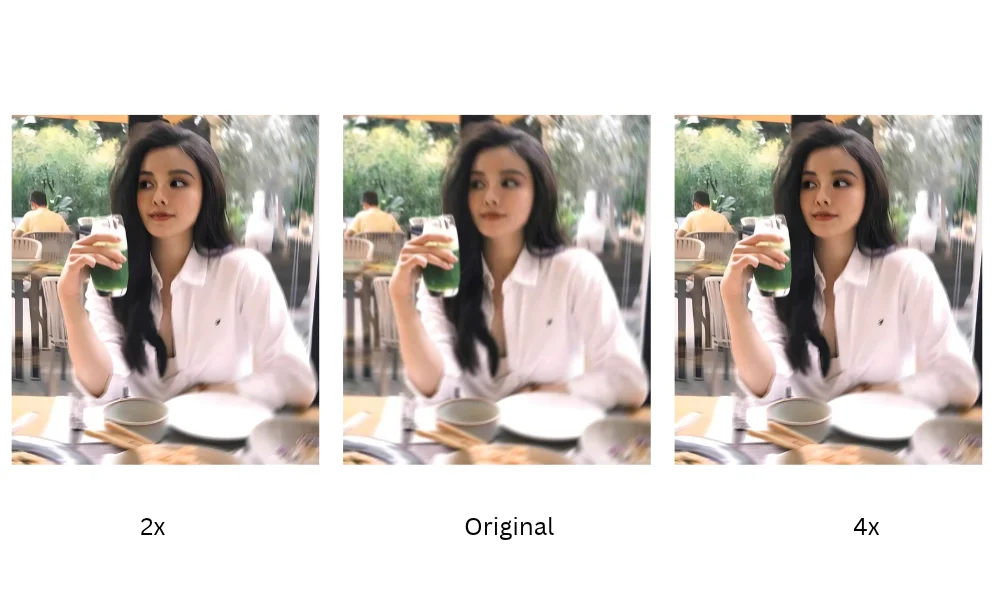
The difference between enhance vs upscale is: Enhancing fixes how a photo looks - blur, noise, compression marks, and dull color- at the same size. Upscaling makes a photo bigger by adding pixels. So, if a photo looks bad at 100% zoom, you need to enhance it. If a photo looks fine but is too small for its use, upscale it. If it has both problems, enhance first.
To understand it, this guide explains how to tell which problem your photo has, the order to fix it, how many pixels you need for print and online stores, and why some results look fake.
What is the difference between enhancing and upscaling?
Enhancing improves the quality of the pixels a photo already has. Upscaling increases the number of pixels. One changes how the photo looks, the other changes how big it is.
What enhancing does
Image enhancement repairs the problems you see when you zoom in. It reduces noise from low light, removes blocky compression marks, sharpens soft edges, and corrects dull color or flat lighting.
The photo keeps its original dimensions. A 1200 × 800 photo is still 1200 × 800 after enhancement, but it looks cleaner.
What upscaling does
Image upscaling makes a photo larger, usually by 2x, 4x, or 8x. A 1000-pixel photo upscaled 4x becomes 4000 pixels wide.
There are two ways to do it. Traditional resizing stretches the existing pixels, so the larger photo looks soft and blurry. AI upscaling predicts the missing detail and generates new pixels, so edges and textures stay sharp at the new size.
Enhance vs upscale at a glance
| Enhance | Upscale | |
|---|---|---|
| Goal | Better quality | Bigger size |
| Output size | Same as the original | 2x, 4x, or 8x larger |
| Fixes | Blur, noise, compression marks, dull color | Too few pixels for print or zoom |
| Doesn't fix | A photo that is too small | Blur or noise already in the photo |
| Main risk | Over-sharpening, plastic-looking skin | Enlarged noise, invented detail |
Many AI tools now combine both steps. SnapEdit's photo enhancer cleans up the image and upscales it in a single pass, so you choose the final size and the quality fixes come with it.
How do you know which one your photo needs?
Open the photo at 100% zoom and ask two questions. Does it look bad up close? Is it big enough for where it will be used? The answers point to the right fix.
| What you see | What the photo needs |
|---|---|
| Soft or blurry, from camera shake or missed focus | Enhance |
| Grainy, from a low-light or night shot | Enhance |
| Blocky squares around edges, from heavy compression | Enhance |
| Sharp and clean, but too small to print or zoom | Upscale |
| Small and blurry, like an image saved from social media | Enhance, then upscale |
| Faded or scratched, from an old print | Restore the old photo |
| Black and white | Colorize the photo |
| Too dark, or the subject is backlit | Fix the backlight |
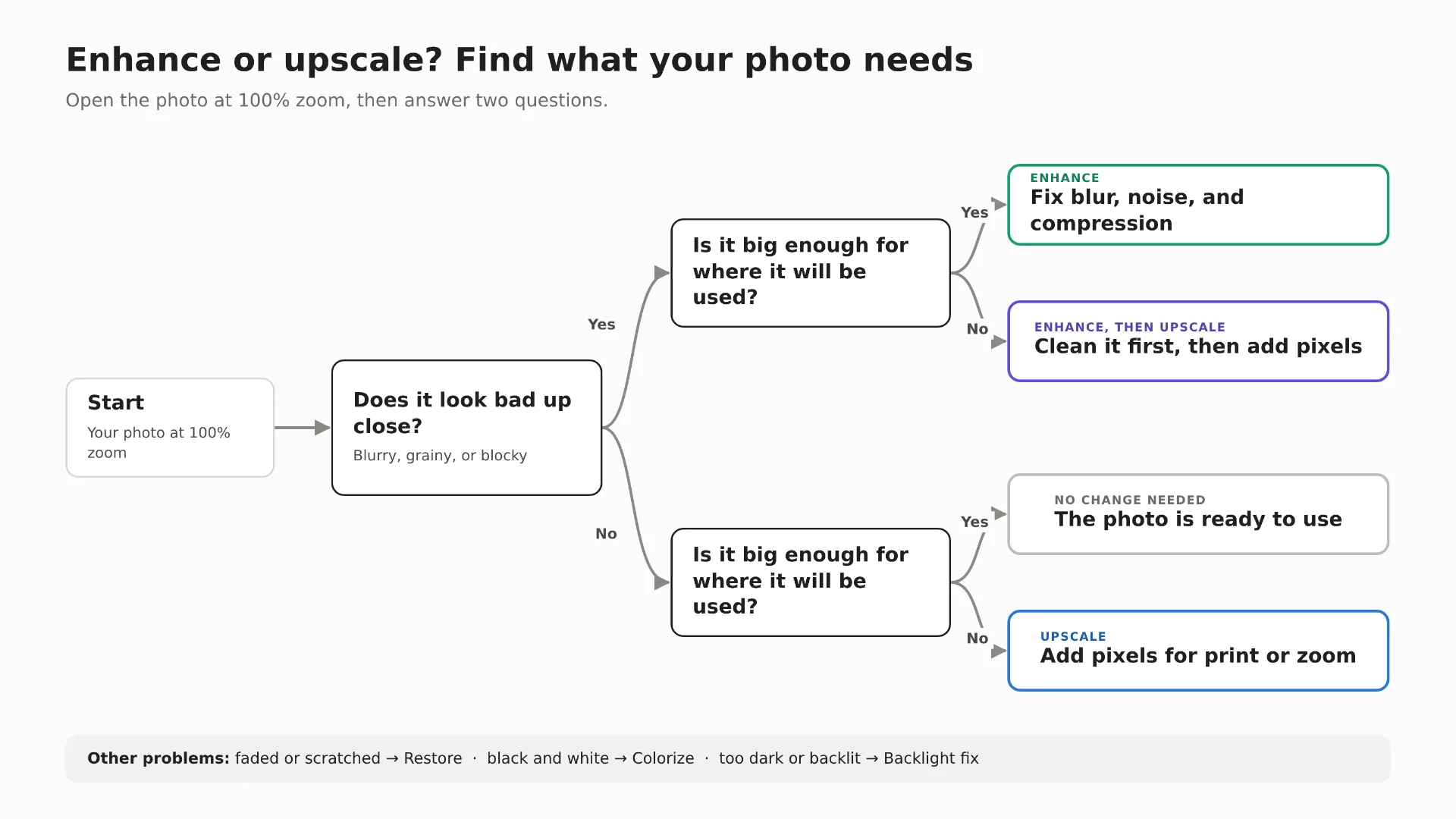
The 10-second test. Zoom to 100%. If the photo looks bad, it needs enhancing. If it looks good but has fewer pixels than you need, it needs upscaling. If both, it needs both.
Should you enhance before or after upscaling?
Enhance before you upscale. Upscaling a noisy or compressed photo enlarges the noise along with everything else. The AI can also mistake compression marks for real texture and turn them into detail that wasn't there.
When you clean the photo first, the upscaler starts from better information and produces a more natural result.
There is one exception. A very small photo, under about 500 pixels wide, gives the AI little to work with. Upscale it 2x first, check the result, then enhance or upscale again.
For large jumps, two smaller steps often look better than one big one. Upscaling 2x twice gives you a chance to check the photo in between, instead of letting the AI invent most of the image in a single 4x pass.
How much do you need to upscale for print, marketplaces, and social?
You need enough pixels for the place the photo will appear, and no more. Divide the pixels you need by the pixels you have, then pick the nearest upscale factor.
| Where the photo goes | Pixels you need |
|---|---|
| 4 × 6 inch print at 300 DPI | 1200 × 1800 |
| 8 × 10 inch print at 300 DPI | 2400 × 3000 |
| Amazon product image, with zoom | At least 1000 on the longest side, 2000 or more recommended |
| Etsy listing photo | At least 2000 on the shortest side |
| Shopify product image | 2048 × 2048 |
| Instagram post | 1080 wide |
| Website banner | About 1920 wide |
Example. Your product photo is 800 × 800 pixels and Amazon recommends 2000. 2000 ÷ 800 = 2.5, so a 4x upscale gives you 3200 × 3200 with room to crop.
When not to upscale. If your photo already has enough pixels for its use, upscaling only makes the file heavier. Social platforms also compress uploads, so an 8x photo posted to Instagram ends up the same size as a 2x one.
Platform requirements change from time to time, so check the current guidelines before a large batch. For Amazon specifically, see how to fix an Amazon main image that gets rejected.
Why do some enhanced or upscaled photos look fake?
Most fake-looking results come from four causes. Each one has a simple fix.
The AI invents detail it cannot see
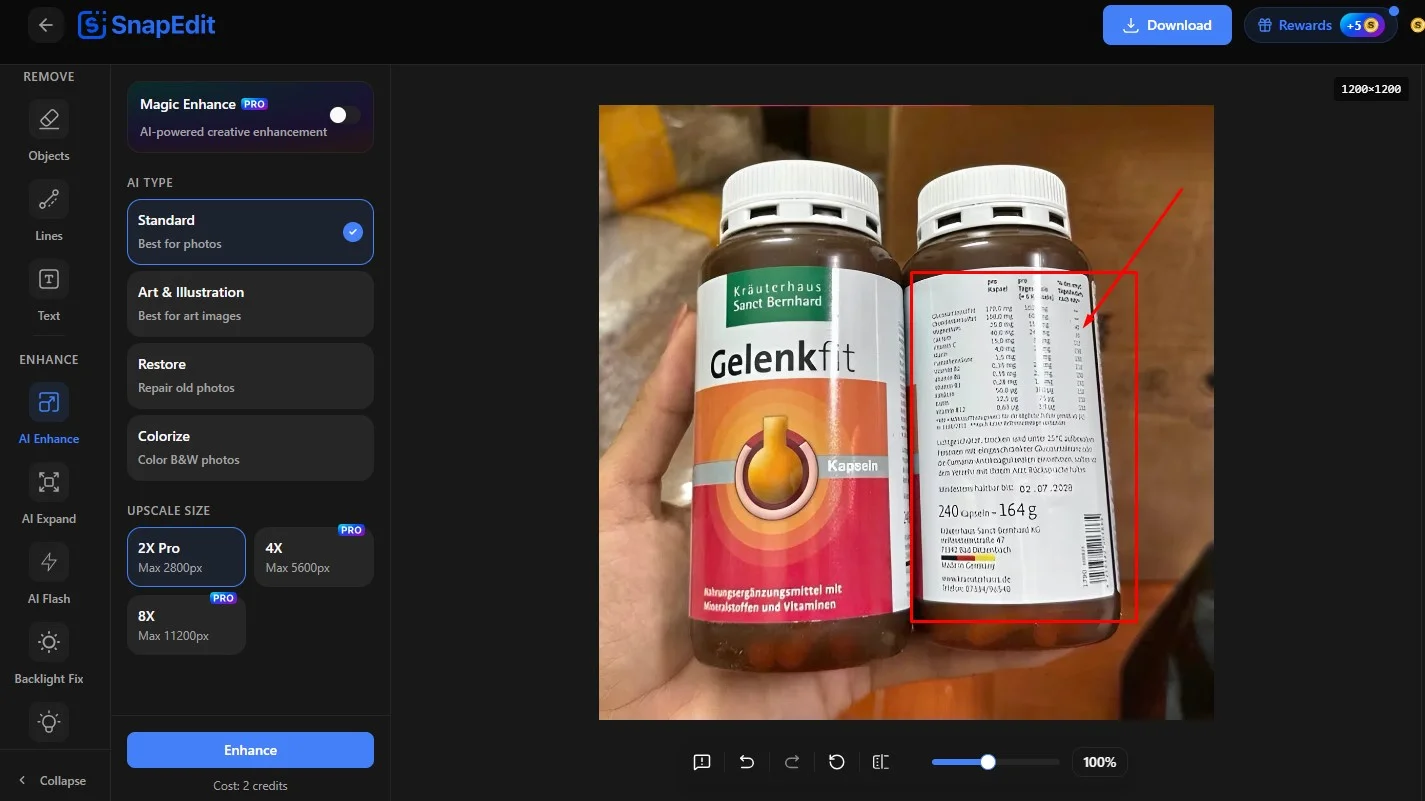
An upscaler predicts what is missing. When the source is very small, it guesses, and the guesses show up in faces, hands, and text. Eyes change shape, skin turns waxy, and letters on a label turn into shapes that look like writing.
For product photos, this matters most. If the AI redraws the text on a box or the logo on a shirt, the listing no longer shows exactly what the customer receives.
Fix: Start from the largest original you have. Zoom in on faces, text, and logos after processing, and re-shoot the product if the label changed.
Sharpening goes too far
Too much sharpening creates bright outlines around objects and gives skin a plastic look.
Fix: Compare the result with the original at the size people will see it. If the edges glow, run the enhancement on the original again instead of processing the result twice.
The upscale factor is too large for the source
An 8x upscale on a 300-pixel photo asks the AI to create about 98% of the final pixels. The result can look painted rather than photographed.
Fix: Upscale in steps, and choose the smallest factor that reaches the size you need.
The source was already compressed several times
A photo that was sent through messaging apps, downloaded, and re-uploaded carries layers of compression. The AI can read those artifacts as texture.
Fix: Find the earliest copy of the photo, ideally the file from the camera or phone.
Check before you publish: zoom in on faces, text, logos, and the edges of the subject. If any of them look different from the real thing, try a smaller upscale or a better source.
How do you enhance and upscale a photo with SnapEdit?
SnapEdit combines enhancement and upscaling in one step. You choose how large the result should be, and the AI sharpens, cleans up noise, and adds detail at the same time.
For a single photo
- Upload your photo to the SnapEdit photo enhancer. Drag and drop the file, or paste it with Ctrl + V.
- Choose the upscale level. Select 2x or 4x. The 8x option is available on SnapEdit Pro.
- Compare and download. Drag the before and after slider to check faces, text, and edges, then download the result.
For a batch of photos
When a whole catalog needs the same treatment, build it once in SnapEdit Workflow. The Upscale step sits in the Enhance group, and you can chain it with other steps, for example:
Remove Background → Upscale 4x → Crop Image
Every photo in the batch gets the same settings, so the catalog stays consistent.
For developers
The Enhance & Upscale API brings the same model into your own app or pipeline. It supports 2x, 4x, and 8x, with output up to 12K, through a single REST endpoint.
Frequently asked questions
Does upscaling improve image quality?
AI upscaling makes a photo larger while keeping it sharp, and most AI upscalers also reduce noise along the way. Traditional resizing only stretches the pixels, so the photo gets bigger but softer.
Is AI upscaling the same as enhancing?
Not exactly. Enhancing improves quality at the same size, and upscaling increases the size. Many AI tools, including SnapEdit, do both in one step, which is why the terms are often used together.
Is 8x upscaling better than 4x?
Only if you need the extra pixels. An 8x upscale asks the AI to invent more of the image, which raises the risk of fake-looking detail. Choose the smallest factor that reaches your target size.
Can enhancing fix a completely out-of-focus photo?
It can improve a slightly soft photo, but it can't recover detail the camera never captured. A badly blurred face or label will look reconstructed, not restored. For important photos, a re-shoot gives a better result.
Do Instagram and Facebook reduce the quality of upscaled photos?
Yes. Social platforms resize and compress uploads to their own dimensions. Upscaling beyond about 1080 pixels wide for Instagram adds file size without a visible gain after upload.
Can I enhance and upscale many photos at once?
Yes. Use a SnapEdit workflow to apply the same upscale settings to a whole batch, or call the Enhance & Upscale API from your own system.
Have a photo that's too small or too soft? Try the SnapEdit photo enhancer and compare the result before you download.

![[Product News] The Latest Improvements to SnapEdit Background Remover](https://assets.snapedit.app/blog/latest-updates-to-snapedit-background-remover/cover/f2911775c560e61f.jpg)
![[Product Update] 4 New AI Features Now Live on SnapEdit](https://assets.snapedit.app/blog/4-new-ai-photo-enhancement-tools-may-2026/cover/be125ea58f67a014.png)