If you run a small business and someone told you "just use AI in Photoshop," you'd be forgiven for being confused. Photoshop already has AI in it. So why would you need something else?
Here's the short version. An Action is a recording. It plays back the exact same steps, in the exact same order, no matter what's actually in the photo. An AI workflow reads each photo and adjusts. That difference matters more than it sounds.
Does Photoshop Actions Already Use AI?
Yes, and Adobe says so directly. According to Adobe's own help documentation, Select Subject automatically detects and selects the main subject in an image, no manual outlining required. That's an AI model doing real work, not a simple color-based selection tool.
Adobe also lists a built-in Action category called "Subject & Background" right inside the Actions panel, alongside Basic Adjustments and Creative Effects. Generative Fill, another AI feature, can also be triggered from within an Action.
So if someone tells you Photoshop has no AI, that's out of date. It's had AI-powered selection since Select Subject launched, and generative tools since Firefly arrived in the app.
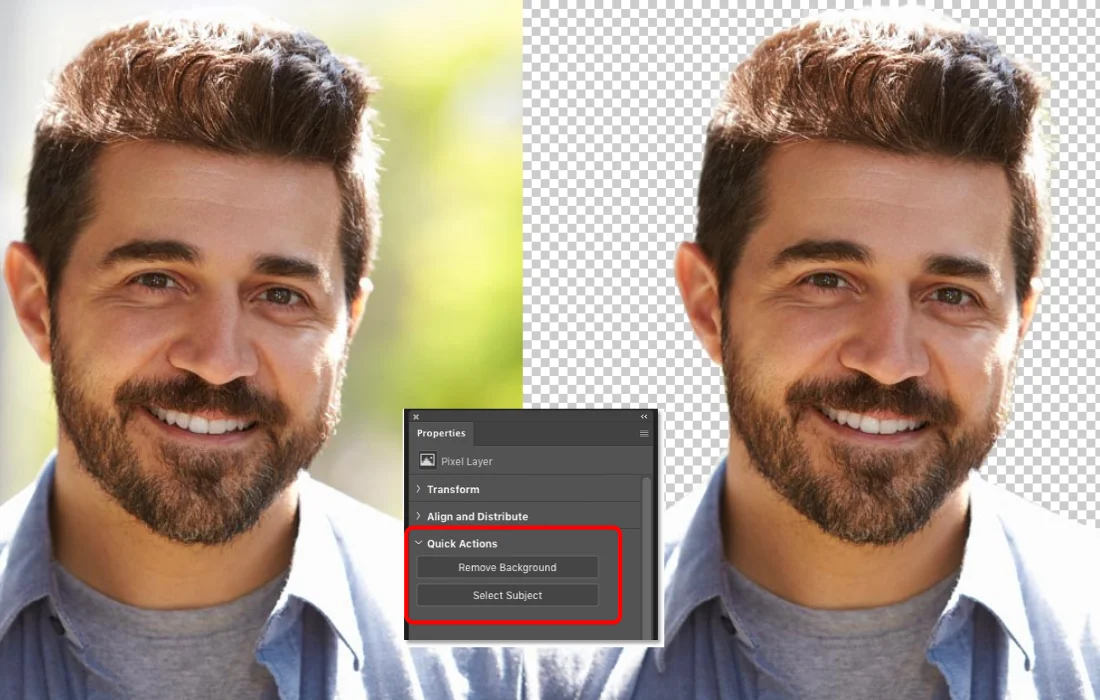
Here's the part that matters for a batch of photos, though. Having an AI step inside an Action doesn't automatically make the whole Action smart. The AI runs once, inside one fixed recording. What happens next is still scripted.
Where Photoshop Batch Actions Actually Breaks
This is where things get honest, and it comes straight from Adobe's own user community, not from a competitor's marketing page.
One Photoshop user, working on studio photos with models, tried to automate background replacement using Actions plus the AI-powered Generate Background feature. Two things went wrong. The automated version blended the subject's edges by several pixels, something that didn't happen when the same edit was done manually. It also placed the new background layer in the wrong order, above the cutout subject instead of below it, distorting the model's clothes and face.
Another user hit a different wall entirely. Trying to record an Action using Select Subject together with Select and Mask, the playback failed outright with a program error, wiping the image instead of editing it.
Neither of these is a user mistake. They're both documented on Adobe's own community forum, and they point to the same root cause: an Action replays fixed steps. When the AI tool inside that Action needs to make a judgment call, based on what's actually in that specific photo, the recording doesn't always reproduce it the same way twice.
That's not a knock on Photoshop. It's what happens when you bolt an adaptive AI tool onto a system built to replay fixed instructions.
What Actually Makes a Workflow "AI," Not Just "Has AI in It"
Here's the plainest way to think about it, no technical background needed.
Imagine a recipe card. It says: add exactly two cups of flour. You follow that instruction on Monday, and it works. On Tuesday, your eggs are bigger, your flour is a little more packed into the cup. The recipe card doesn't know that. It just tells you two cups, every time, no matter what's actually happening in the bowl.
That's a Photoshop Action. A fixed set of instructions, played back exactly the same way, on every photo, whether that photo needs it or not.
Now imagine a chef instead of a recipe card. The chef looks at the dough, notices it's a little wet today, and adjusts. Less flour this time. That's the difference. The chef reads what's actually in front of them, each time, and responds to it.
An AI workflow works like the chef. Each step, remove the background, build a new one, sharpen the image, looks at the actual photo in front of it and adjusts. Type one prompt, "marble counter," and it applies that idea across fifty different photos, each with its own lighting and shape, without you touching a single one by hand.
One AI tool inside a fixed recipe is still a recipe. A workflow where every step reads and adapts is something else entirely.
A Side-by-Side Example: Removing Backgrounds at Scale
Say you've got 40 product photos. Some are shot on white, some on wood, some with a shadow, some without.
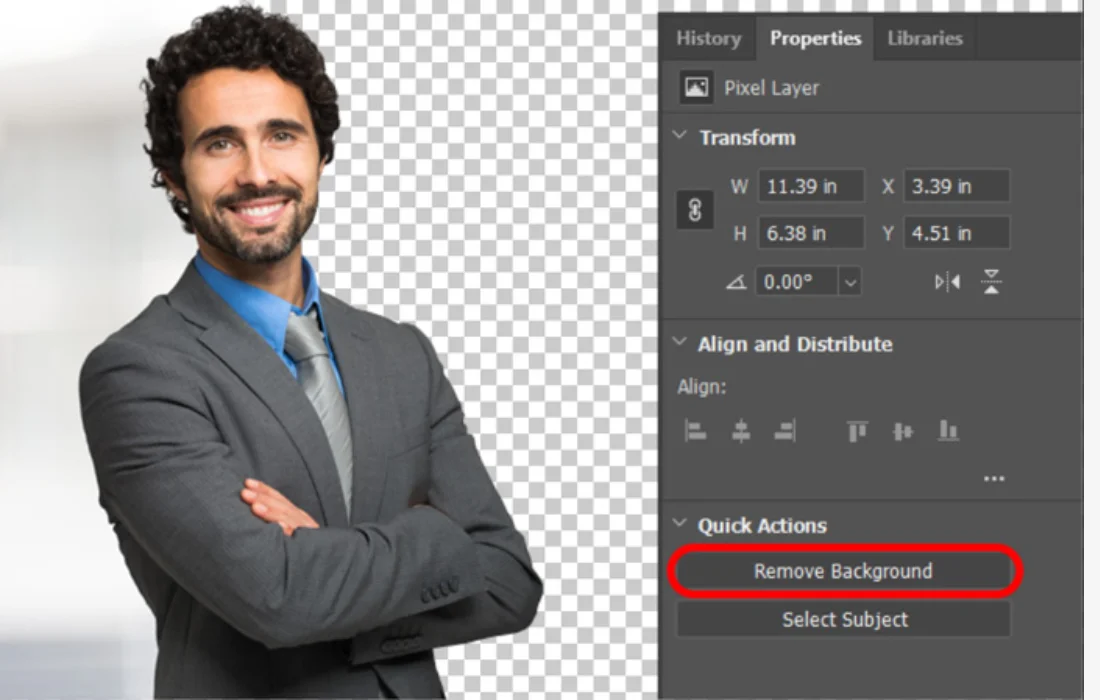
With Photoshop Actions. Record Select Subject, then a background removal step, on one photo. Run it as a batch across all 40. Some come out clean. Others, the ones with trickier edges or unusual lighting, need manual fixing afterward, exactly the kind of inconsistency reported by Photoshop's own users when automating AI steps this way.
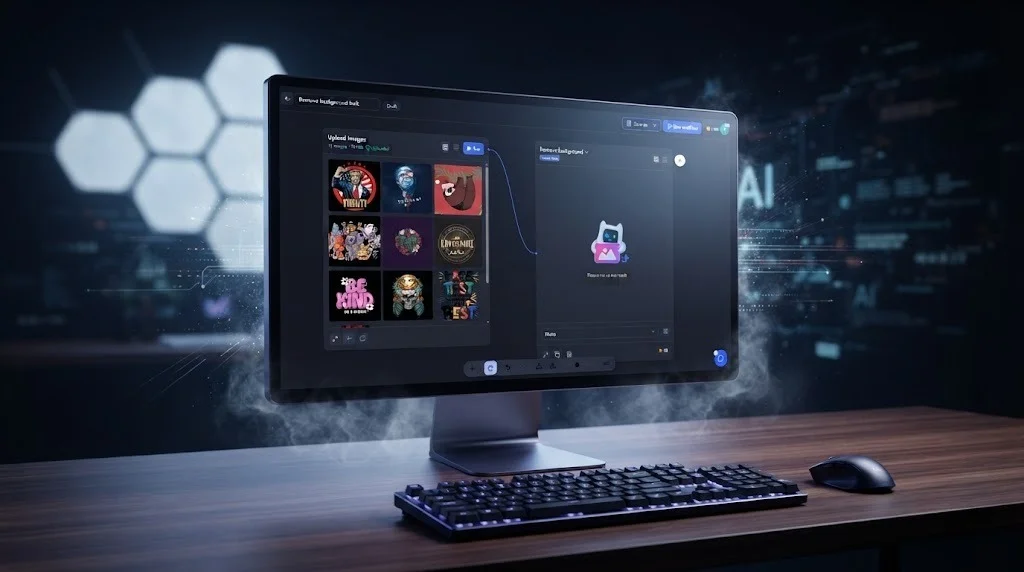
With an AI workflow. Every photo goes through background removal individually. The AI reads each photo's actual edges, whether that's a mug, a jacket, or a chair, and adapts the mask accordingly. No two photos get treated as identical just because they were dropped in the same folder.
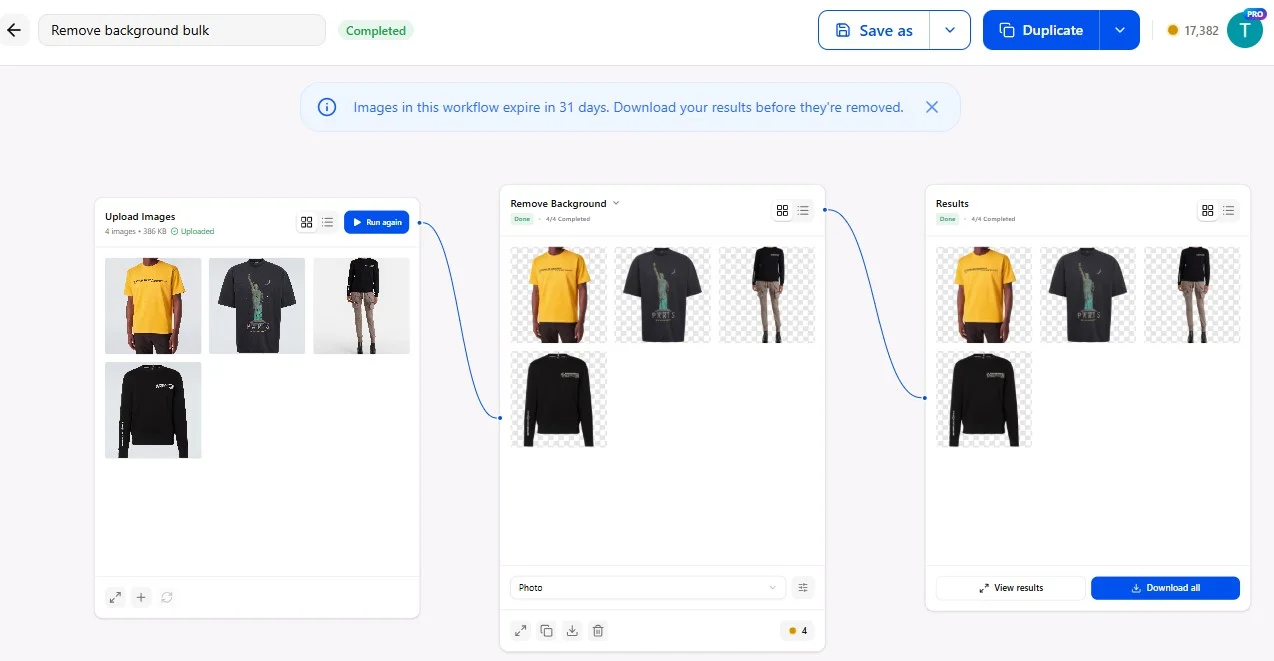
The output difference isn't huge on easy photos. It shows up on the hard ones, and a batch of 40 real product photos always has a few hard ones.
So, Which One Should You Use?
Neither one is wrong. This isn't a story about an old tool losing to a new one.
Photoshop Actions still make sense for straightforward, repeatable transform work, resize, format conversion, watermarking, especially if your team already knows Photoshop well.
An AI workflow makes more sense once your batch includes photos that genuinely vary, different subjects, different lighting, different backgrounds, and you need the tool to adjust per photo instead of hoping one recorded sequence handles all of them equally well.
If you want the deeper breakdown of how to actually automate a batch either way, see our full guide on automating batch photo editing. And if the whole concept of a "workflow" is still new to you, start with what a photo editing workflow actually means.
Frequently Asked Questions
Does Photoshop have AI in its Actions?
Yes. Select Subject and Generative Fill both use AI, and both can be recorded inside an Action, according to Adobe's own documentation.
Is an AI workflow just Photoshop with extra steps?
No. A Photoshop Action replays the same fixed steps regardless of what's in the photo. An AI workflow reads each photo and adjusts each step to match it.
Why do AI steps sometimes fail when recorded in a Photoshop Action?
Because an Action is a rigid recording. When an AI tool needs to make a judgment call based on the specific photo, that judgment doesn't always replay the same way twice, a limitation documented by real users on Adobe's own community forum.
Should I switch from Photoshop to an AI workflow tool?
Only if your batch needs it. If your photos are simple and consistent, Photoshop Actions still work fine. If your photos vary a lot, an AI workflow will save you the manual cleanup afterward.
The Bottom Line
Photoshop Actions and AI workflows aren't "old versus new." They're a fixed recording versus a system that reads and adapts, and Photoshop's own AI tools sit a little uneasily inside that fixed recording, as its own users have documented.
If your photos are consistent, Actions still get the job done. If they're not, SnapEdit Workflow was built to handle exactly that, no recipe card, no guessing which photo needs a manual fix afterward.