Batch photo editing used to mean one thing: apply the same fixed action, resize, crop, watermark, to a folder of photos. That definition is outdated. Today it means chaining AI steps, background removal, background generation, enhancement, and running that chain on every photo in a batch automatically. This guide covers three real methods, Photoshop, n8n, and SnapEdit, and helps you pick the right one
Search "how to automate batch photo editing" and most results still walk you through Photoshop's File > Automate > Batch menu. That's fine advice, for 2015.
It answers half the question. Resize and crop, sure, Photoshop Actions handle that. Remove a background from 40 different product photos, each with a different subject, different lighting, different edges? Actions can't touch that job. Neither can a fixed action of any kind, because AI-based edits need to read each photo individually, not apply one static formula to all of them.
That's the gap this guide fills.
What Does Batch Photo Editing Actually Mean Today?
Old batch editing: one recorded action, one folder of photos, the same fixed change applied to every file. Resize to 2000px. Convert to JPEG. Add a logo watermark. Every photo gets treated identically, whether that's the right call or not.
New batch editing adds a layer old tools never had: AI steps that adapt per photo. Remove background reads the actual edges of each subject. Generate background builds a new scene from a text prompt, tuned to each photo's lighting. Enhance sharpens based on what's actually blurry in that specific file, not a blanket sharpen value.
The real shift: batch editing today is a workflow, not a single action. Multiple steps, chained in order, running automatically across a whole set of photos. If you want the deeper definition of that concept, read our guide on what a photo editing workflow actually is.
Three practical ways exist to build a batch photo editing process today. One is the classic route, still useful for transform-only tasks. One needs no code at all. One needs some.
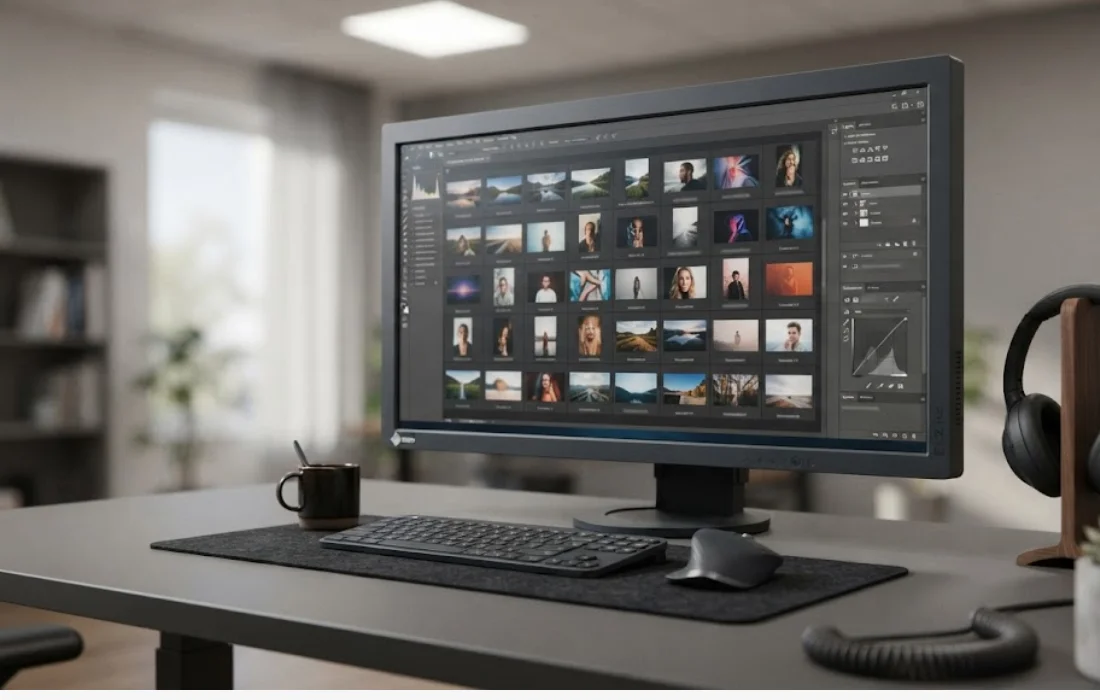
How to Automate Batch Photo Editing With Photoshop
Photoshop's Batch command is the original version of this idea, and it still works for what it was built to do: transform tasks, not AI-based edits.
Step 1: Record an Action
Open one photo. Go to Window > Actions, create a new action, hit record. Perform the edit you want repeated, resize, color correction, a watermark layer, then stop recording.
Step 2: Open the Batch Dialog
Go to File > Automate > Batch. Select the action you just recorded from the dropdown.
Step 3: Set Source and Destination
Point Source at the folder holding your original photos. Point Destination at a separate folder for the output, so your originals stay untouched.
Step 4: Run and Export
Click OK. Photoshop plays the action across every file in the source folder, one after another, saving each result to the destination folder.
This route handles resize, crop, format conversion, and watermarking well. It cannot remove a background cleanly across photos with different subjects, because an Action replays the same fixed steps regardless of what's actually in the frame. For that class of task, you need one of the two AI-based routes below.
How to Automate Batch Photo Editing With SnapEdit
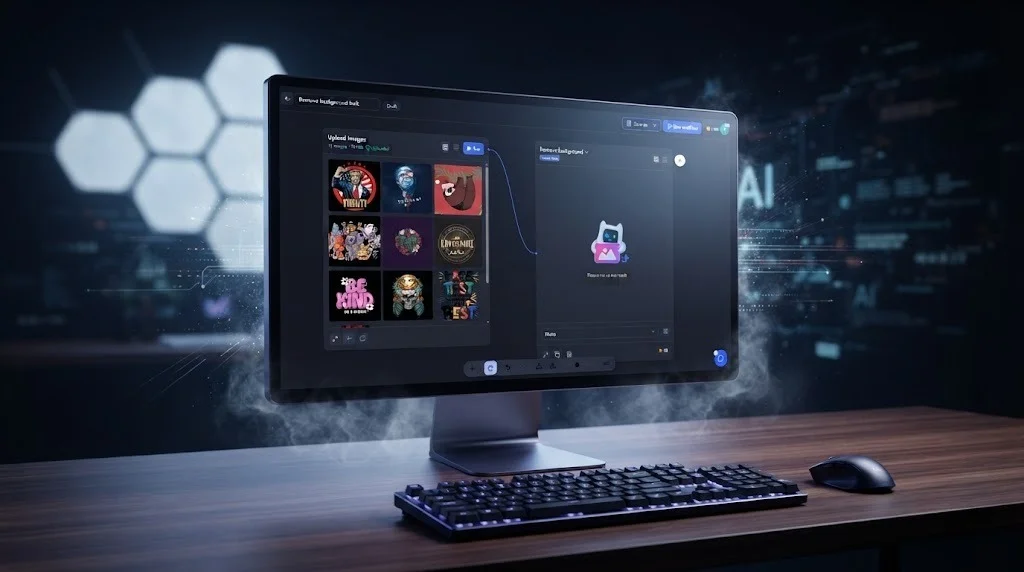
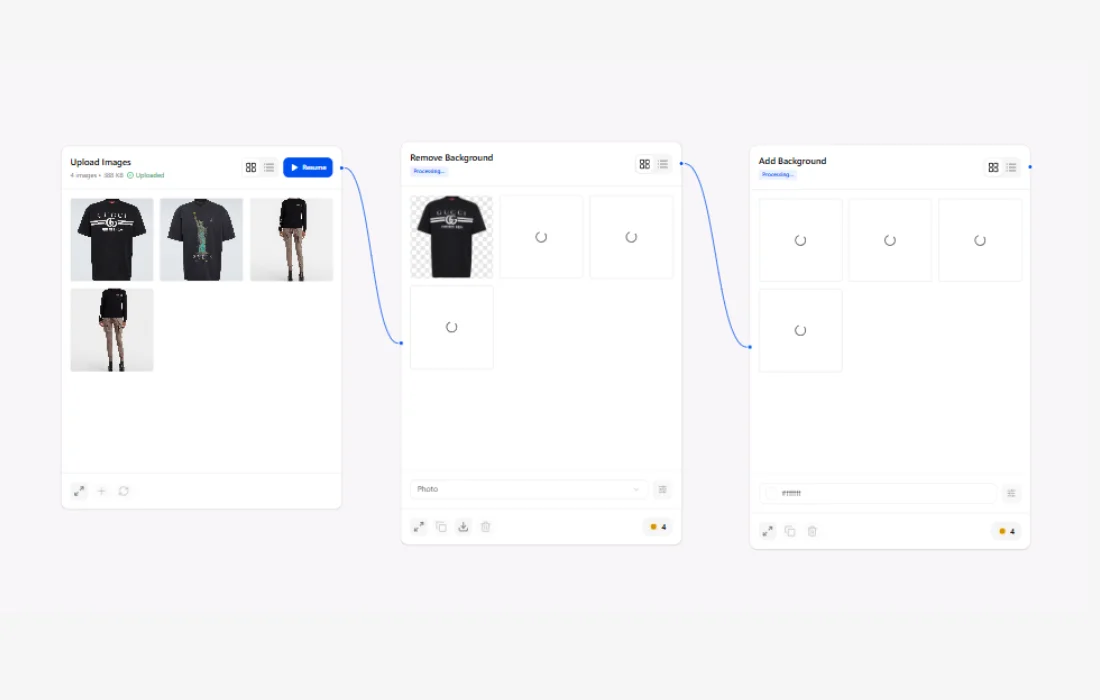
SnapEdit Workflow handles this through a visual, no-code canvas. You pick the AI steps, chain them, and run the whole thing across a batch in one pass.
Step 1: Choose Your AI Steps
Pick the tasks your batch actually needs. Common chain for product photos:
- Remove Background, 1 credit per photo
- Generate Background, type one prompt, it applies to every photo in the batch
- Enhance, sharpens and upscales each photo based on its own detail
Each step becomes a node on the canvas. Drag them into the order you want. SnapEdit has 15 AI editing service to chain nodes with 20+ templates for specific industry.
Step 2: Upload Your Batch
Drop in your photos, up to 50 at a time. JPG, PNG, and WebP all work.
Step 3: Run the Workflow
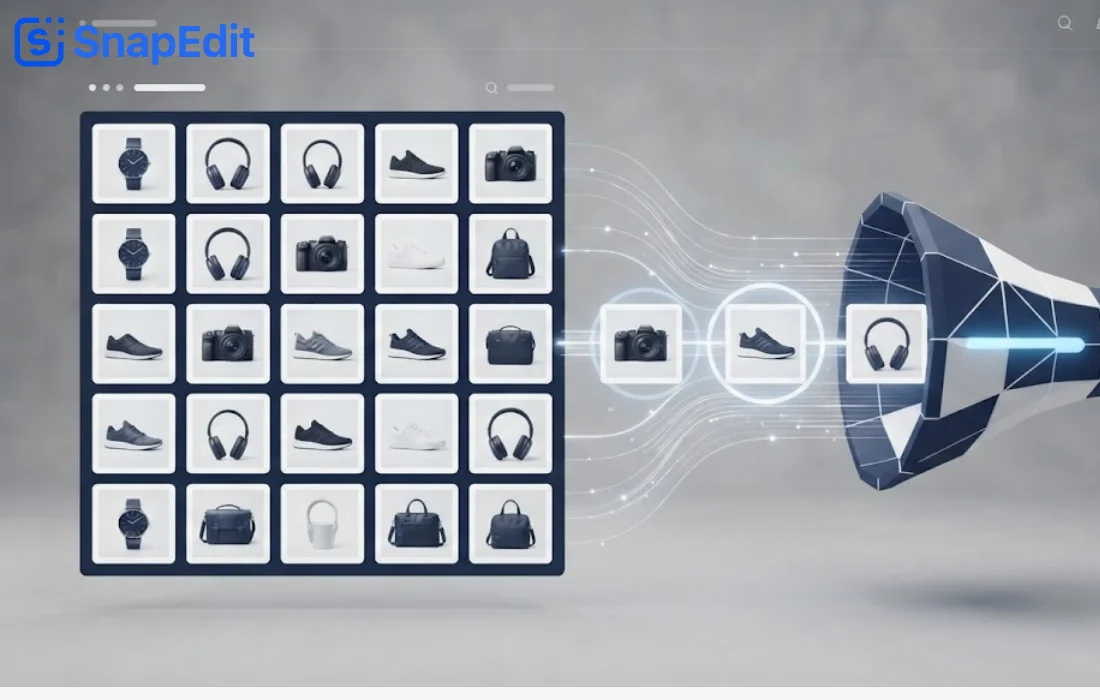
Hit run. SnapEdit processes every photo in the batch through the full chain, in sequence, without you touching a single file by hand.
Step 4: Export
Download the finished batch, or push it straight to storage.
See it in action. A print-on-demand seller runs this exact chain constantly: remove background, then enhance, across a batch of product mockups. Watch a real example of that workflow here. It's the same two-step chain most POD sellers reach for on every new product drop, background gone, image sharpened, ready to list.
Total setup time for a chain like that: a few minutes, once. After that, you reuse the same saved workflow on every new batch that comes in.
How to Automate Batch Photo Editing With n8n
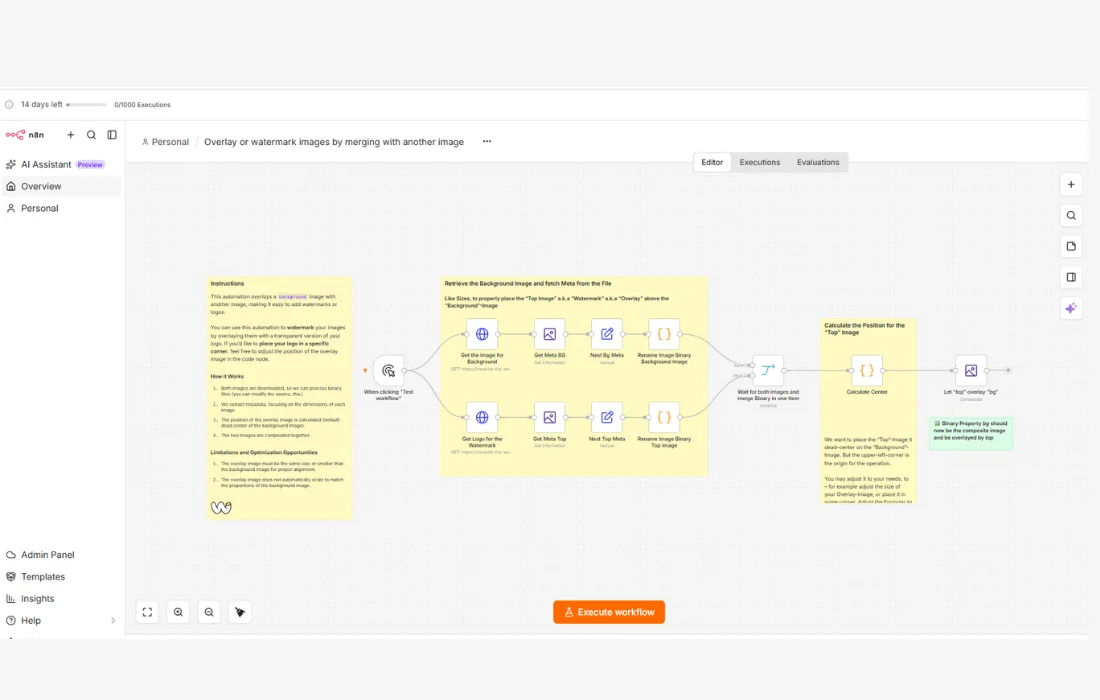
n8n takes a different route entirely: a visual automation canvas, but one built for connecting APIs, not for editing photos directly.
Step 1: Set Up a Trigger
Start with a Webhook node, or a Manual Trigger for testing. This is what kicks the workflow off, a new file landing in a folder, a form submission, a schedule.
Step 2: Add an HTTP Request Node
This node sends each photo to an image editing API, background removal, background generation, whatever the task calls for. You'll need an API key, and you'll need to format the request body correctly, usually multipart form-data or a base64-encoded image.
Step 3: Chain the Next Step
Pass the output from step 2 into another HTTP Request node for the next edit, enhancement, for example. Each node needs its own credentials and its own error handling, in case a request times out or the API returns something unexpected.
Step 4: Save the Output
Route the final result to storage, Google Drive, S3, wherever your files need to land.
This route works. It's also the reason n8n's own community forum has threads full of people asking how to get exactly this kind of image chain running without it breaking. Full flexibility, real setup cost.
SnapEdit vs Photoshop vs n8n: Which Should You Use?
| SnapEdit Workflow | Photoshop Actions | n8n + APIs | |
|---|---|---|---|
| Setup time | Minutes | Minutes, once you know Actions | Hours to days, first build |
| Coding required | None | None | Some (API requests, JSON, auth) |
| Handles AI edits | Yes, remove background, generate background, enhance, and more | No, fixed steps only | Yes, via connected APIs |
| Handles transform tasks | Yes, crop, resize, format | Yes, this is its strength | Yes, via connected APIs |
| Cost model | Pay per credit, per photo | One-time software cost | API cost per call, plus your time |
| Best for | Non-technical teams, e-commerce sellers, agencies | Photographers doing resize, crop, watermark only | Technical teams needing deep integration with internal systems |
| Maintenance | None, SnapEdit maintains the models | None, but re-record Actions when needs change | You maintain it, breaks if an API changes its response format |
Model and platform freedom is another real difference. n8n and Make let you pick whichever AI model or API you want for each step, swap providers if one gets better or cheaper, and connect the output to almost anything. SnapEdit gives you a fixed set of models, but they're built in and require no setup.
That flexibility extends past editing, into distribution. Connect an n8n workflow to Shopify, Etsy, or a CMS API, and the finished photo can publish itself straight to the platform, no manual upload step. SnapEdit's workflow stops one step earlier: you get the edited batch back as a download, then you upload it yourself.
For a POD seller running five new listings a week, that gap is minor. For a team pushing hundreds of SKUs across multiple marketplaces daily, auto-publish is the difference between a finished pipeline and one that still needs a human at the last step.
Neither option is wrong. They solve different problems.
Pick Photoshop if the job is purely transform work, resize, crop, watermark, and you're already inside the Adobe ecosystem for other reasons.
Pick n8n if your batch photo editing needs to plug into a larger internal system already built in n8n, a CRM trigger, a database update, a Slack notification chain. The image editing is one link in a longer automation you already own.
Pick SnapEdit if the job is the photos themselves and includes AI-based edits. You need a batch processed, consistently, without hiring a developer or maintaining API code six months from now when something breaks at 2am. And of course, you need to save costs on AI image editing.
Most people asking "how to automate batch photo editing" fall into that last group. They don't want to build infrastructure. They want their photos done.
One more difference worth knowing: how "automatic" automatic really is. Photoshop and SnapEdit both need you to hit run, or upload a batch, each time. n8n can go a step further with a watch-folder or scheduled trigger, so a new photo landing in a folder kicks off the whole chain with nobody touching anything. That's a real advantage for teams processing photos on a constant, unattended schedule, and it's one of the few places n8n's extra setup cost genuinely pays for itself.
What Tasks Can You Actually Batch-Automate?
| Task type | Examples | Old tools | New tools |
|---|---|---|---|
| Transform | Resize, convert format, watermark, crop | Photoshop Actions, BatchPhoto | Still handled the same way, plus AI crop that keeps the subject centered |
| File output | Batch renaming, consistent file naming on export | Photoshop's File Naming settings in the Batch dialog | Most no-code and automation tools include this as a default export option |
| AI-powered edits | Remove background, generate background, virtual try-on, enhance | Not possible with fixed actions | SnapEdit Workflow, or n8n plus an API |
The transform tasks haven't changed much in a decade. The AI tasks are the new part, and they're the reason "batch photo editing" needs a wider definition than it had five years ago.
Frequently Asked Questions
Is batch photo editing different from using Photoshop Actions?
Yes. Photoshop Actions replay one fixed set of adjustments on every photo, regardless of content. AI-powered batch editing reads each photo individually and adapts the edit, background removal, background generation, enhancement, to what's actually in that specific frame.
Do I need to know how to code to automate batch photo editing?
Only if you build the automation in n8n or call an API directly. No-code tools like SnapEdit Workflow skip that step entirely.
How many photos can I batch process at once?
Up to 50 photos per batch in SnapEdit. n8n has no hard limit, but larger batches mean more API calls, more cost, and more chances for something to fail mid-run.
Will AI batch editing produce consistent results across different photos?
Yes, because AI reads each photo's actual content rather than applying one static formula. A product photo with a busy background and one with a plain background both come out clean, since the AI adapts per image instead of guessing blindly.
Is Photoshop still worth using for batch photo editing?
Yes, if the job is purely resize, crop, format conversion, or watermarking. Photoshop Actions handle that reliably and you may already own the software. It's the wrong tool once the job needs AI to read each photo individually, background removal being the clearest example.
The Bottom Line
Batch photo editing outgrew the resize-and-crop definition a while ago. If your batch still only needs those transform tasks, the old tools still work fine.
If your batch needs AI to actually understand what's in each photo, remove a background cleanly, build a new scene, sharpen what's actually blurry, you need a workflow, not a single action.
SnapEdit Workflow builds that chain without code. Set it up once, run it on every batch after.