
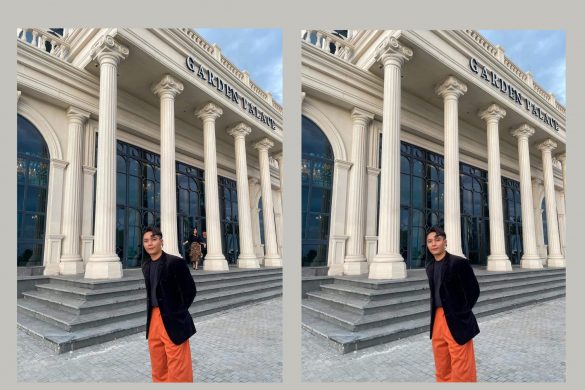
Samsung Object Eraser handles simple, isolated objects well: power lines against the sky, a parked truck, a logo on a plain wall. It struggles when the object touches the main subject, sits in a crowd, or overlaps water or hair. In those cases it leaves a rough patch that shows exactly where something used to be. In our test of 8 real photos, SnapEdit rebuilt the background more naturally in 7 cases and tied Samsung in 1.
Disclosure: SnapEdit publishes this article. We ran every photo through both tools ourselves and show the masks and results side by side, including the spots where SnapEdit still leaves a visible trace.
What Can Samsung Object Eraser Do (and Where Does It Fall Short)?
Samsung Object Eraser is a free AI object removal tool built into the photo editor of the Samsung Gallery app on Galaxy phones and tablets. Samsung introduced Object Eraser with the Galaxy S21 series in January 2021, then brought it to older Galaxy models such as the Galaxy S10, Galaxy Note10, and Galaxy A52 through Photo Editor updates.
Samsung Object Eraser removes unwanted people and objects from a photo: you tap or circle the area, and the phone's on-device AI fills the gap with pixels predicted from the surrounding background. Since the Galaxy S22 launch in 2022, Object Eraser also includes separate Shadow Eraser and Reflection Eraser modes.
What Is the Difference Between Samsung Object Eraser and Galaxy AI Generative Edit?
Samsung Galaxy phones offer two object removal tools in the Gallery app: Object Eraser and Generative Edit. Samsung Object Eraser processes every edit on the phone's neural processing unit (NPU), so it works offline and the photo never leaves the device.
Galaxy AI Generative Edit debuted with the Galaxy S24 series in January 2024 and processes part of each edit on Samsung's cloud servers, which allows it to remove, move, and resize objects and extend the edges of a photo.
| Feature | Samsung Object Eraser | Galaxy AI Generative Edit |
|---|---|---|
| Processing location | On-device NPU, works offline | Partly on Samsung's cloud servers |
| Internet and Samsung Account | Not required | Required |
| Editing functions | Remove people, objects, shadows, reflections | Remove, move, and resize objects, extend the frame |
| Saved photo | Original resolution, no AI watermark | Resized to a maximum of 12MP, with a visible AI watermark |
| Price | Free | Free (basic Galaxy AI feature) |
| Supported phones | Galaxy phones on One UI 3.1 or later with enough NPU power | Galaxy AI phones, starting with the Galaxy S24 series (not available on the Galaxy A25 5G) |
The difference in output matters for photos you plan to print, sell with, or post without an AI label. According to Samsung's Generative Edit guide, Generative Edit resizes every saved photo to 12MP or smaller and adds a visible watermark that marks the image as AI-generated. Price does not separate the two tools: Samsung confirmed in early 2026 that basic Galaxy AI features stay free, and Object Eraser has always been free.
Which Samsung Galaxy Phones Support Object Eraser?
Samsung Object Eraser requires One UI 3.1 or later and a Galaxy phone with enough on-device AI processing power. Galaxy S series phones from the Galaxy S10 onward, Galaxy Note10 and later, and many mid-range Galaxy A models, including the Galaxy A52 and the Galaxy A25 5G we tested, include Object Eraser in the Gallery photo editor. Because Object Eraser runs on the phone's NPU, some lower-end Galaxy models never received it, and Galaxy A51 owners, for example, have reported that the option never appeared.
To check whether your Galaxy phone has Object Eraser, open a photo in the Samsung Gallery app, tap the pencil (Edit) icon, and look for Object eraser in the editing tools or the three-dot menu.
Samsung Object Eraser is exclusive to the Samsung Gallery app, so iPhone, Google Pixel, and other Android phones cannot use it. On those devices, SnapEdit Remove Object offers the same tap-to-remove workflow in a mobile app or a web browser.
Why Does Samsung Object Eraser Leave a Blur or Smudge?
Samsung Object Eraser fills the removed area by predicting new pixels from the surrounding background, using an AI model that runs on the phone's NPU instead of a cloud server. On uniform backgrounds such as a clear sky or a plain wall, the predicted pixels match the surroundings, so the edit is hard to spot. On complex backgrounds such as a crowded street, ocean waves, or flyaway hair, the on-device model cannot reconstruct the missing texture in detail, so the filled area looks blurry, flat, or smeared, and the outline of the removed object often stays visible.
These five habits reduce Object Eraser smudges on a Galaxy phone:
- Select an area slightly larger than the object. Include the object's outline and cast shadow, so Object Eraser blends the edge with clean background pixels.
- Remove people in a crowd one at a time. A smaller selection gives Object Eraser fewer pixels to predict in a single pass.
- Zoom into the photo before selecting. At normal size, your finger hides the object's edge. Galaxy S Ultra owners can use the S Pen for a more precise outline.
- Run a second Object Eraser pass on the leftover ghost. Select only the remaining blur and erase again.
- Switch to Generative Edit for complex backgrounds on Galaxy AI phones, keeping in mind the 12MP size limit and the AI watermark.
Samsung Object Eraser Not Working? 5 Quick Fixes
- Update the Samsung Gallery and Photo Editor apps from the Galaxy Store. Samsung delivers Object Eraser updates through these two apps, separately from One UI system updates.
- Open Object Eraser from the pencil (Edit) icon, not the Galaxy AI icon. On Galaxy AI phones, the Galaxy AI icon opens Generative Edit, which can fill the selected area with a new object instead of removing it.
- Enable Object Eraser in Photo Editor Labs on older One UI versions. In Photo Editor, open the three-dot menu, tap Labs, and turn on Object eraser, Shadow eraser, and Reflection eraser.
- Restart the phone and redo the edit with a smaller selection. Galaxy S24 Ultra owners reported in 2024 that Object Eraser selected the wrong area or did nothing after an update, and a fresh, smaller selection is the quickest workaround.
- Confirm that your Galaxy model supports Object Eraser. If the option never appears on One UI 3.1 or later, your phone's hardware likely does not support it.
Samsung vs SnapEdit: We Tested Both on 8 Real Photos
How We Tested Samsung Object Eraser and SnapEdit
- Samsung: Object Eraser in the Samsung Gallery photo editor on a Galaxy A25 5G running Android 16 and One UI 8.0. The Galaxy A25 5G does not support Galaxy AI Generative Edit, so this test compares Object Eraser only, the removal tool most mid-range Galaxy owners actually have.
- SnapEdit: Remove Object with the Normal model in [the SnapEdit app / snapedit.app], version [x.x]. We did not use Super Erase, SnapEdit's stronger model for difficult removals.
- Same 8 photos for both tools, covering the cases people struggle with most.
- One pass first. If leftovers remained, we added a manual brush pass and noted it.
- Judged at 100% zoom on four points: how natural the rebuilt background looks, leftover traces, edges around the main subject, and extra steps needed.
Samsung Object Eraser vs SnapEdit: Results on 8 Photos
Each case shows the original photo, then the mask and result from each tool. A zoomed crop of the edited area follows, because the differences are easiest to see up close.
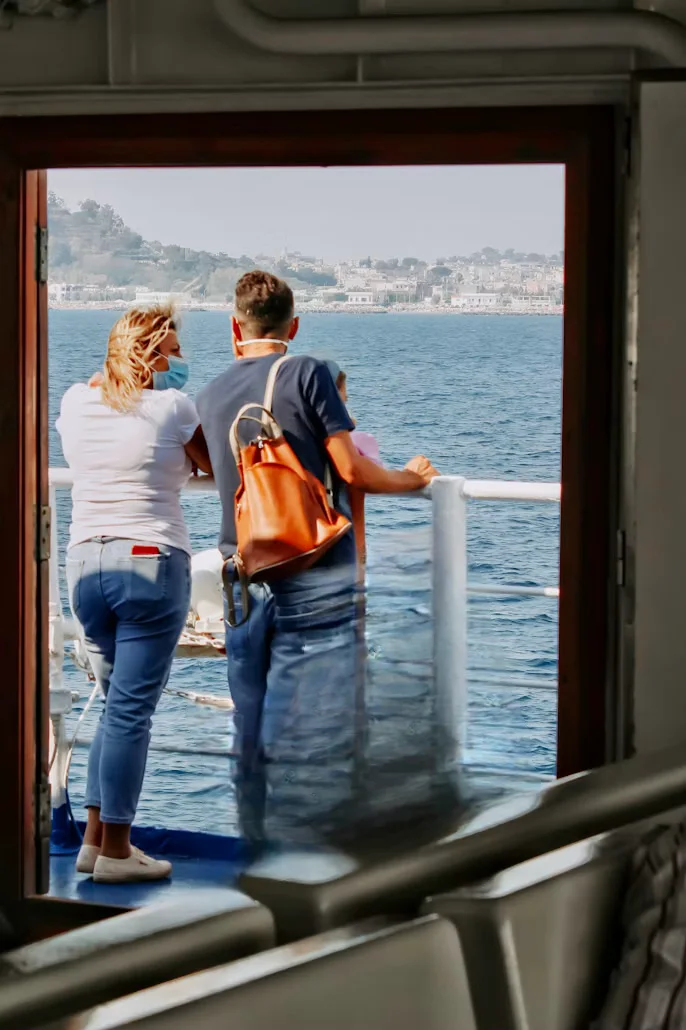
Case 1: A person standing close to the main subject
The goal was to remove a background person standing right next to the main subject.
Original Image

| Mask | Result | |
|---|---|---|
| Samsung Object Eraser | 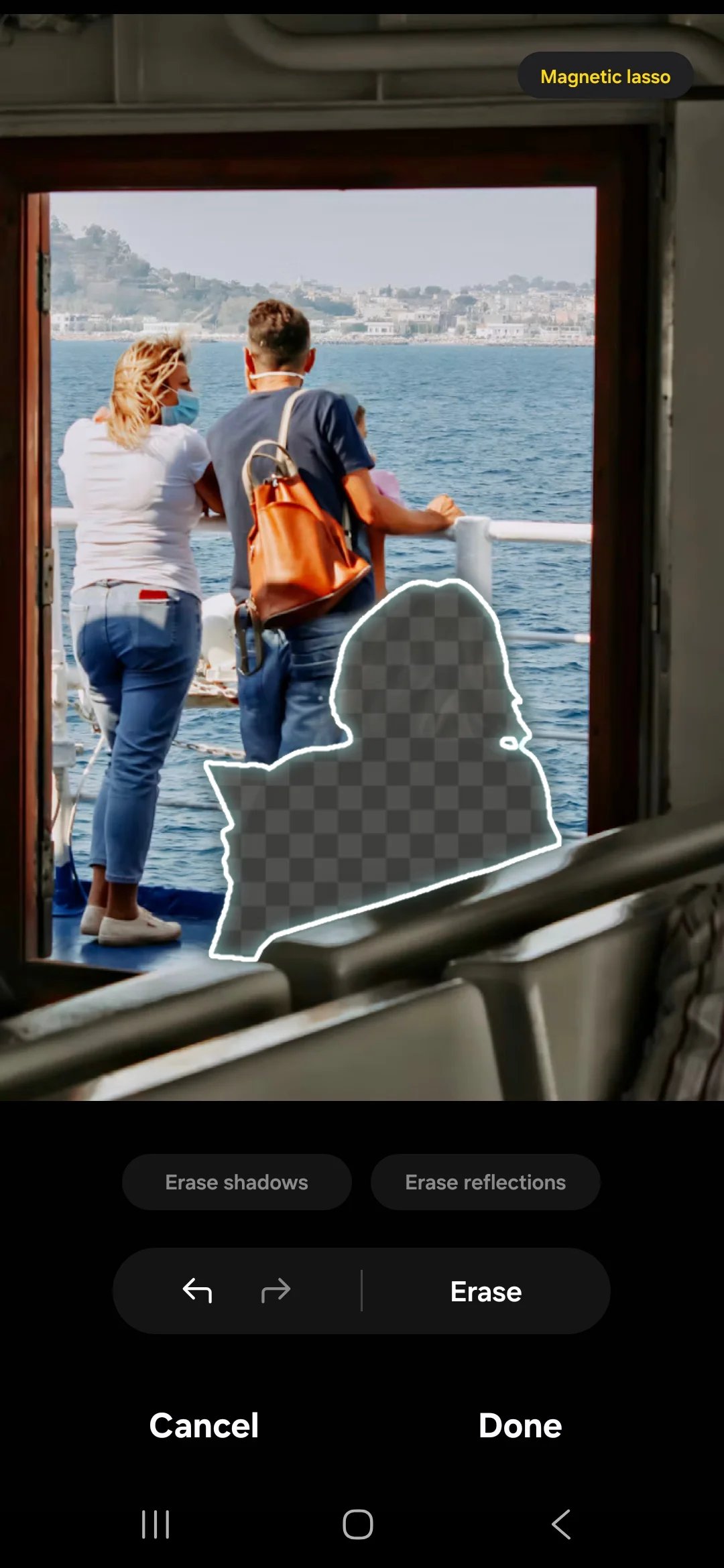 |
 |
| SnapEdit (Normal model) | 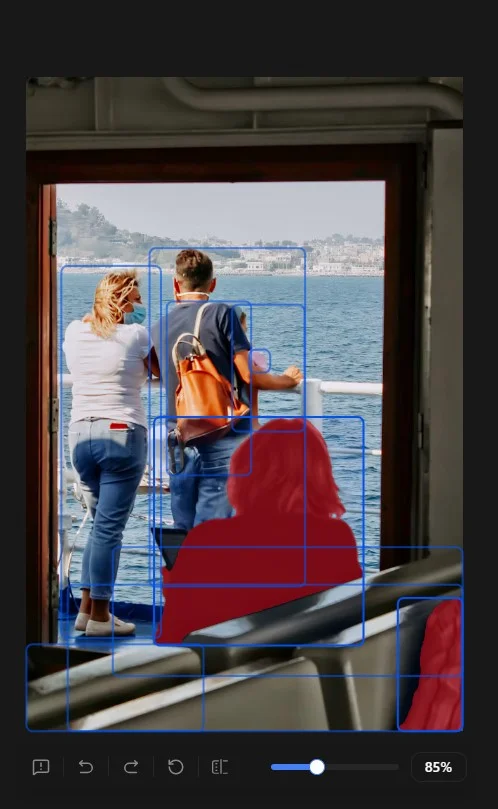 |
 |
Winner: SnapEdit. Samsung removed the person but left a rough patch where the background shows through clearly. SnapEdit redrew the background behind the person cleanly.
Case 2: A busy travel street with many people
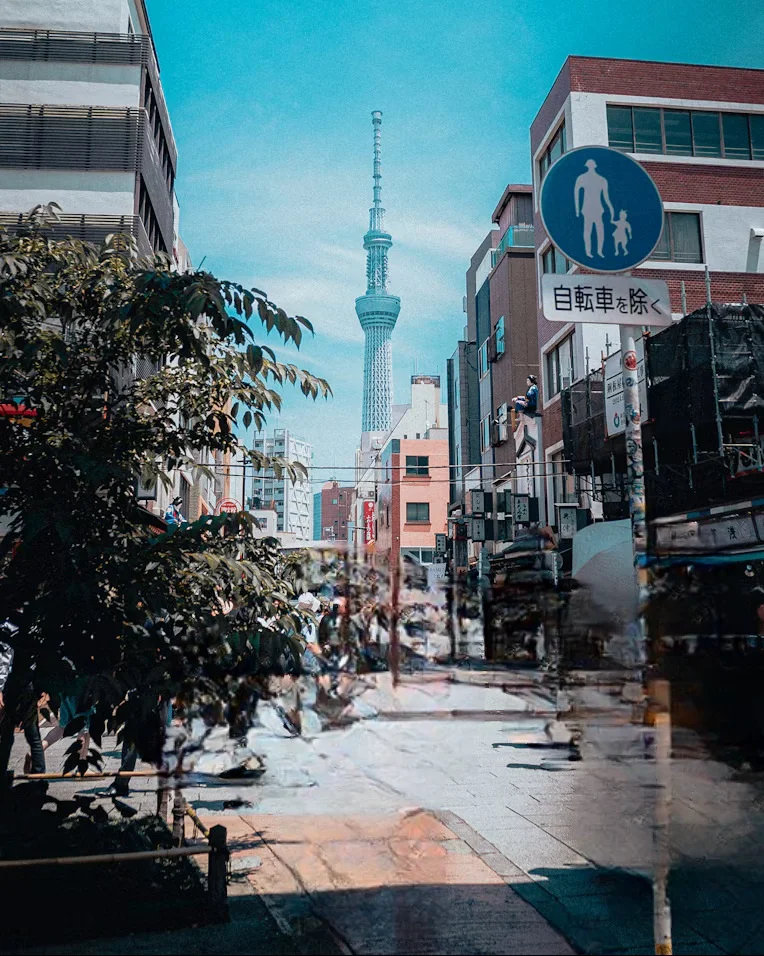
The goal was to clear the people walking along the street behind the subject.
Original Image

| Mask | Result | |
|---|---|---|
| Samsung Object Eraser | 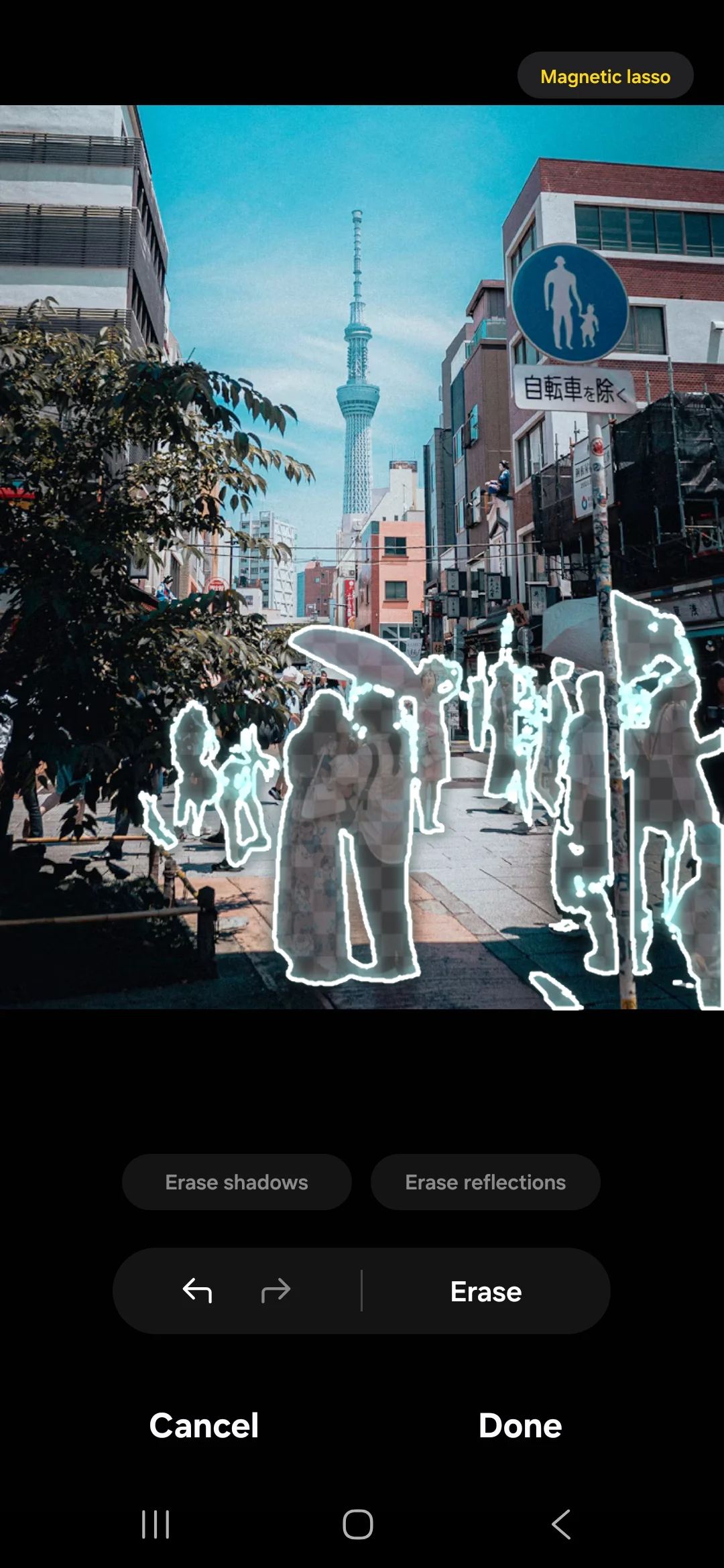 |
 |
| SnapEdit (Normal model) | 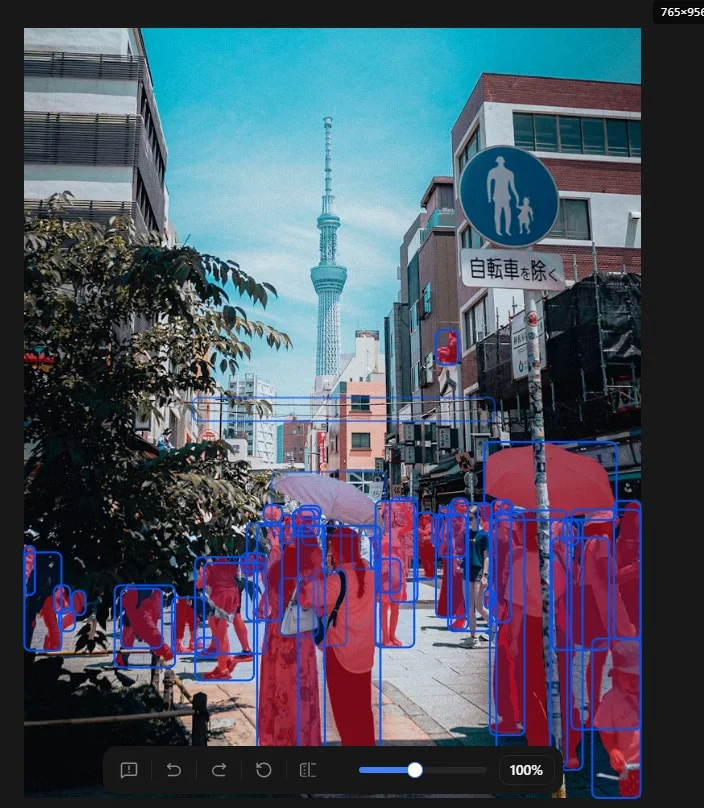 |
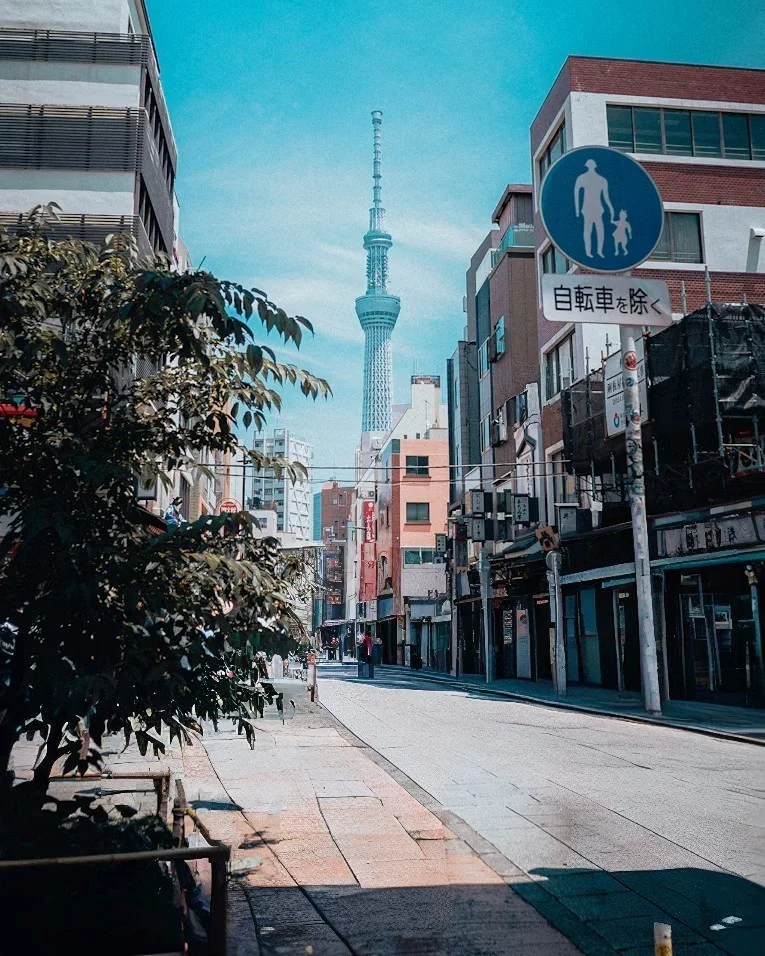 |
Winner: SnapEdit, with one extra brush pass. On Samsung, we had to circle each person by hand, and the rebuilt street looked unnatural. SnapEdit's auto-detection selected the people on its own. A few small details stayed after the first pass because the people overlapped, so we cleaned them up with the manual brush.
Case 3: A large truck
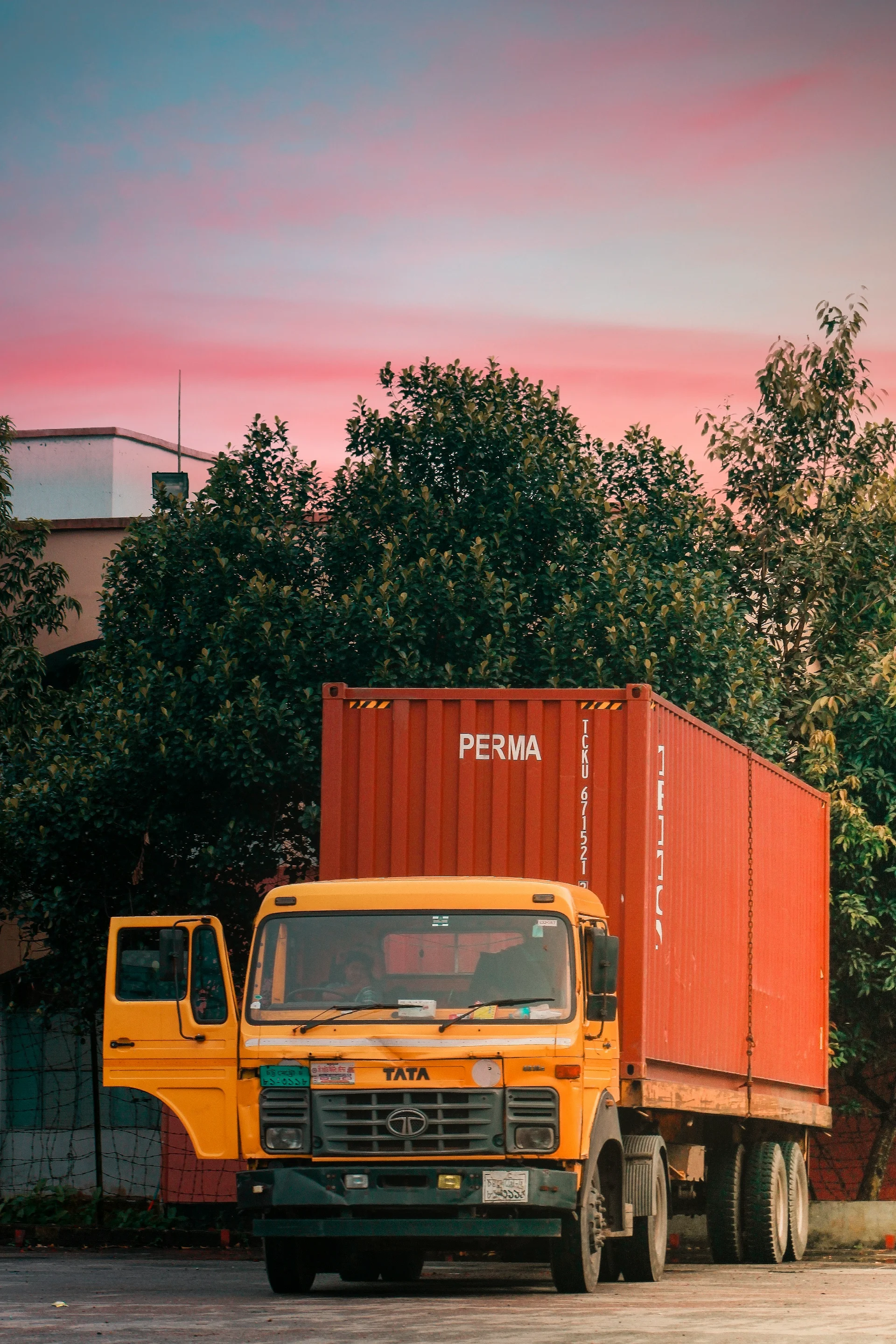
The goal was to remove a large truck from the scene.
Original Image
| Mask | Result | |
|---|---|---|
| Samsung Object Eraser | 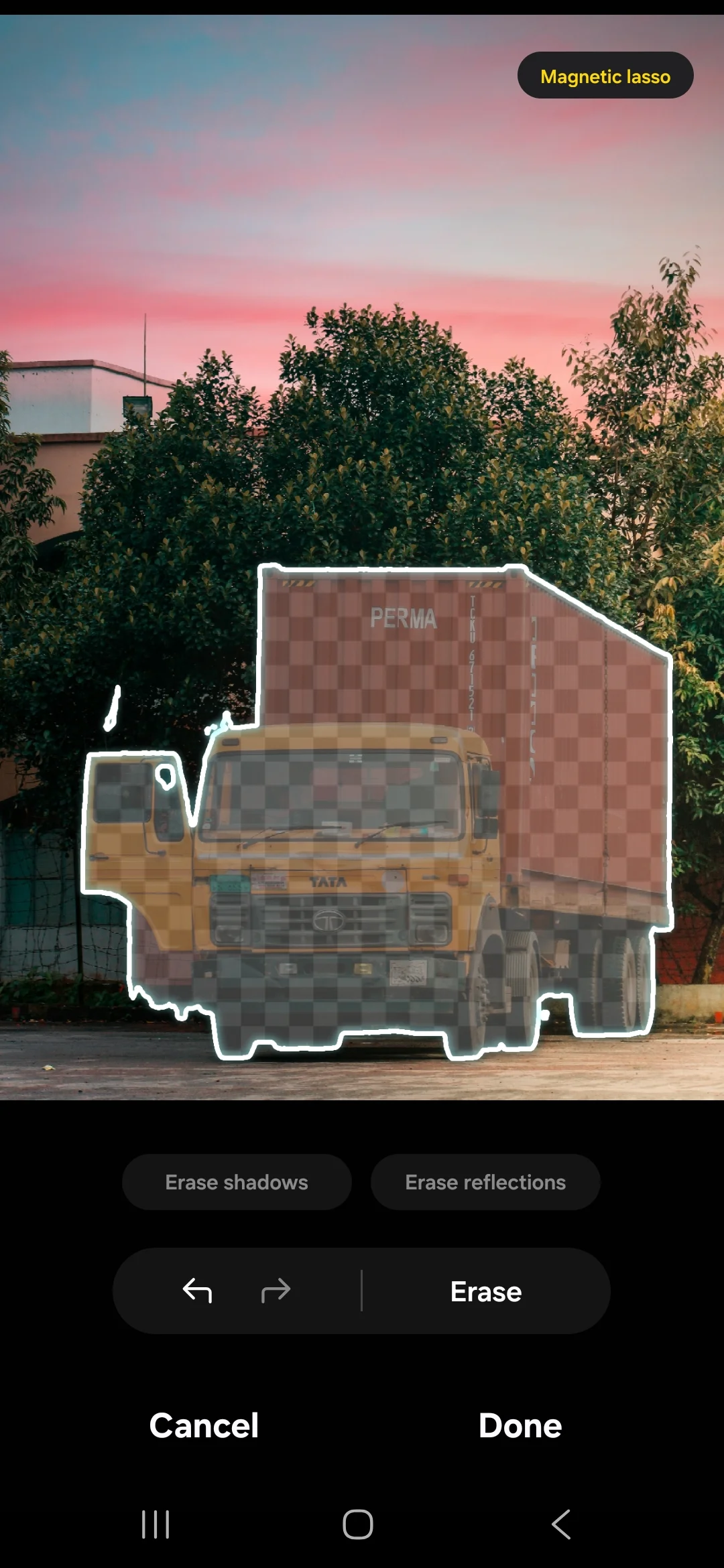 |
 |
| SnapEdit (Normal model) | 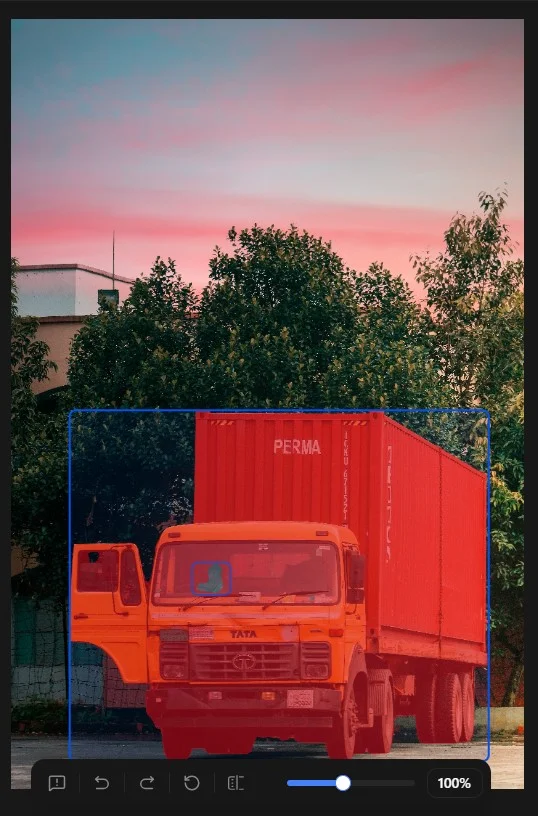 |
 |
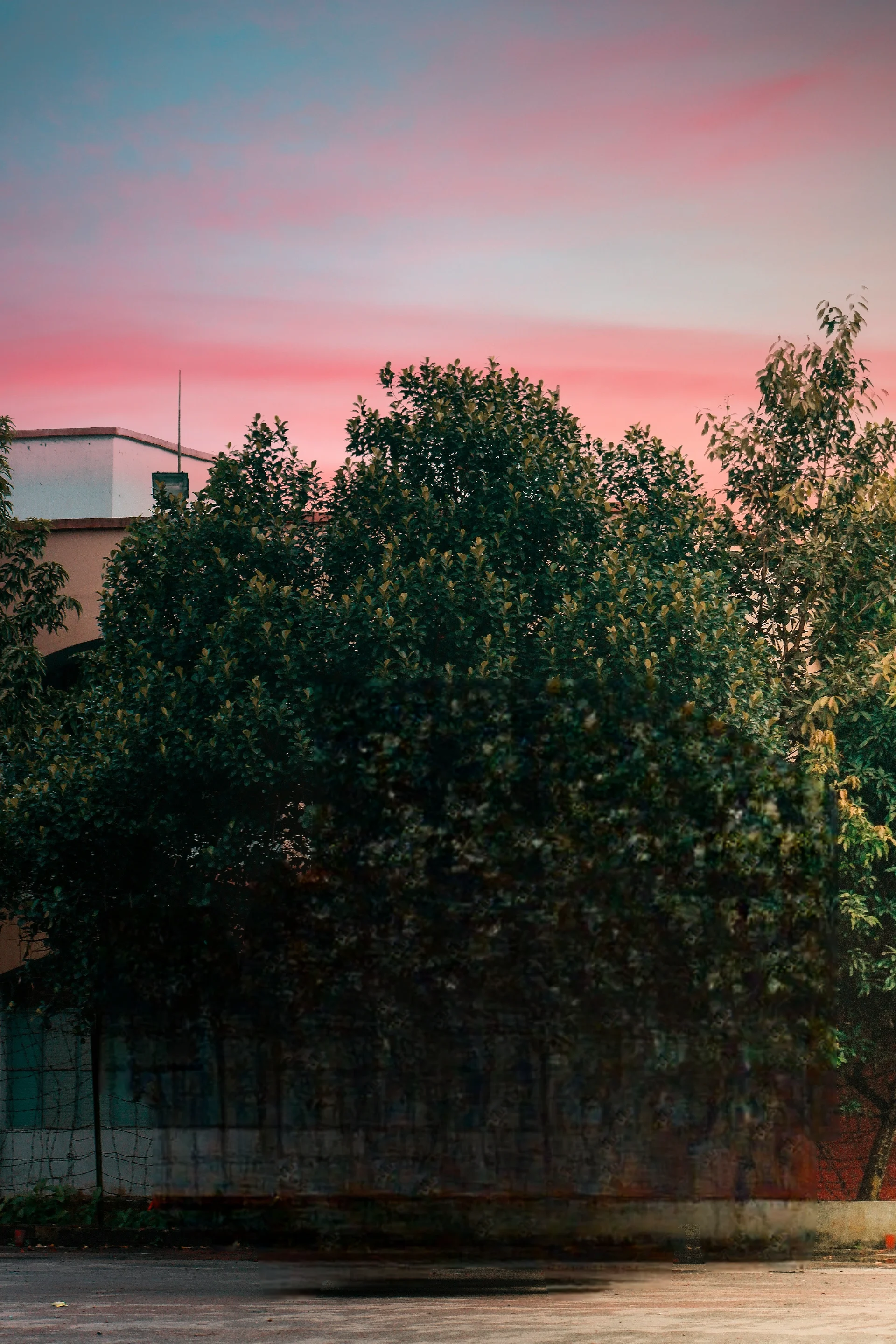
Winner: SnapEdit, by a small margin. Both tools removed the truck. SnapEdit's rebuilt background looked more natural.
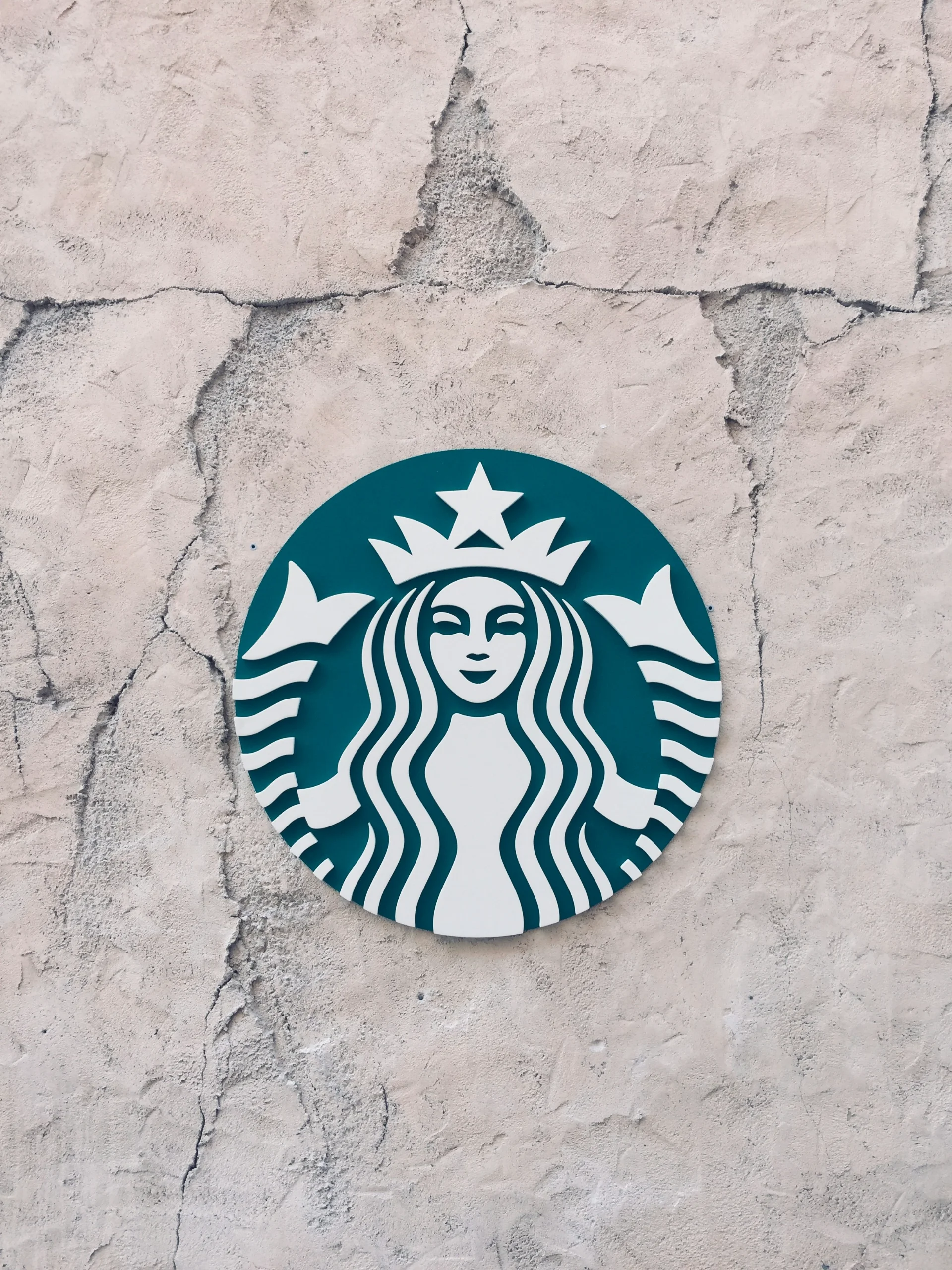
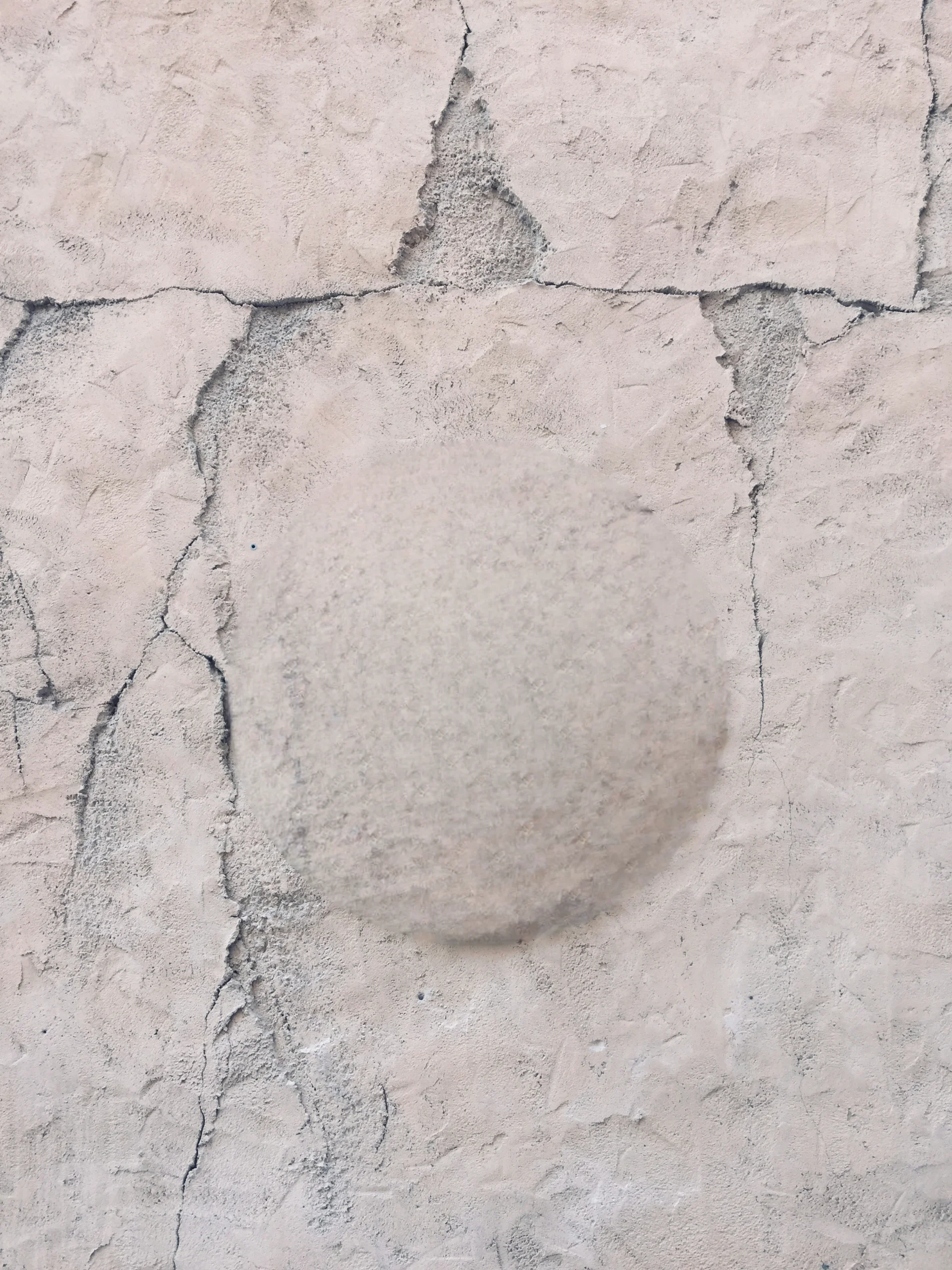
Case 4: A logo on a wall
The goal was to remove a logo mounted on a wall.
Original Image
| Mask | Result | |
|---|---|---|
| Samsung Object Eraser | 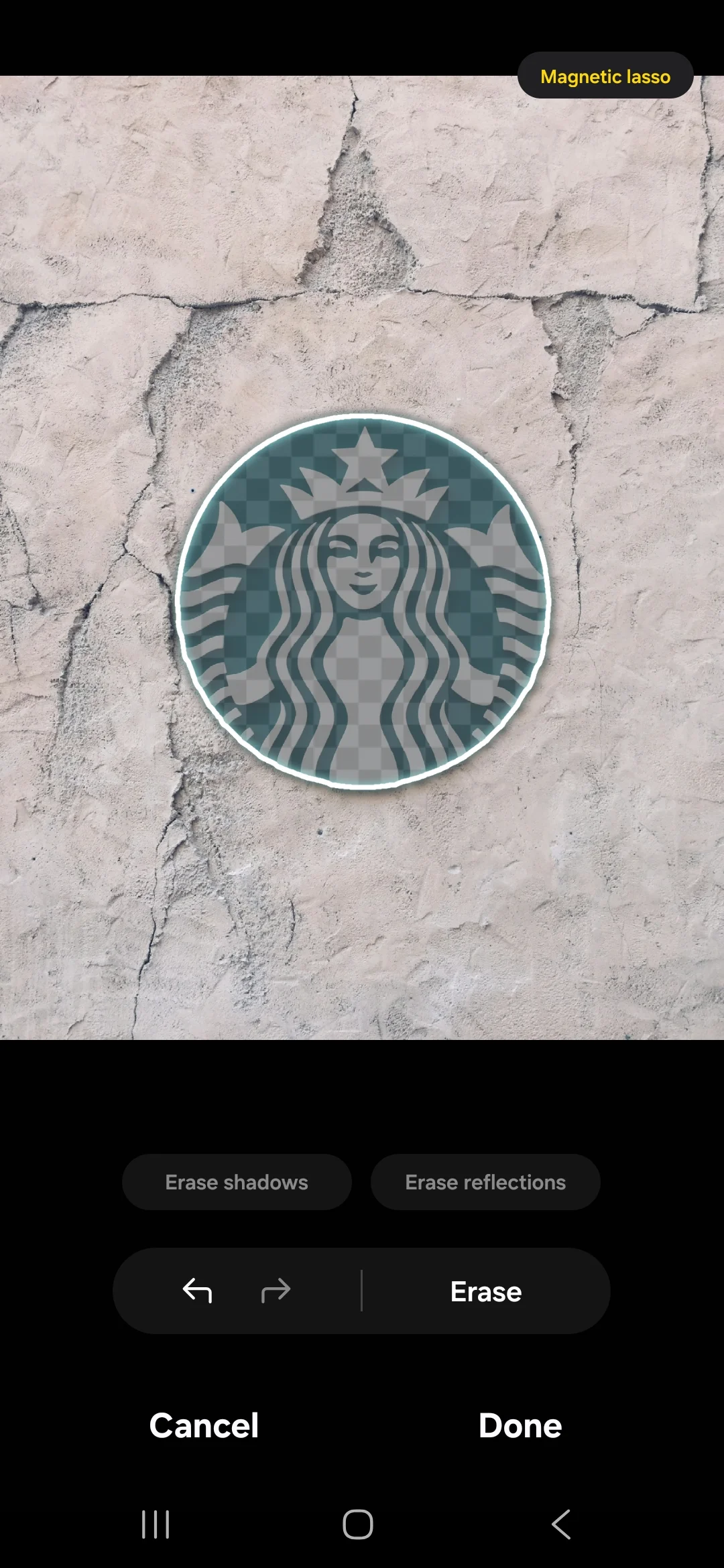 |
 |
| SnapEdit (Normal model) | 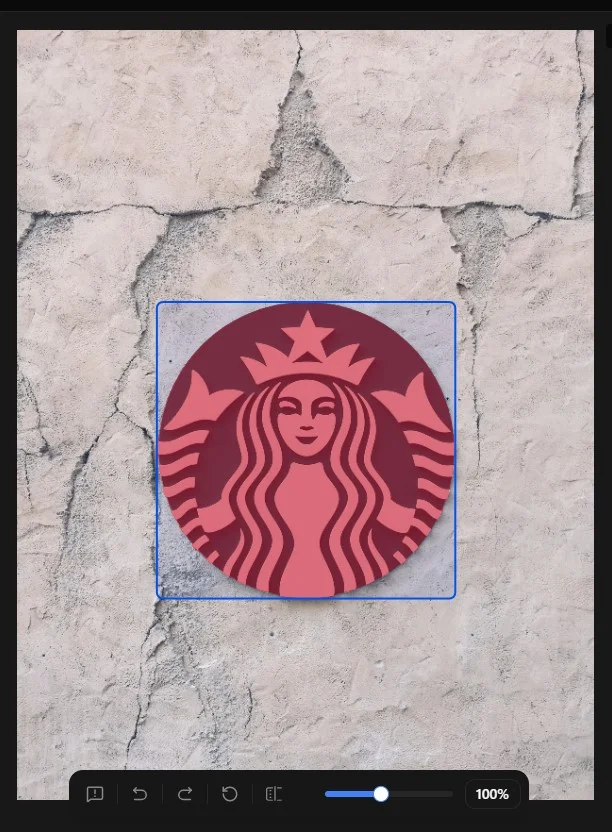 |
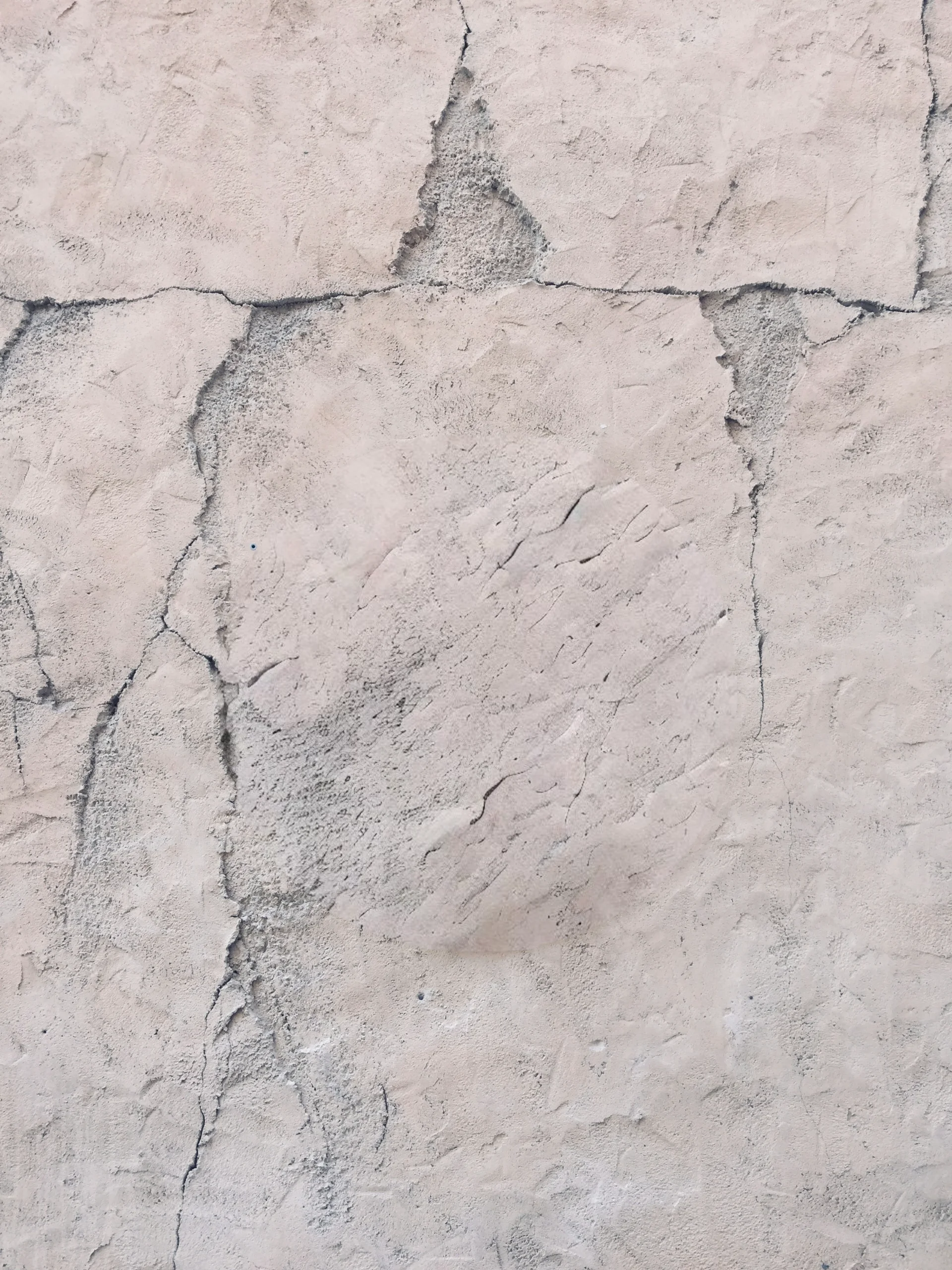 |
Winner: SnapEdit, by a small margin. Both tools removed the logo. SnapEdit rebuilt the wall texture more naturally. For text and watermarks spread across a photo, SnapEdit's Remove Text tool detects the text for you, so you don't have to paint over each letter.
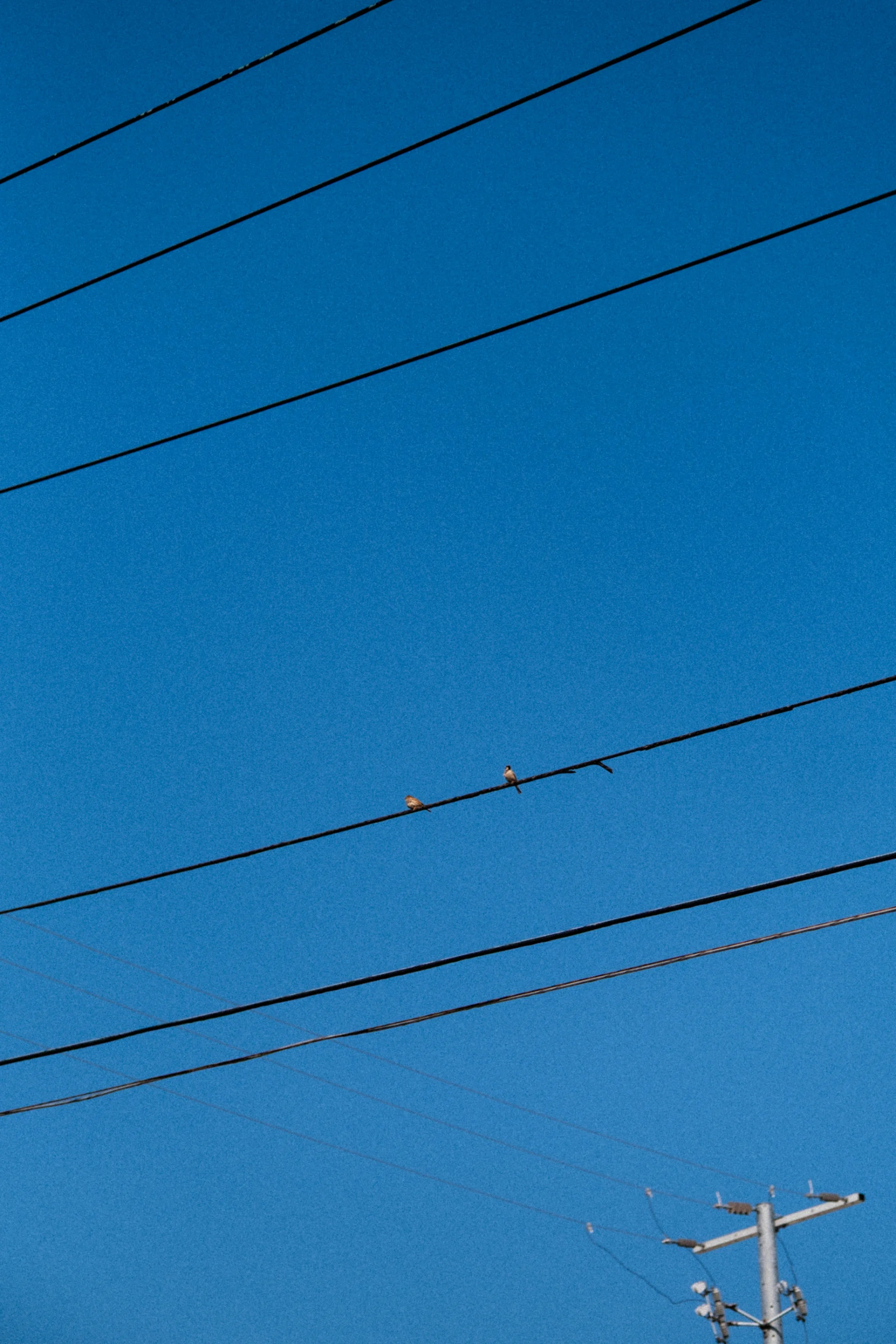
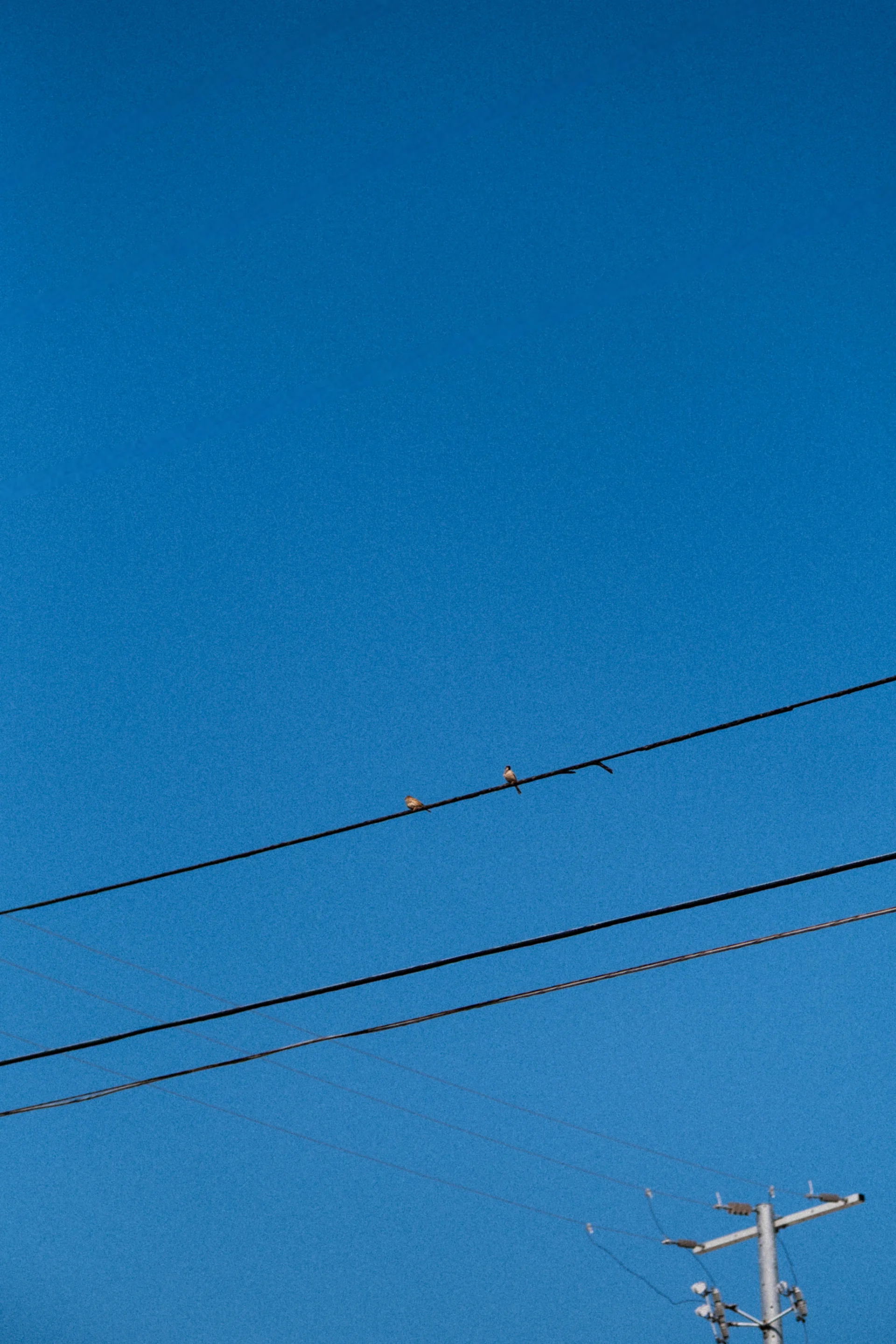
Case 5: Power lines across the sky
The goal was to remove power lines running across the sky.
Original Image
| Mask | Result | |
|---|---|---|
| Samsung Object Eraser | 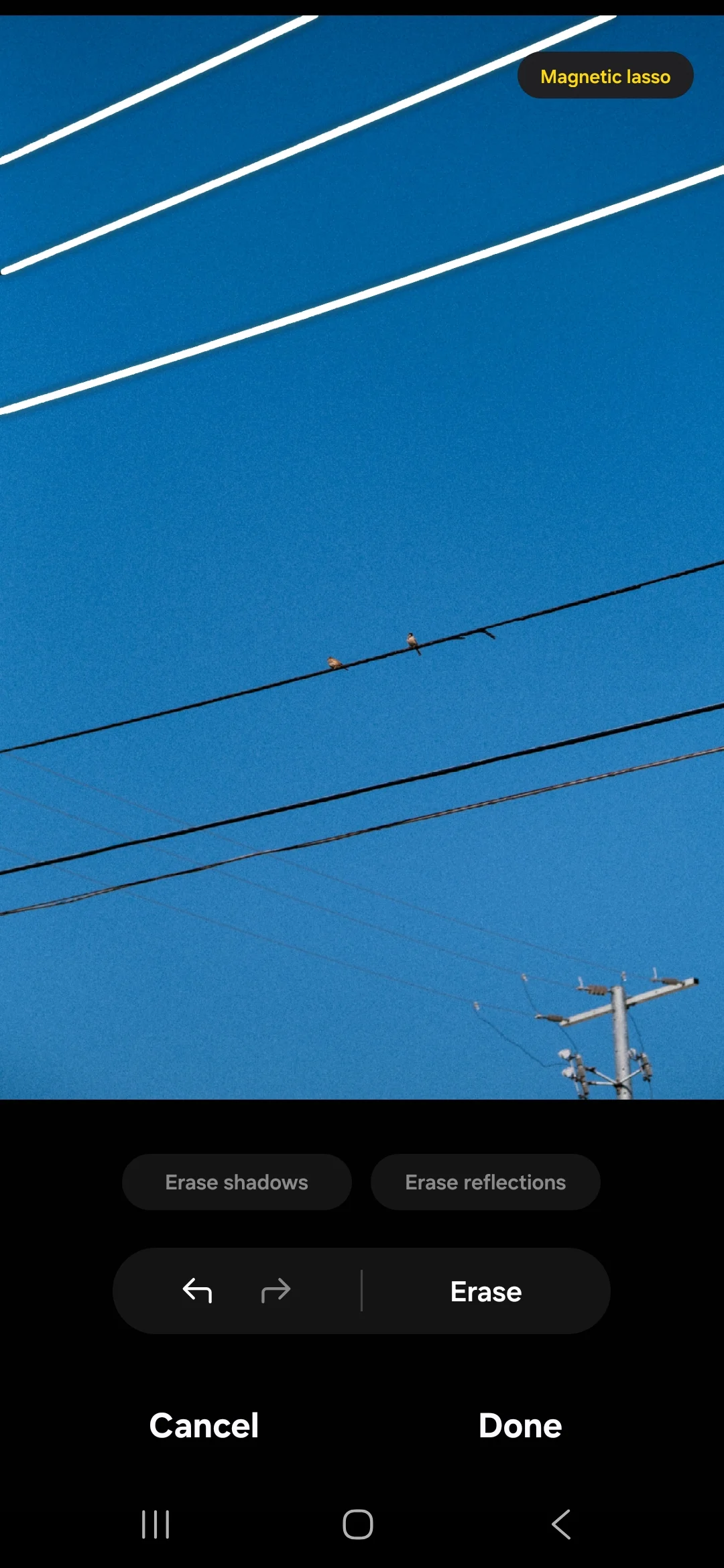 |
 |
| SnapEdit (Normal model) | 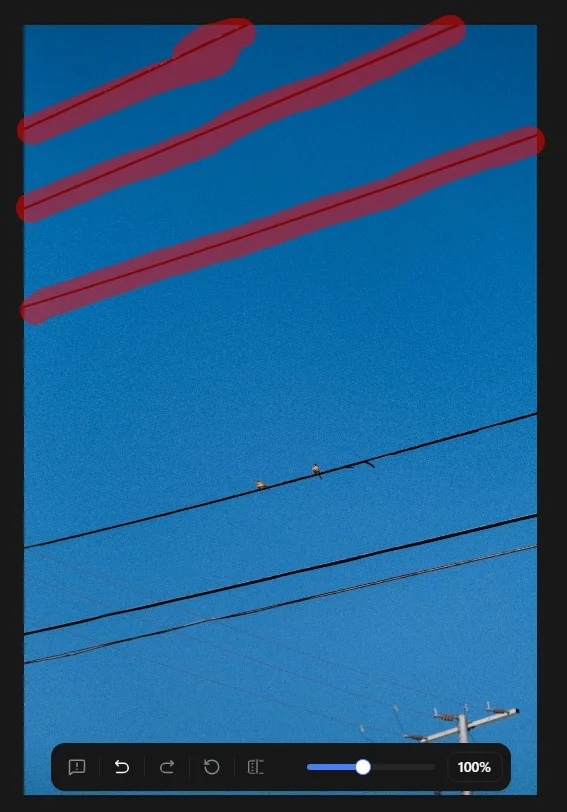 |
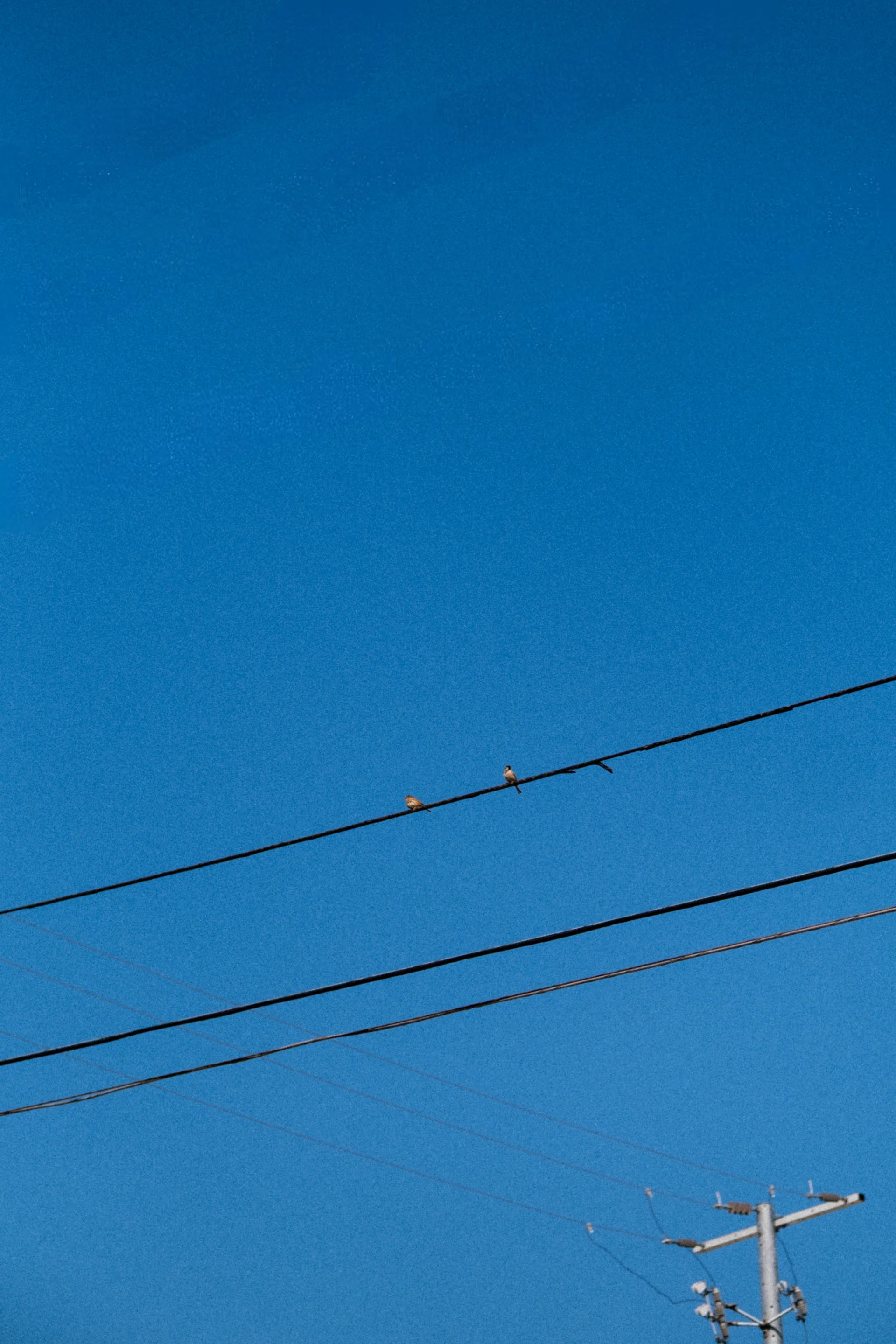 |
Result: Tie. Both tools masked the thin wires accurately and removed them cleanly. A plain sky gives both tools easy pixels to work with.
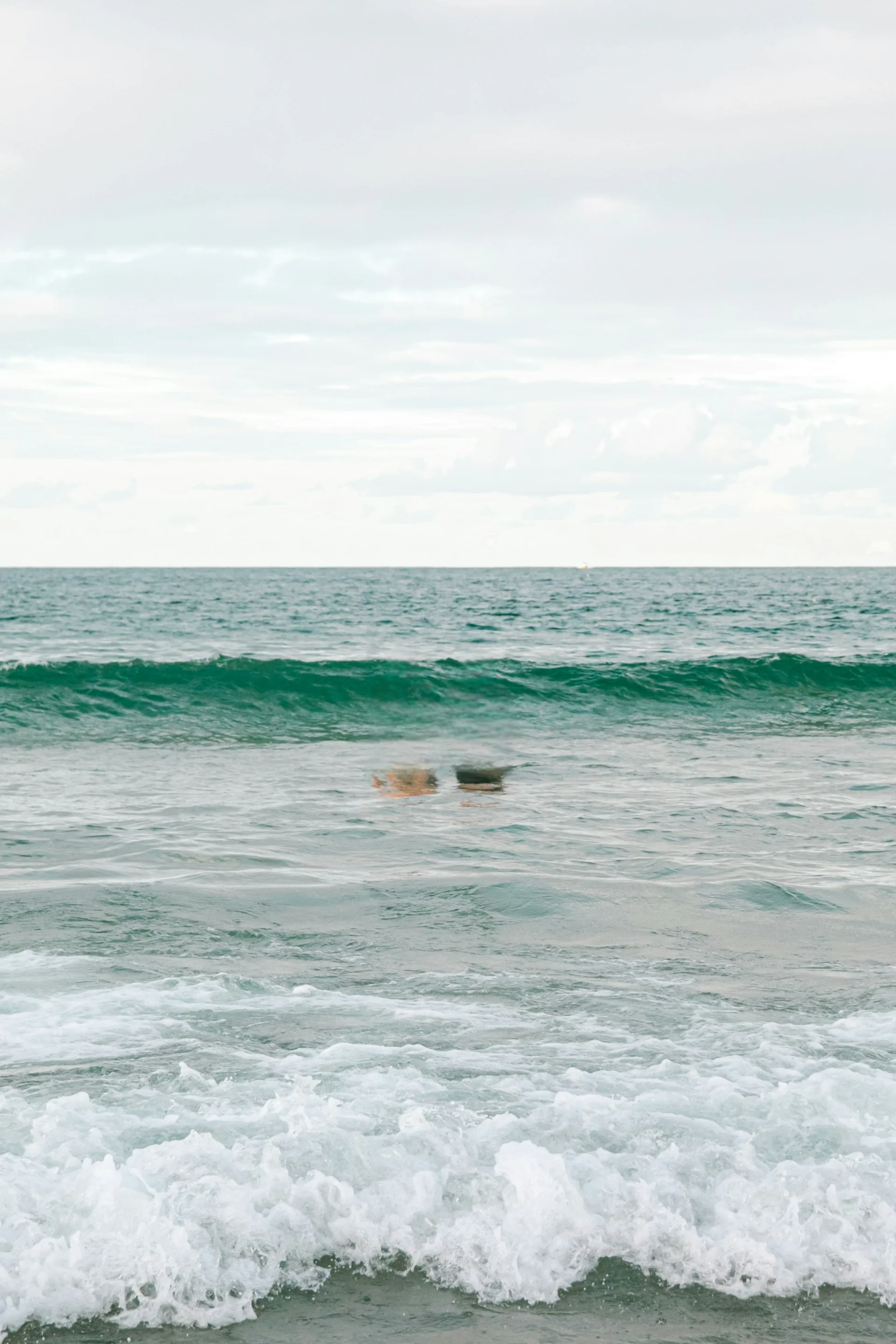
Case 6: A swimmer in the sea
The goal was to remove a person swimming in the waves.
Original Image

| Mask | Result | |
|---|---|---|
| Samsung Object Eraser | 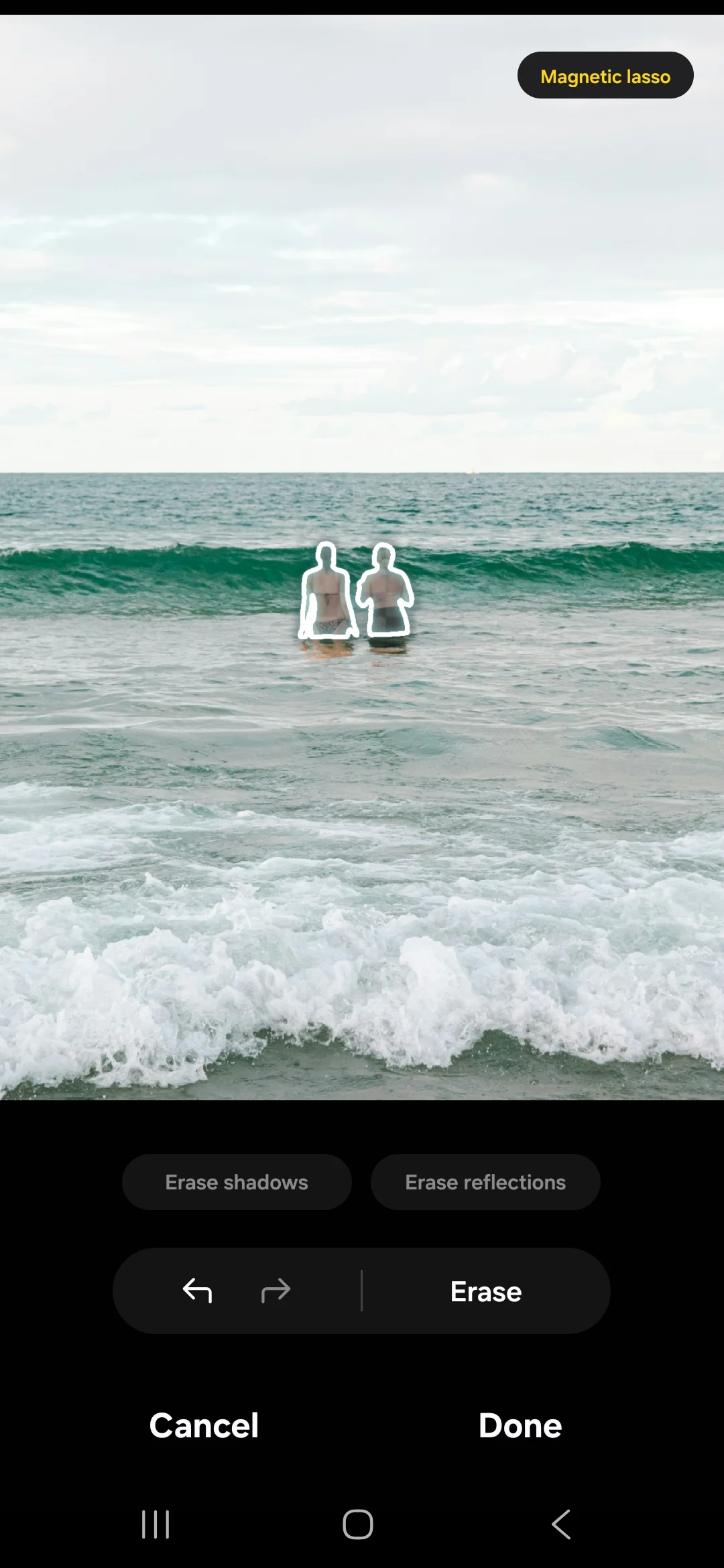 |
 |
| SnapEdit (Normal model) | 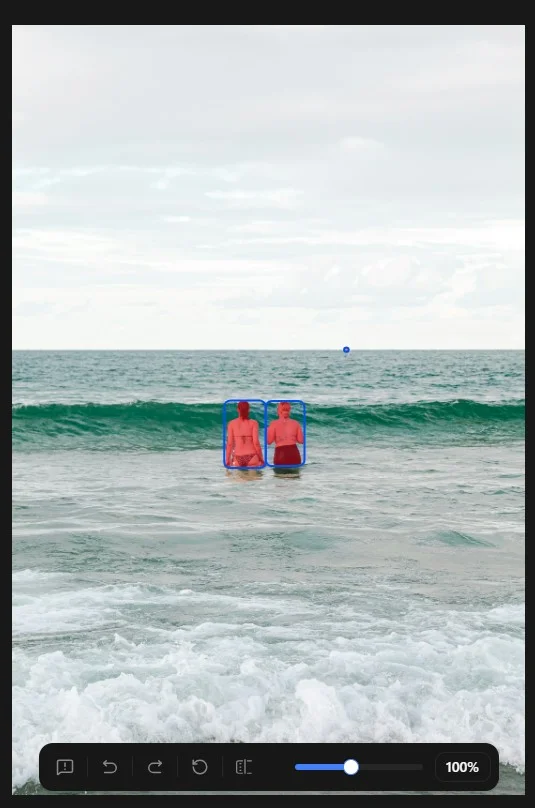 |
 |
Winner: SnapEdit, with one extra brush pass. After the first pass, neither tool removed the swimmer's shadow under the water. SnapEdit rebuilt the waves more convincingly, and one manual brush pass removed the leftover shadow.
Case 7: A person and their shadow on a street
The goal was to remove a person and the shadow they cast on the street.
Original Image

| Mask | Result | |
|---|---|---|
| Samsung Object Eraser | 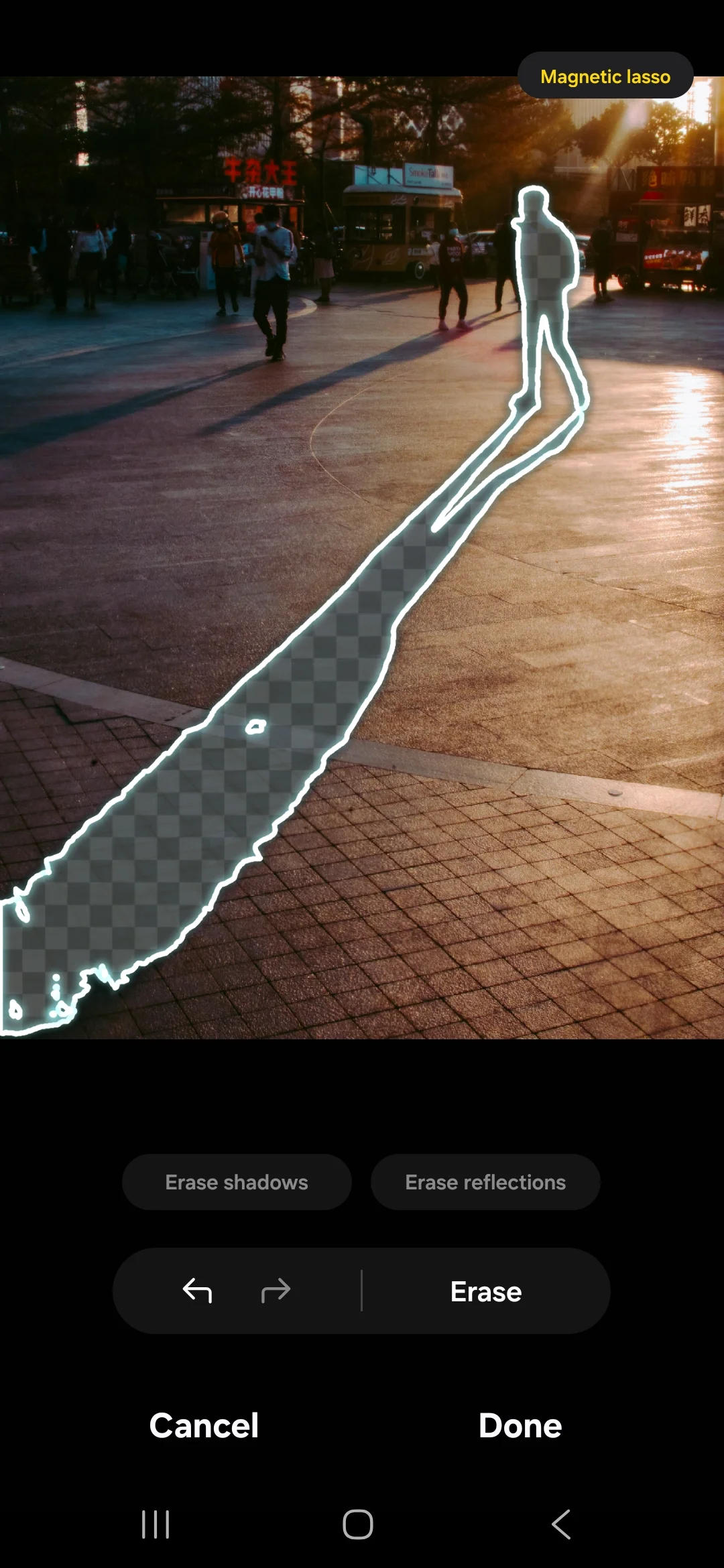 |
 |
| SnapEdit (Normal model) | 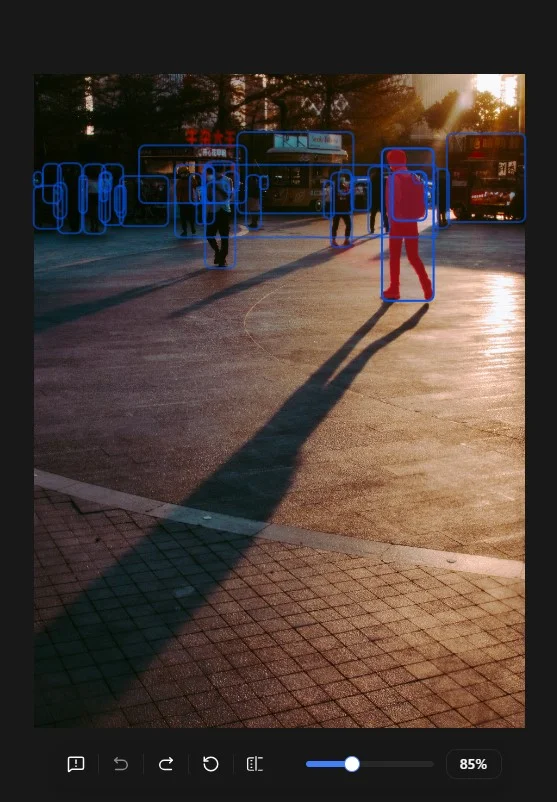 |
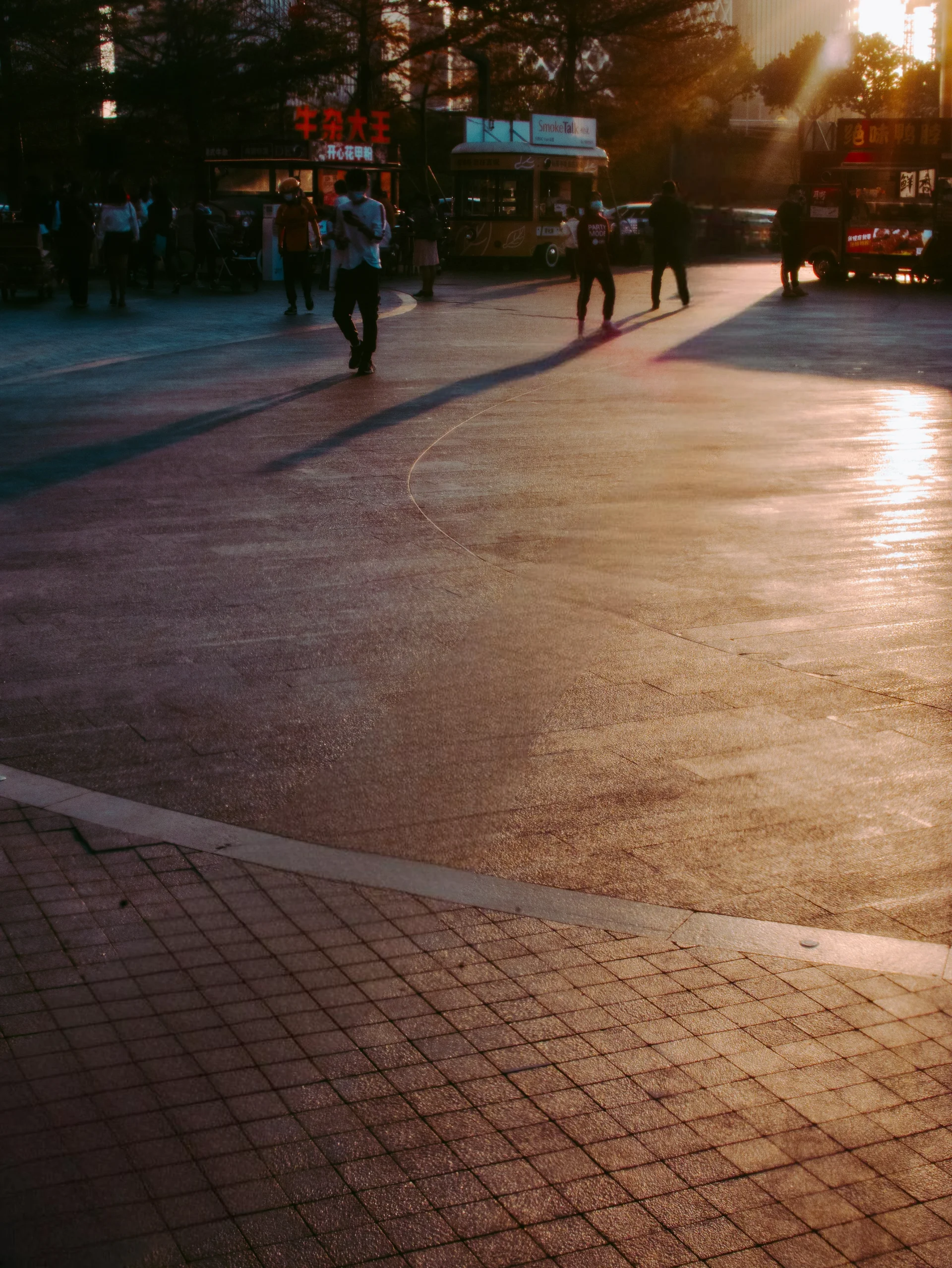 |
Winner: SnapEdit. Both tools removed the person and the shadow. With SnapEdit, selecting the person was enough: the AI removed the shadow too, with no extra brushing. SnapEdit's rebuilt pavement also looked more natural.
Case 8: A portrait with hair blowing in the wind
The goal was to remove a person whose hair had fine, flyaway strands.
Original Image

| Mask | Result | |
|---|---|---|
| Samsung Object Eraser | 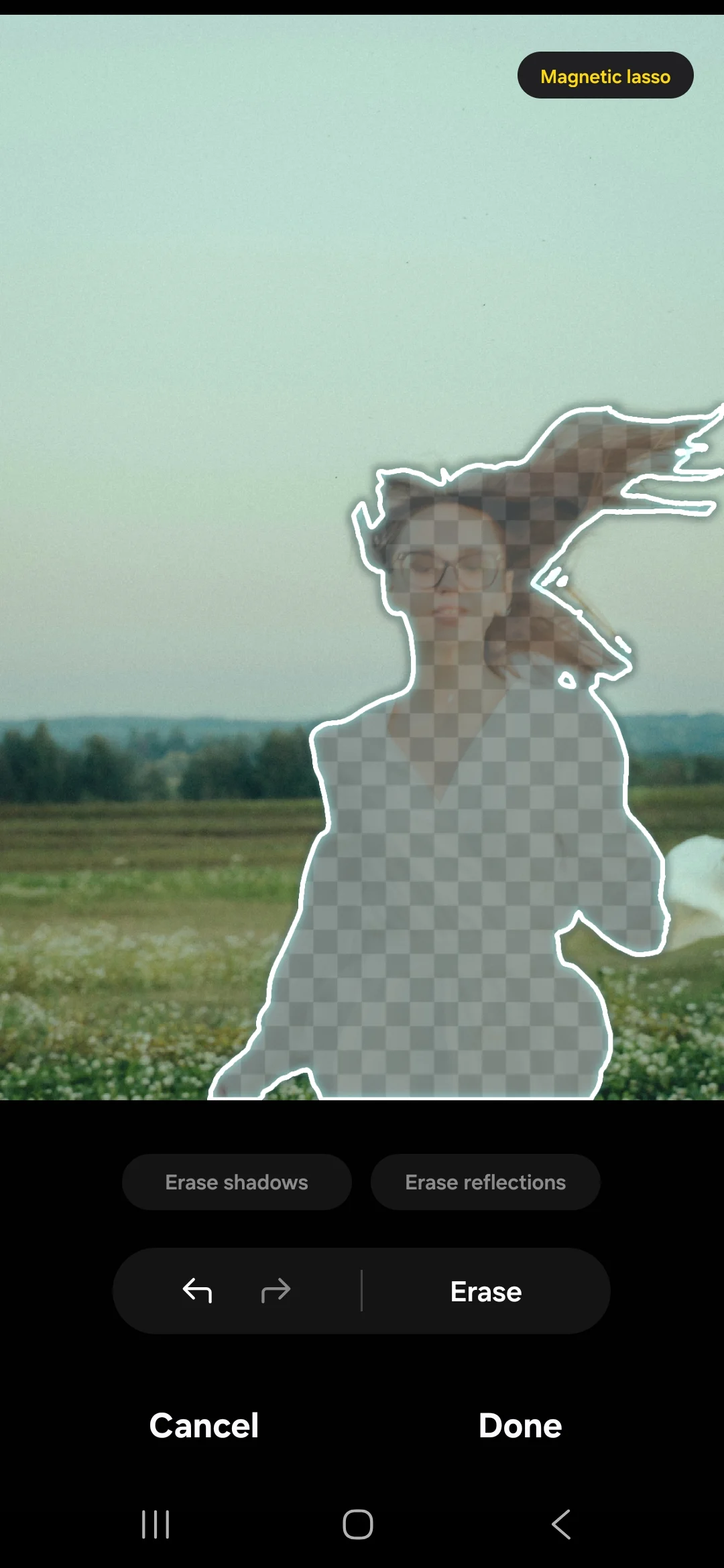 |
 |
| SnapEdit (Normal model) | 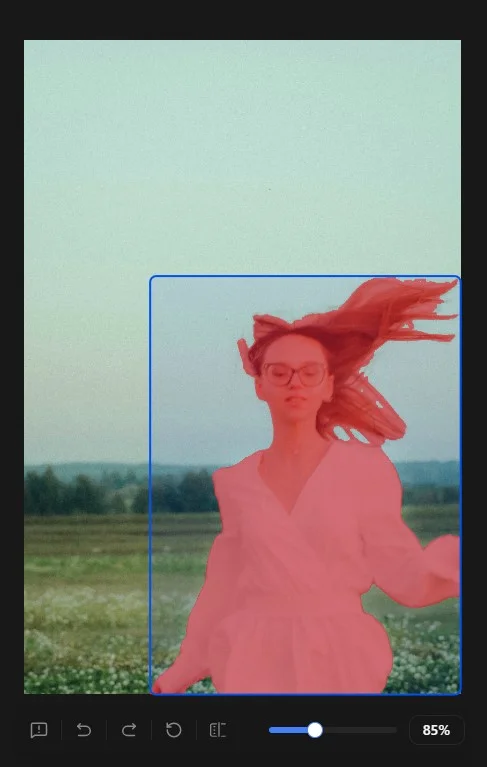 |
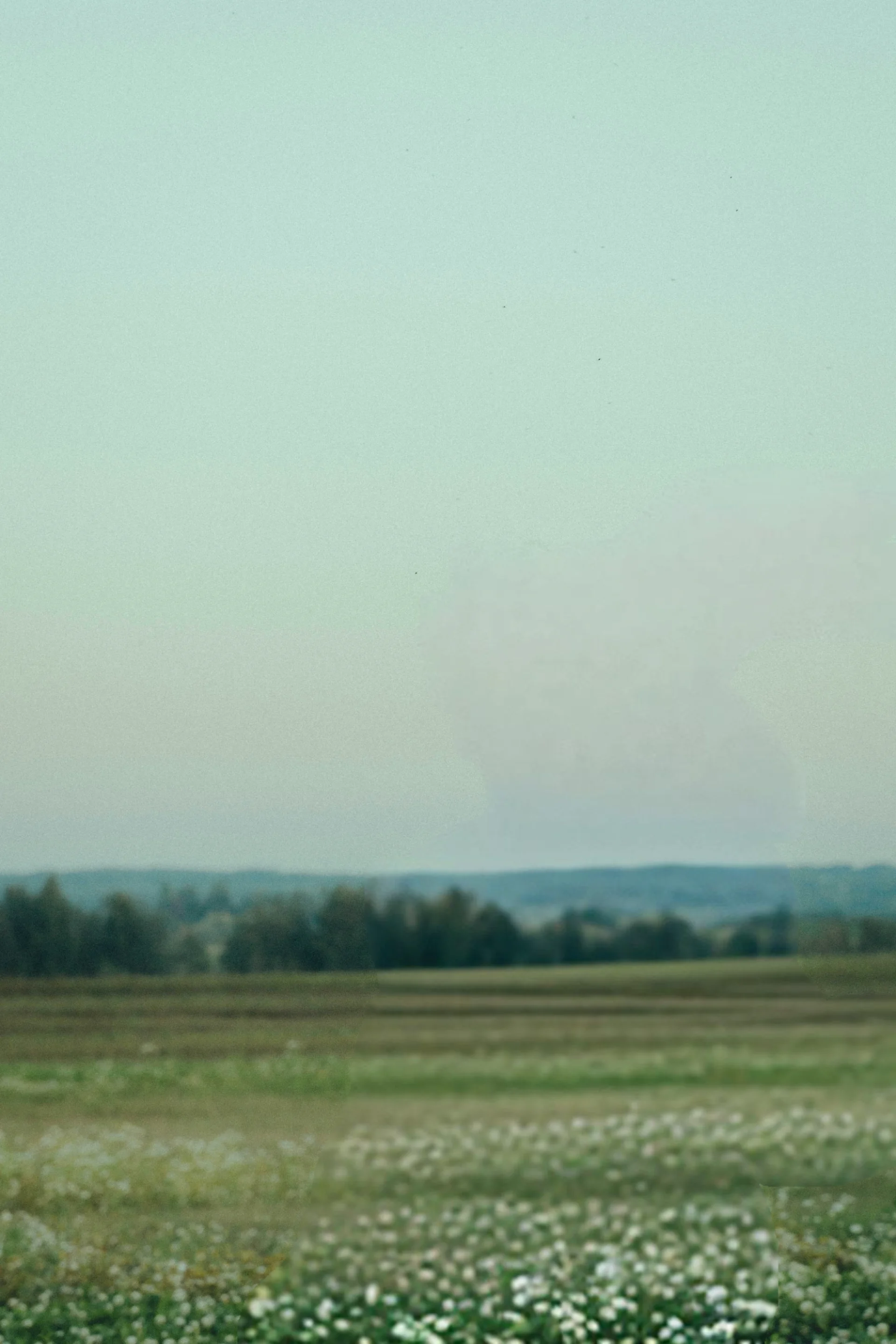 |
Winner: SnapEdit, but not perfect. Samsung's result looked unnatural, with leftover traces of the person's clothing. SnapEdit's result looked much more natural at normal size. Look closely, though, and you can still see where the person was removed.
Summary of all 8 cases
| Case | Samsung Object Eraser | SnapEdit (Normal model) | Extra brush | Winner |
|---|---|---|---|---|
| Person close to subject | Rough patch, background shows through | Clean, natural background | No | SnapEdit |
| Busy street crowd | Each person circled by hand, unnatural street | Auto-selected people, small leftovers | Yes | SnapEdit |
| Large truck | Removed well | Removed well, more natural background | No | SnapEdit (narrow) |
| Logo on a wall | Removed well | Removed well, more natural wall | No | SnapEdit (narrow) |
| Power lines | Clean | Clean | No | Tie |
| Swimmer in the sea | Underwater shadow left | Underwater shadow left, better waves | Yes | SnapEdit |
| Person and shadow | Both removed | Shadow removed with the person automatically | No | SnapEdit |
| Flyaway hair | Unnatural, clothing traces left | More natural, faint trace up close | No | SnapEdit |
Where Samsung Object Eraser Wins
- It's already on your Galaxy phone. No download, no account, and it works offline.
- Your photos never leave the device. Object Eraser processes everything on the phone's NPU.
- It's good enough for simple jobs. Power lines on a clear sky, a large object on a plain background, or a logo on a flat wall all came out clean.
- It's free with no limits. Edit as many photos as you want.
Where SnapEdit Remove Object Wins
- More natural backgrounds. SnapEdit rebuilt the background better in 7 of 8 photos.
- Harder scenes. People touching the main subject, crowds, water, and hair are where the gap was widest.
- Fewer manual steps. Auto-detection selected crowds for us, and removing a person also removed their shadow.
- Works on any phone. SnapEdit runs on Android, iPhone, and in the browser, so you get the same results on any device.
SnapEdit isn't flawless. Crowds and water still needed a manual brush pass, and on the hair portrait you can spot a faint trace if you zoom in. We also used only the Normal model. Super Erase is built for tougher cases but wasn't part of this test.
Samsung Object Eraser or SnapEdit: Which Should You Use?
Start with Samsung Object Eraser when the object is simple and sits away from your subject. Switch to SnapEdit when the object touches your subject or the background is busy.
| Your photo | Best tool |
|---|---|
| Power lines or wires on a clear sky | Either one |
| One object far from your subject on a plain background | Samsung Object Eraser |
| A large object like a truck or car | Either one, SnapEdit for a more natural background |
| A logo or text on a wall | SnapEdit Remove Object or Remove Text |
| A stranger standing close to your subject | SnapEdit |
| A crowded street or tourist spot | SnapEdit, plus a quick brush pass |
| A person and their shadow | SnapEdit |
| Water, waves, or a beach | SnapEdit, plus a quick brush pass |
| Hair or fine edges | SnapEdit, then check at full zoom |
| A phone without Object Eraser (iPhone, older Galaxy) | SnapEdit |
How to Remove Objects with SnapEdit on a Samsung Phone
Samsung Galaxy owners can use SnapEdit in two ways: install the SnapEdit app from Google Play, or open snapedit.app/remove-object in Chrome without installing anything. The app and the website follow the same steps:
- Upload your photo to SnapEdit Remove Object.
- Turn on AI auto-detection. SnapEdit scans the photo and highlights the people and objects it recognizes.
- Select the objects you want to remove. Tap each highlighted person or object.
- Use the manual brush for anything the AI missed. Paint over small details, leftover shadows, or objects that auto-detection didn't highlight.
- Tap Remove, then check the result. Zoom in on the edited area, brush over any leftovers, and download your photo.
SnapEdit Remove Object offers more than one removal model, including Normal for everyday photos and Super Erase for difficult scenes. Our guide on how to remove objects and people from photos with SnapEdit explains each model and when to use it. If your main goal is clearing tourists out of vacation shots, read how to remove tourists and photobombers from travel photos.
FAQ
Is Samsung Object Eraser free?
Yes. Samsung Object Eraser is built into the Samsung Gallery app on supported Galaxy phones and costs nothing. Galaxy AI Generative Edit is also free as one of Samsung's basic Galaxy AI features.
Does Samsung Generative Edit add a watermark or reduce resolution?
Yes. Samsung states that photos saved with Generative Edit are resized to 12MP or smaller and carry a visible watermark showing the image was edited with AI. Generative Edit also needs an internet connection and a Samsung Account.
Can I use Samsung Object Eraser on an iPhone?
No. Object Eraser only exists in the Samsung Gallery app on Galaxy phones. On an iPhone, you can use the SnapEdit app or snapedit.app in Safari.
Why does Samsung Object Eraser leave a ghost or blur?
Samsung Object Eraser rebuilds the removed area from nearby pixels using an AI model that runs on the phone. On busy backgrounds like crowds, water, or hair, there isn't enough matching detail, so the filled area looks blurry or smeared. Selecting a slightly wider area, removing one object at a time, and running a second pass usually helps.
Is SnapEdit better than Samsung Object Eraser?
For complex photos, yes. In our test of 8 photos, SnapEdit rebuilt the background more naturally in 7 cases and tied Samsung Object Eraser on power lines. For simple, isolated objects on plain backgrounds, Samsung Object Eraser is good enough and already on your phone.
Want to compare SnapEdit with other AI tools too? See how it did against ChatGPT in our SnapEdit vs ChatGPT object removal test.
Got a photo Samsung Object Eraser couldn't fix? Try SnapEdit Remove Object free in your browser, or download the app for Android and iPhone.