
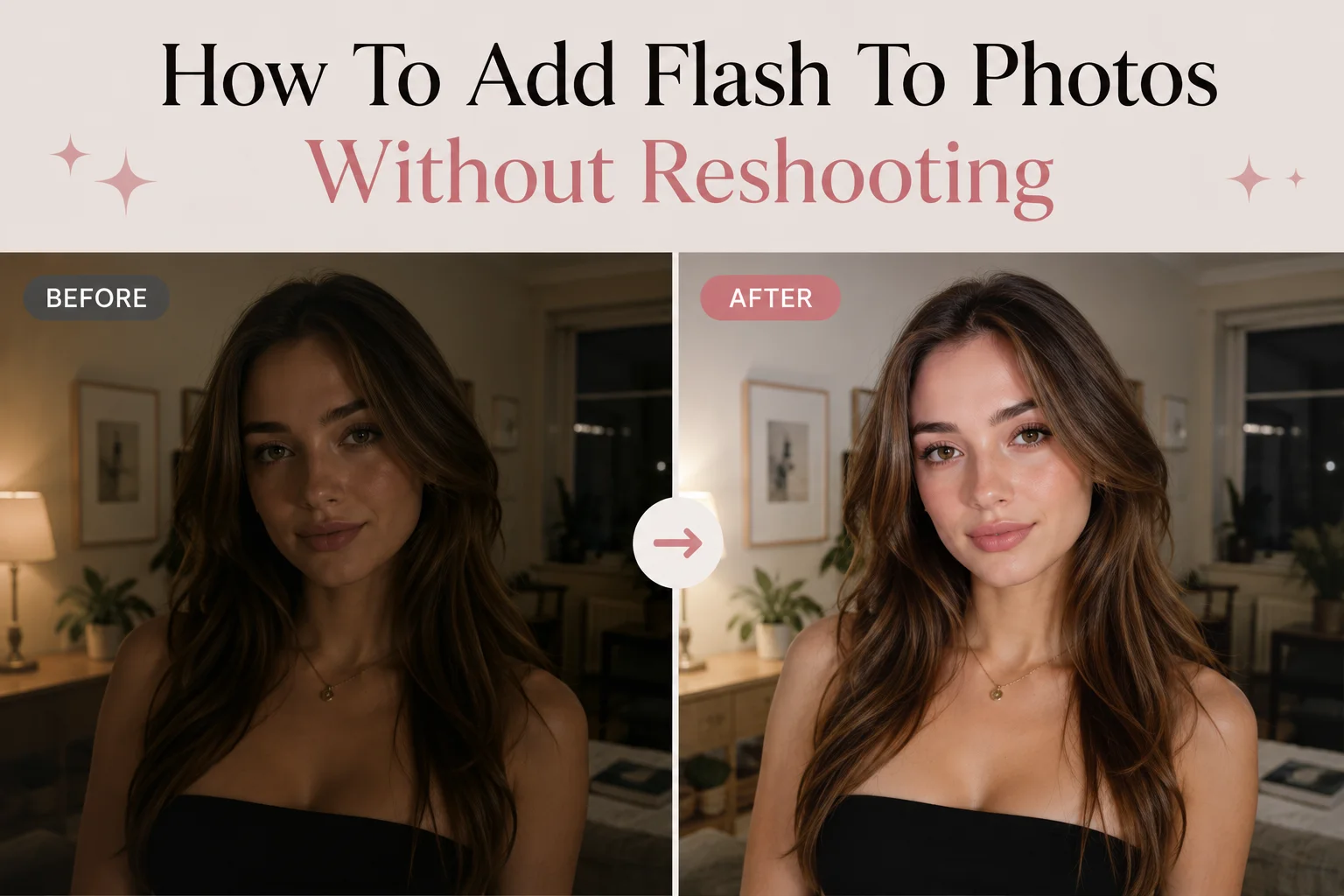
You only get one chance to capture some moments. Unfortunately, it's not until you check your camera roll that you realize the photo is too dark because the flash was never turned on.
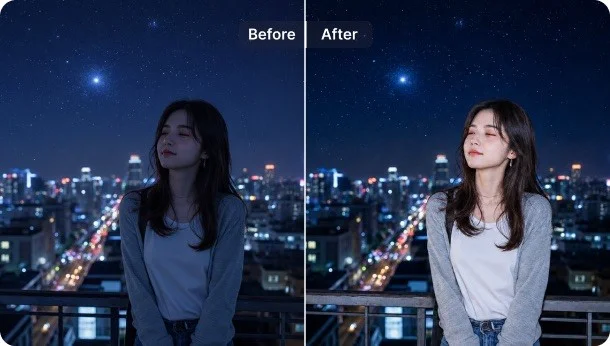
Instead of simply brightening the entire image, AI Flash intelligently simulates the effect of a camera flash by illuminating your subject, recovering hidden details, and creating a more balanced, natural-looking photo.
This guide will explain how AI Flash works, why it's different from traditional brightness adjustments, and how you can add flash to a photo after it was taken.
What happens when you forget to use flash?
Have you ever looked at a photo and thought, "It looked so much better in real life"? That's a common frustration with photos taken in low-light environments without flash. When there isn't enough light, your camera has to work much harder to capture the scene. As a result, important details can be lost before the photo is even saved.
Without enough illumination, faces often appear darker, skin tones lose their vibrancy, and textures in clothing, hair, or the background become difficult to see. Colors can also look dull, making the entire image feel flat and lifeless.
This is especially common in indoor settings like restaurants, parties, concerts, or evening events where the available light isn't strong enough to properly expose the subject.
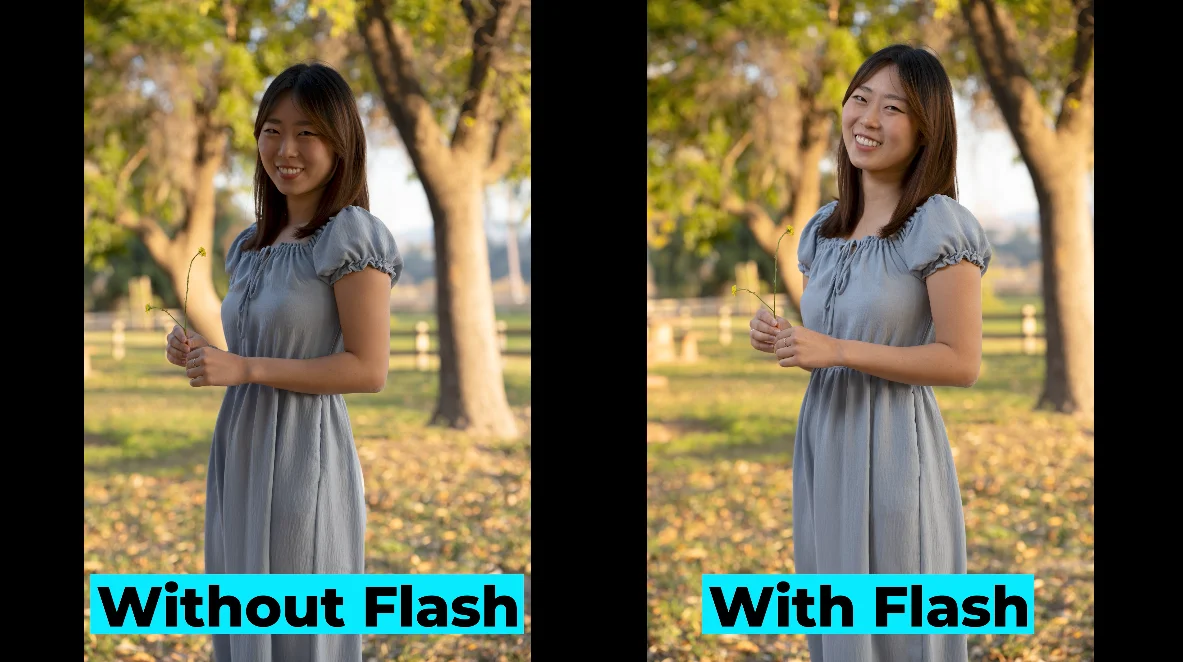
Many people try to fix a dark photo by simply increasing the brightness or exposure. While this can make the image lighter, it also brightens the background, amplifies image noise, and may wash out highlights without restoring the details that were lost.
Flash works differently. Instead of illuminating the entire scene equally, it adds focused light to the subject, creating better separation from the background, improving contrast, and revealing facial details that make portraits look clearer and more vibrant.
How to add flash to a photo without reshooting
If you've ever wished you could go back and retake a photo with the flash turned on, SnapEdit AI Flash offers the next best thing.
Instead of asking you to manually edit every part of the image, SnapEdit's AI Flash analyzes the lighting in your photo and simulates how the scene might have looked if a flash had been used when the picture was taken.
Rather than applying a blanket brightness adjustment, it selectively enhances the subject, restores details hidden in darker areas, improves contrast, and creates more natural-looking illumination. The goal is to recreate the balanced lighting and clarity that flash photography is known for.
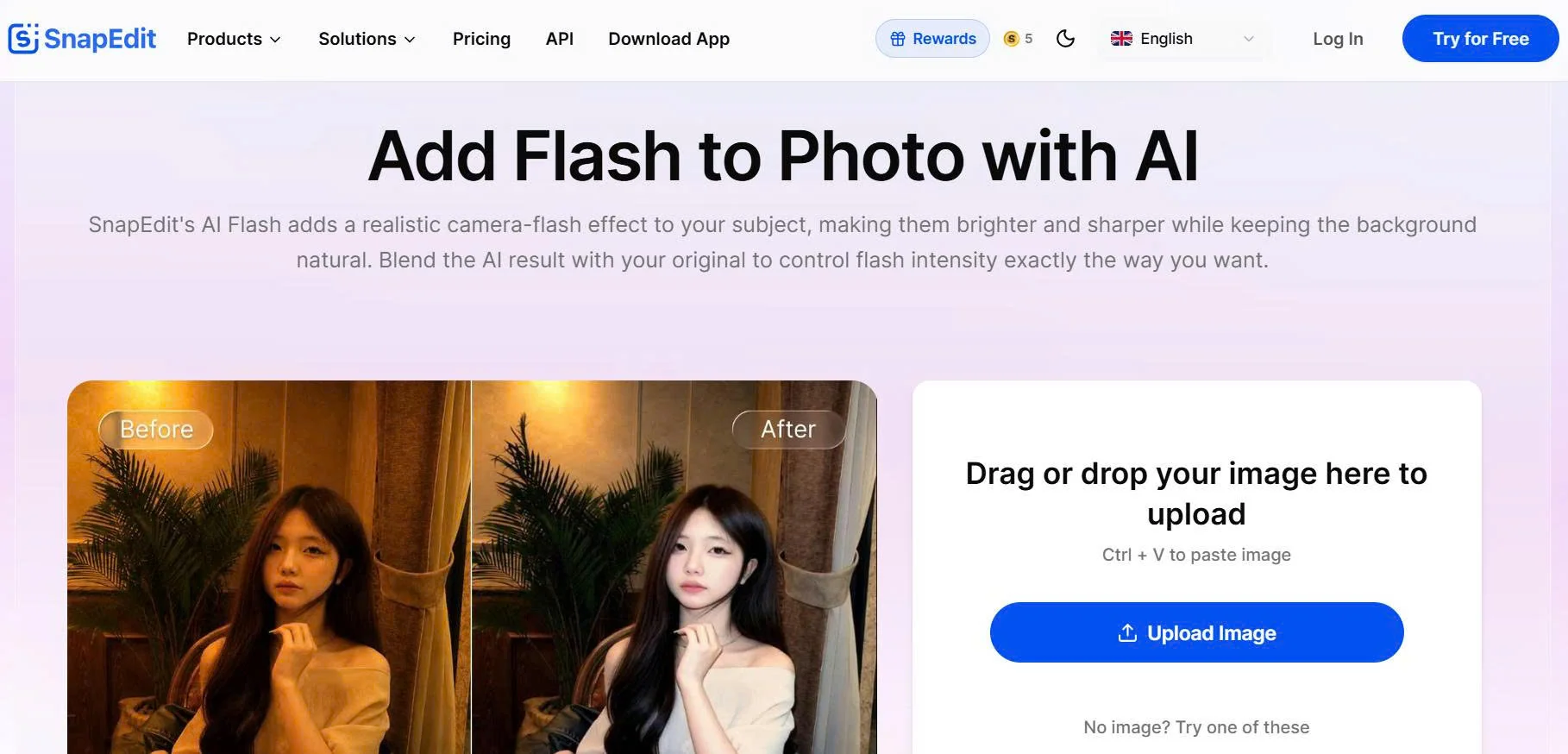
Traditional photo editing often involves adjusting exposure, highlights, shadows, and contrast individually to improve a dark image. AI Flash simplifies the entire process into a single click.
There's no need to download software, learn complicated editing techniques, or spend time fine-tuning sliders.
AI Flash works directly in your browser on both desktop and mobile devices, delivering high-quality results in seconds while preserving natural-looking skin tones, facial features, and the overall atmosphere of the original photo.
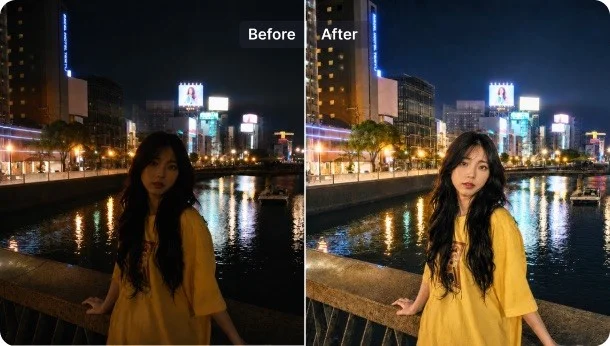
Adding flash to a photo after it's been taken only takes a few clicks:
- Upload your photo to https://snapedit.app/ai-flash.
AI Flash works especially well for:
- Indoor selfie
- Nighttime portraits
- Restaurant photos
- Party pictures
- Family gatherings
- Low-light event photos
- Once uploaded, the AI automatically analyzes the lighting, shadows, and exposure of the image. Drag the intensity slider from 0 to 100 to dial in the perfect amount of light.
- Save your newly-lit photo in HD
By enhancing facial details, improving contrast, and preserving the mood of the original background, it creates a result that's closer to what the photo might have looked like if flash had been used in the first place. Brightness simply makes a photo lighter. AI Flash makes it look better lit.
Everything you need to know about AI Flash
Is AI Flash the same as increasing brightness?
No. Increasing brightness affects the entire image equally, while AI Flash selectively enhances the subject, improves contrast, and creates more natural-looking illumination.
Can you really add flash to a photo after it's been taken?
Yes. While you can't recreate the exact lighting from the original moment, AI Flash can simulate the effect of flash by intelligently relighting the subject and enhancing details in low-light areas.
Do I need Photoshop or Lightroom?
No. AI Flash works directly in your web browser, so you can enhance your photos without downloading professional editing software or learning advanced editing techniques.
Can I use AI Flash on my phone?
Yes. SnapEdit AI Flash works on both desktop and mobile browsers, making it easy to enhance your photos wherever you are.
Will AI Flash make my photo look unnatural?
Not necessarily. AI Flash is designed to preserve the original atmosphere of the scene while improving lighting on the subject, resulting in a more balanced and realistic image.
Forgetting to turn on the flash doesn't mean a great photo is beyond saving. Thanks to AI, you can recreate the look of natural flash photography after the shot has already been taken, bringing back brighter faces, clearer details, and better-balanced lighting without complicated editing.
Ready to give your low-light photos a second chance? Upload your image to SnapEdit AI Flash and see how AI can recreate the look of professional flash photography with just a few clicks.