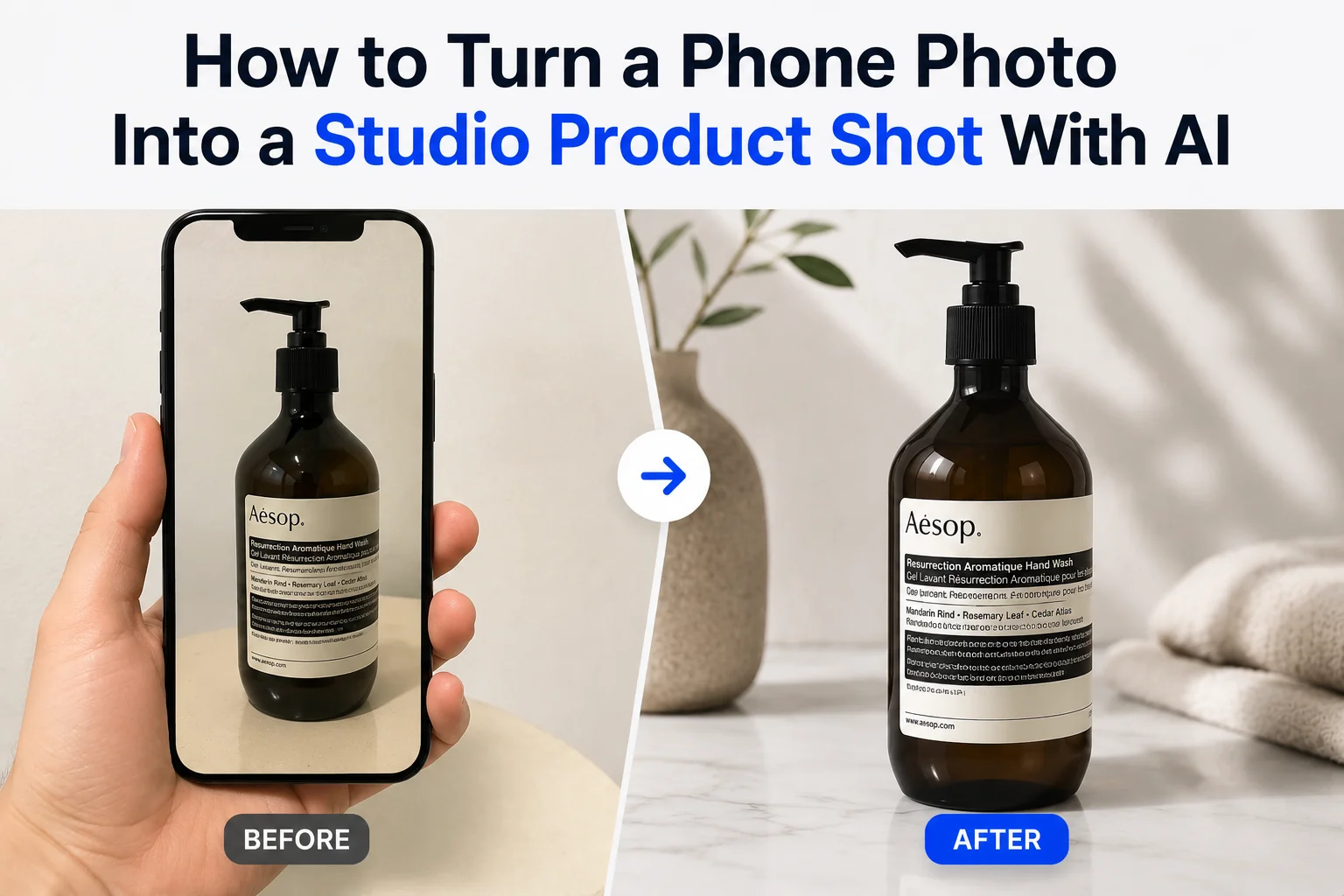
You don't need a DSLR, expensive lighting, or a professional studio to start creating better product photos. A smartphone and the right AI tools can take you surprisingly far. The challenge is that a phone photo can still look like a phone photo: a cluttered background, uneven lighting, or distracting surroundings can make an otherwise great product look less polished.
Here's how to turn a basic phone photo into a studio-style product shot, with a prompt formula you can reuse for any product, ready-to-use examples, and the details that keep your actual product looking accurate along the way.
If you're not sure whether you need a full studio scene or just a plain white background, our AI Background Generator vs. Background Remover guide covers when each tool is the right call. This post assumes you've landed on Generator: you want a styled scene, not just a clean cutout.
What actually makes a product photo look "studio"
Before touching a prompt, it helps to know what you're aiming for. A handful of details separate a studio-looking shot from an obvious phone photo:
- Directional light, not flat overhead light. Studio shots have a clear light source and a soft shadow that shows where it's coming from.
- A contact shadow where the product touches the surface, grounding it instead of making it look like it's floating.
- A consistent perspective and camera angle, matched between the product and its surroundings.
- A surface and setting that fits the product, not a random backdrop that fights with what you're selling.
Keep these four in mind as you review any AI-generated result. If a background looks "off" even though it's technically well-lit, it's usually one of these four missing.
How to take good phone product photos
You don't need a professional camera to create a good starting image. But the better your original phone photo is, the more space you have to edit and enhance.
- Use good natural light: soft window light is usually better than harsh direct sunlight.
- Clean your camera lens: a quick wipe can make a surprising difference in sharpness.
- Keep the product in focus: make sure the main product is clear and easy to distinguish.
- Avoid extreme angles: a straightforward camera angle gives AI a better reference for the product's shape.
- Leave some space around the product: don't crop too tightly, especially around edges and important details.
- Keep the product itself uncluttered: remove objects that overlap or obscure the item whenever possible.
Turn your phone photos into stunning studio shots with AI
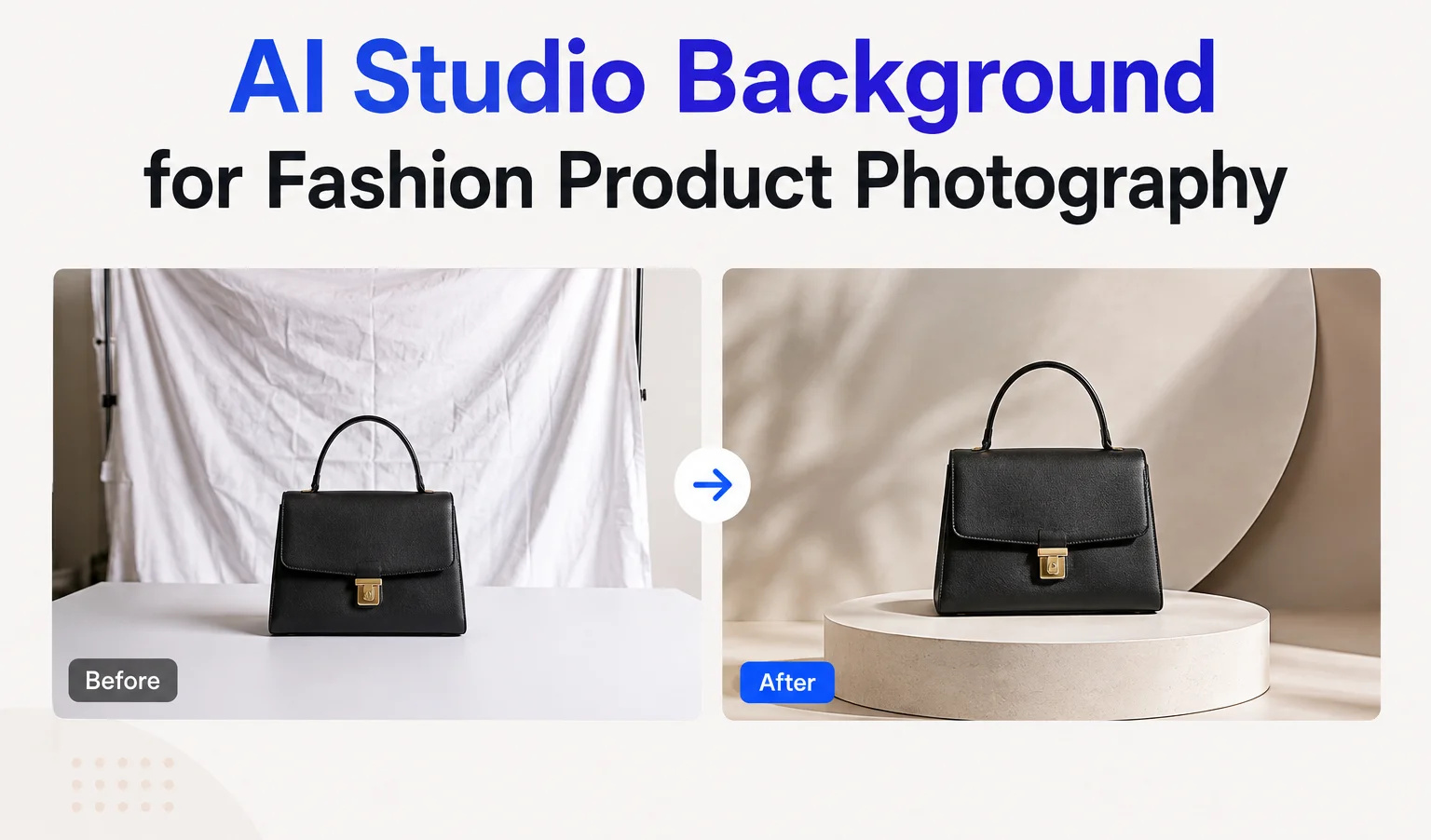
SnapEdit's AI Background Generator is designed to transform the environment around an existing photo using AI. Instead of manually removing the background, finding a stock image, and compositing everything together, you can upload a product photo and describe the new setting you want.
For small businesses, Etsy sellers, POD creators, and anyone taking product photos with a phone, its biggest advantage is turning an ordinary photo into multiple polished visuals without setting up a physical studio.
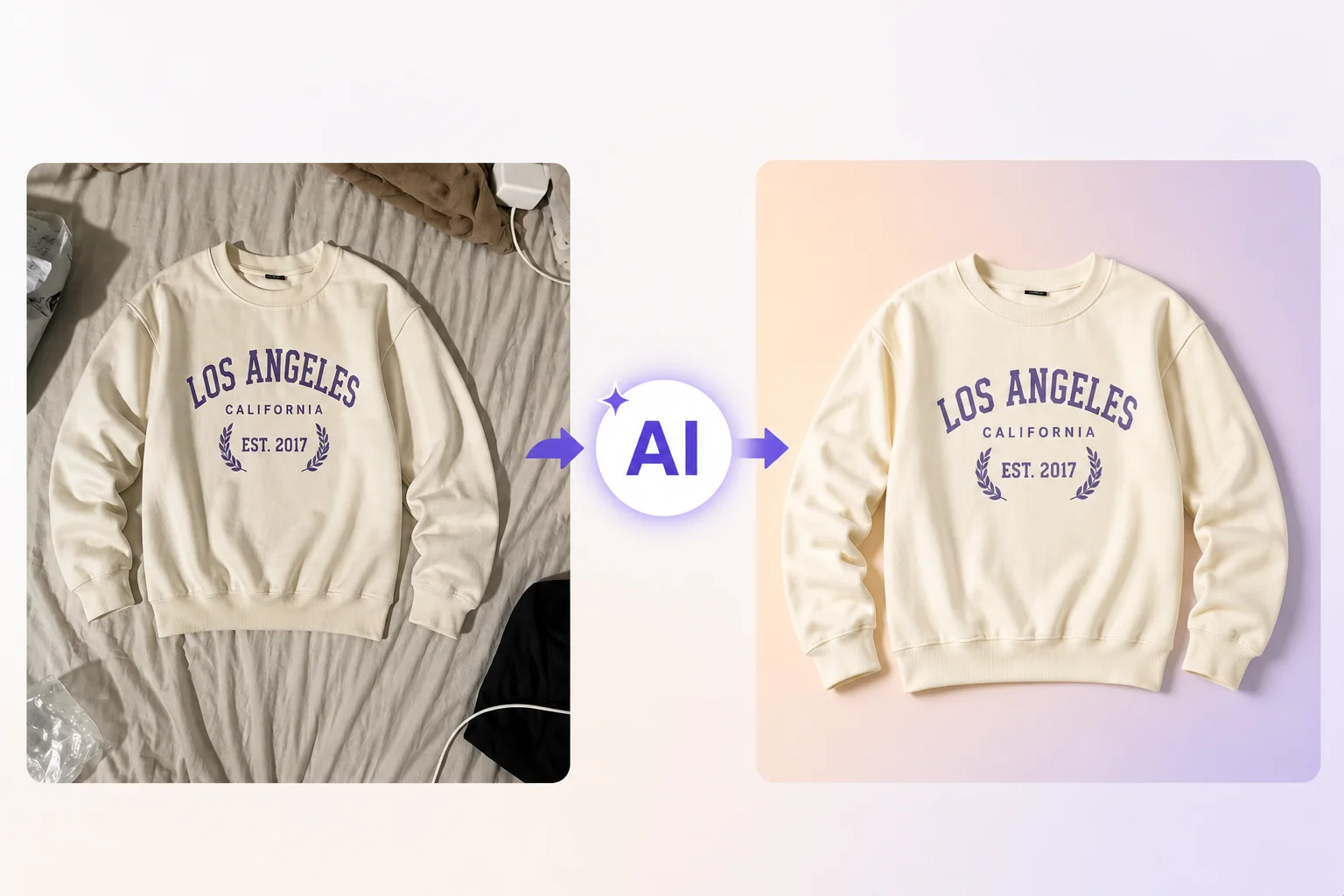
You don't need advanced editing skills to get started. The workflow is simple:
- Upload your phone photo. Choose a clear product image in JPG, PNG, or WebP format and upload it to SnapEdit's Background Generator.
- Write your prompt. Describe the background, surface, lighting, and mood you want, and explicitly tell the AI what to leave alone (more on this below).
- Generate the background. SnapEdit creates a new environment around your product based on your prompt.
- Review the result. Check the product's color, shape, texture, logo, label, artwork, and proportions to make sure everything remains accurate.
You can experiment with different backgrounds to turn one phone photo into several marketing-ready visuals.
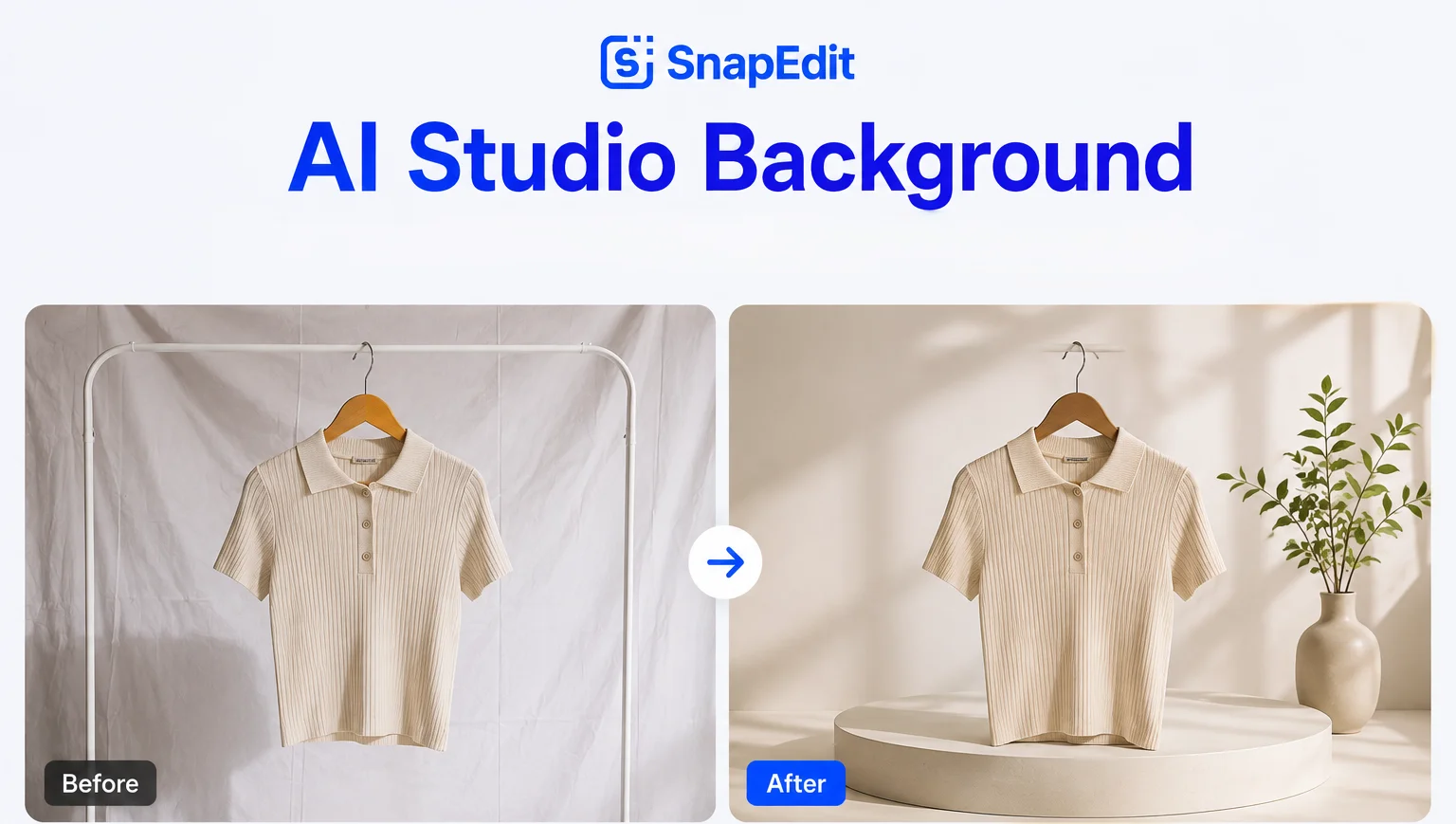
The AI Background Generator eliminates the need for manual background compositing. You don't have to cut out the product, search for a suitable background, and spend time blending the two together.
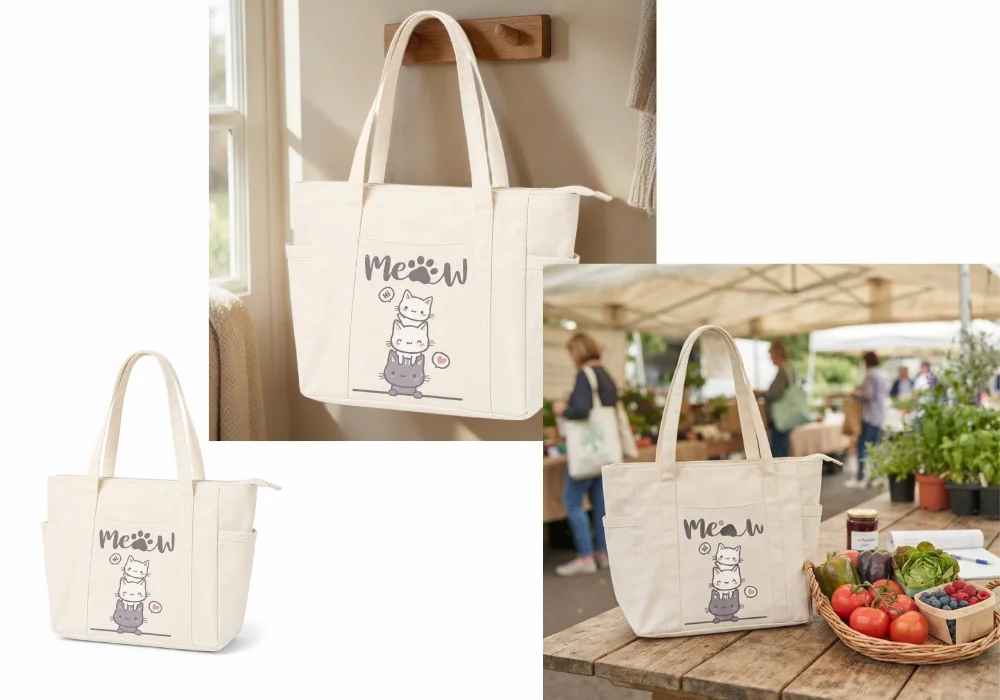
It also gives you more creative flexibility. One phone photo can become several different product images simply by changing the prompt, whether you want a clean studio, a luxury setting, or a lifestyle scene. It's also faster and more cost-effective than organizing a new photoshoot: you can experiment with different studio styles without renting a space, buying physical backdrops, or setting up additional lighting.
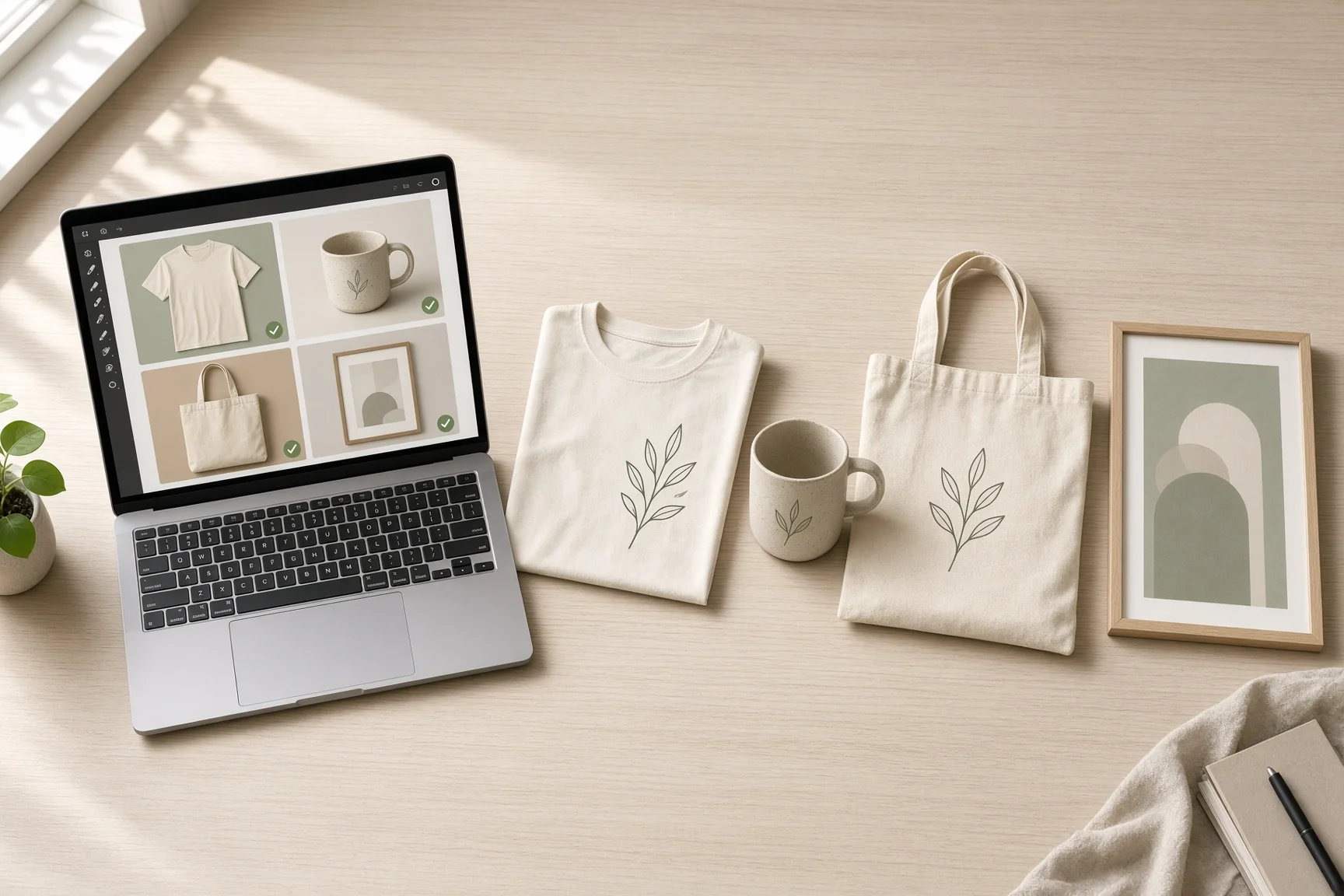
For businesses with multiple products, the tool can also help create more consistent product content. Using similar prompts across your catalog makes it easier to establish a cohesive visual style.
A simple formula for writing your own prompts for studio product photos
The seven prompts below cover common styles, but you won't always be editing one of those exact scenarios. Every strong background prompt is really built from the same five pieces:
| Element | What it covers | Example |
|---|---|---|
| Setting | The overall scene or environment | "minimalist home interior," "outdoor lifestyle setting" |
| Surface | What the product sits on | "white marble surface," "warm wooden tabletop" |
| Lighting | Light source and quality | "soft diffused studio lighting," "warm morning sunlight" |
| Mood | The aesthetic you're going for | "premium e-commerce photography aesthetic," "cozy lifestyle photography aesthetic" |
| Preservation instruction | What the AI must not change | "keep the product completely unchanged," "do not alter the logo, text, or color" |
Mix and match the first four to build a scene that fits your product, and always include the fifth. That last piece matters more than it looks: without it, some generations will quietly shift a color, soften a logo, or redraw fine text on the label, small changes that are easy to miss and matter a lot if the image is going straight onto a real listing.
Ready-to-copy AI studio background prompts for phone product photos
Once you have a decent phone photo, the right prompt can make the generated background look much more intentional. A useful prompt should describe the setting, surface, lighting, and mood, while clearly telling the AI to preserve the product.
Here are some ready-to-use prompts for common product photography needs.
Clean white studio
Create a clean, seamless white studio background with soft, diffused lighting, subtle natural shadows, and a professional e-commerce photography aesthetic. Keep the product's shape, color, logo, and text completely unchanged.
Warm beige
Create a minimalist warm beige studio background with soft diffused lighting, subtle floor shadows, and a premium product photography aesthetic. Do not alter the product's color, label, or proportions.
Luxury marble setting
Place this product on a clean white marble surface in a sophisticated minimalist studio. Add soft natural window light, subtle realistic shadows, neutral tones, and a premium luxury product photography aesthetic. Keep the product completely unchanged.
Warm wooden table
Place this product naturally on a warm wooden tabletop with soft morning sunlight, subtle linen textures, realistic shadows, and a cozy lifestyle photography aesthetic. Preserve the product's exact shape, color, and any text or logo.
Minimalist home interior
Create a bright minimalist interior with warm neutral walls, natural window light, subtle modern decor, and realistic soft shadows. Place the product naturally within the scene while keeping it completely unchanged and preserving its original appearance.
Outdoor lifestyle setting
Create a realistic outdoor lifestyle setting with natural greenery, soft afternoon sunlight, subtle depth of field, and a premium editorial product photography aesthetic. Do not modify the product itself.
Dark luxury studio
Create a sophisticated dark charcoal studio background with controlled directional lighting, subtle natural shadows, and a high-end luxury product photography aesthetic. Keep the product's logo, text, and color exactly as shown.
Don't stop at "make it look professional." The more clearly you describe the environment, the lighting, and what to preserve, the easier it is to guide the AI toward the look you want, without it quietly redesigning your product along the way.
How to make AI product photos look more realistic
A generated background can look beautiful but still feel artificial if the lighting, perspective, or shadows don't match the original phone photo. A few prompt adjustments can make the result much more convincing.
Match the lighting
Describe lighting that fits the original photo and the environment you're creating. Try phrases such as soft window light, diffused studio lighting, warm morning sunlight, or subtle directional lighting.
Add natural shadows
Shadows help the product feel grounded in the new environment. Ask for soft, realistic contact shadows rather than dramatic shadows that may look artificial.
Maintain the original perspective
Tell the AI to keep the product's existing position and camera angle: "Maintain the original camera angle, perspective, and product position." This helps prevent the product from looking pasted into the new scene.
Match the background to the product
Think about where the product naturally belongs. A candle might work on marble or wood, while a coffee mug makes more sense on a kitchen table or desk.
The key is to start with a good source image, write a specific prompt that names what to preserve, and make sure the AI-generated background matches the product's lighting and perspective. Always check the final image against the four studio-look details from earlier before using it anywhere customer-facing.
FAQ
Will AI change my product's logo or color by accident?
It can, if the prompt doesn't say otherwise. Always include a line telling the AI what to preserve, for example "keep the product's logo, text, and color unchanged." Reviewing the result against the original photo before publishing is still worth doing even with that instruction in place.
Do I need a professional camera for this to work?
No. A clear, well-lit phone photo with the product in focus and not too tightly cropped is enough to work from. The AI builds the new background around your existing product, it doesn't need studio-grade source material.
What if I just need a plain white background, not a full scene?
For a simple white or solid-color background, a background remover is usually the faster and cheaper option. Our Background Generator vs. Background Remover guide walks through when to use each.
Can I reuse the same prompt across my whole catalog?
Yes, and it's a good habit. Reusing the same setting, surface, and lighting description across similar products keeps your catalog visually consistent, the same way a real studio setup would if you photographed everything in one session.
Have a phone photo that needs a studio upgrade? Try SnapEdit's AI Background Generator and give your product a new setting in just a few clicks.