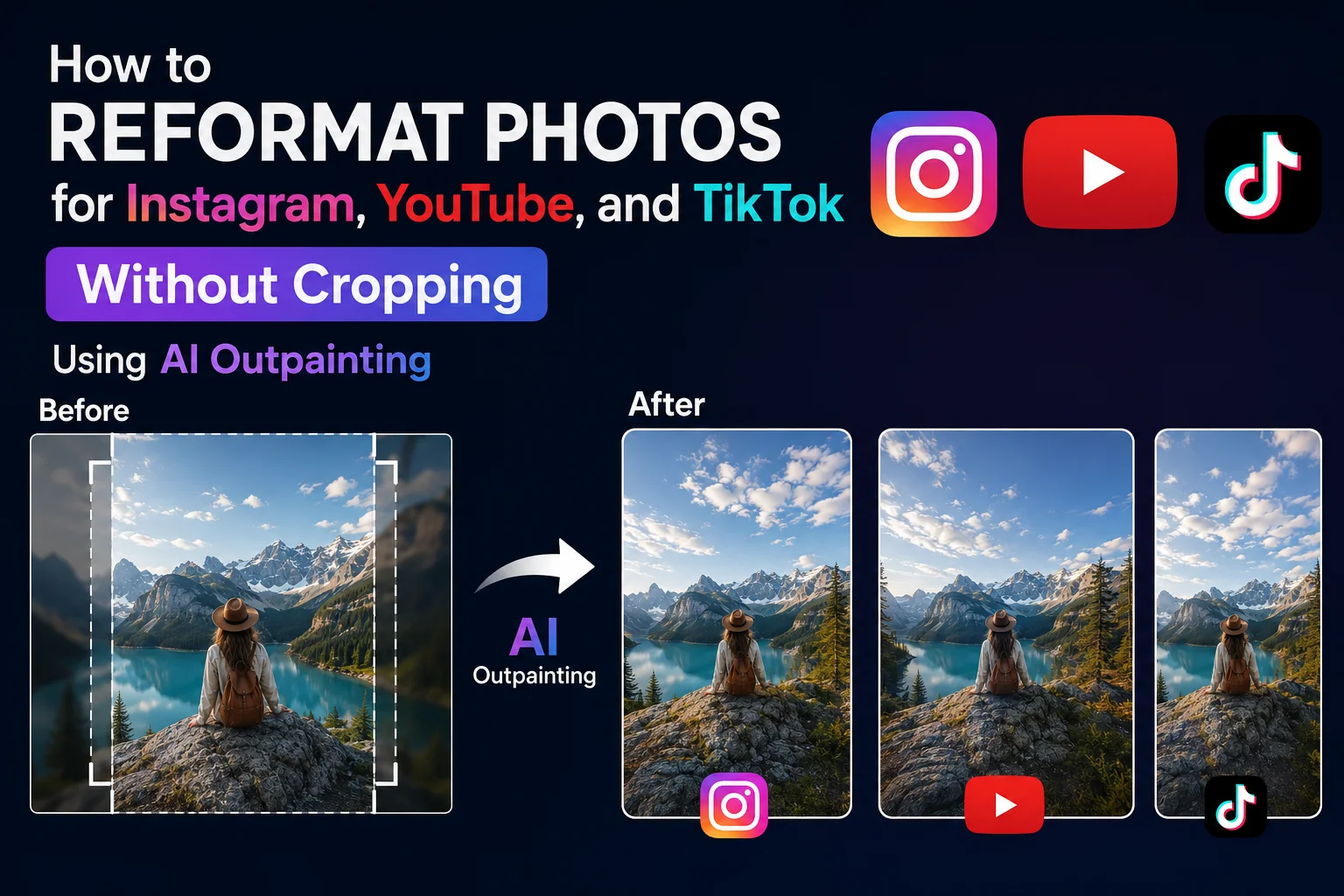
You finally captured the perfect photo. Then Instagram crops off the top of your head, YouTube wants a wide thumbnail, and TikTok prefers a completely different format.
Each social media app has its own aspect ratio, which often means choosing between cropping out important details, stretching the image, or creating multiple versions from scratch.
Instead of cutting parts of your photo away, AI Expand lets you add space around the original image by generating realistic new backgrounds. The result? One great photo that can be reformatted for Instagram, YouTube, TikTok, LinkedIn, and more - without sacrificing the composition you worked so hard to capture.
In this guide, you'll learn why aspect ratios matter, why cropping isn't always the best solution, and how AI can help you adapt your photos for every platform in just a few clicks.
Why one photo doesn't fit every platform
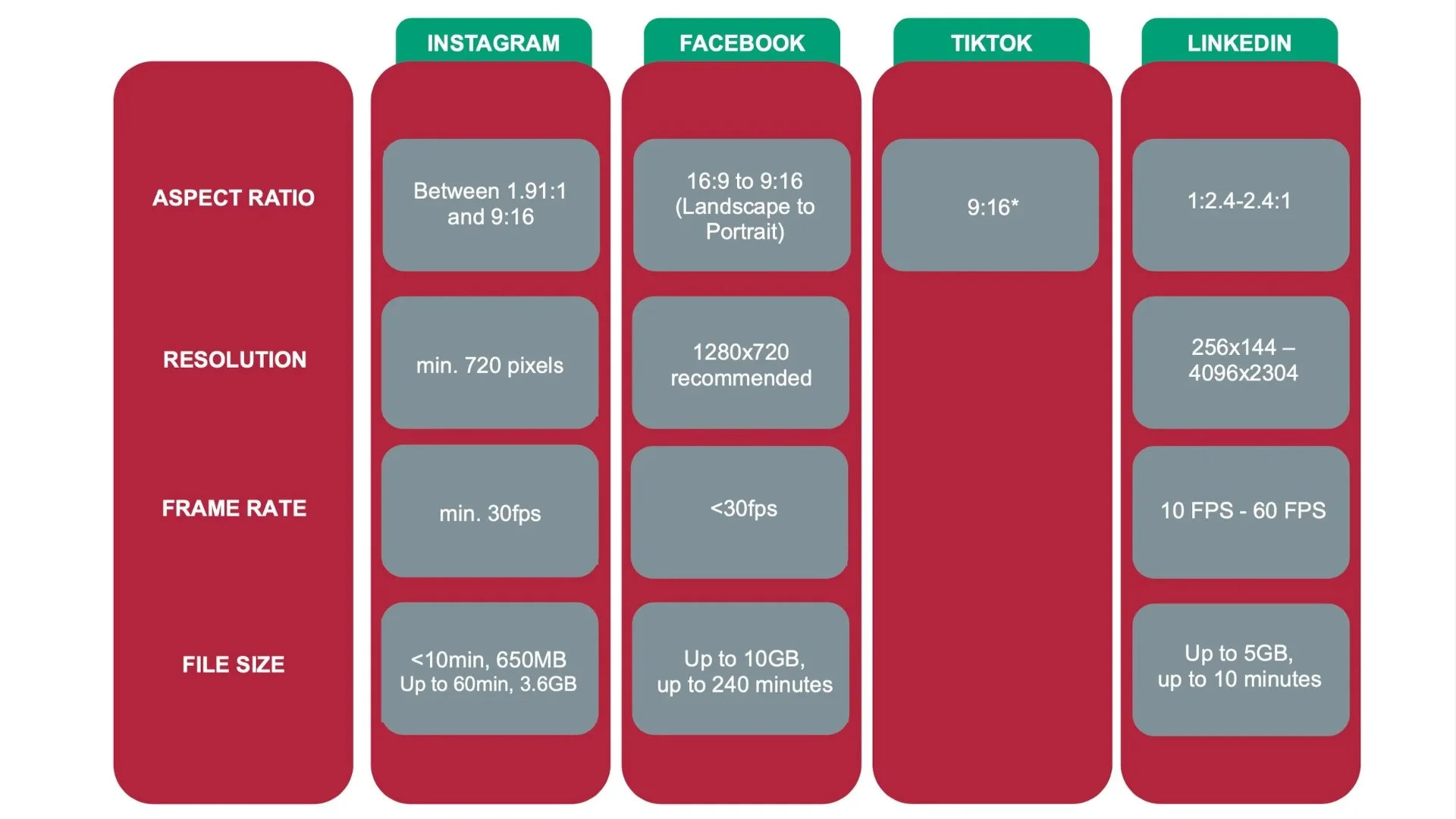
If you've ever uploaded the same photo to multiple social media platforms, you've probably noticed that it never looks quite the same. That's because every platform is designed with its own image dimensions and aspect ratios. A photo that looks perfect in one app may be awkwardly cropped, resized, or even rejected in another.
Different platforms prioritize different layouts depending on how people consume content.
- Instagram favors square (1:1) and portrait (4:5) images for feed posts.
- TikTok is built around vertical content, with a 9:16 aspect ratio.
- YouTube thumbnails use a wide 16:9 format.
- LinkedIn banners and Facebook covers require even wider dimensions.
Cropping is often the quickest fix, but it comes with trade-offs. To fit a new aspect ratio, you may have to cut off parts of the background, trim important objects, or even crop people out of the frame. What started as a carefully composed photo can quickly lose its balance and visual impact
How to reformat photos for Instagram, YouTube, & TikTok with AI Expand
Instead of removing content, AI Expand intelligently expands your photo by generating realistic new areas around the original image. The AI analyzes elements like lighting, perspective, textures, and colors to create a seamless extension that blends naturally with the existing scene. The result is a larger canvas without sacrificing the composition you carefully captured.
This makes AI outpainting especially useful when you need to adapt one photo for multiple platforms. Rather than creating separate versions for Instagram, YouTube, TikTok, or LinkedIn, you can simply expand the background to match the required aspect ratio while keeping your subject exactly where it belongs.
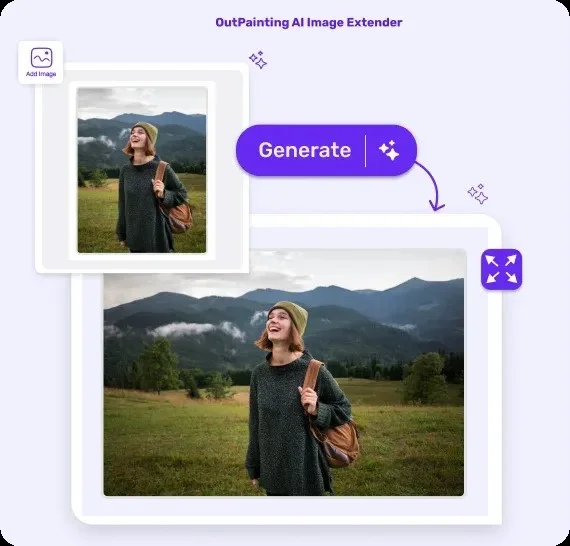
SnapEdit AI Expand is designed to make resizing photos effortless, even if you've never edited an image before. There's no need to learn Photoshop, install complicated software, or spend time adjusting layers and masks. Simply upload your photo, let the AI generate a realistic extension, and your image is ready for its new format in just a few clicks.
Because it works directly in your browser on both desktop and mobile devices, you can easily reformat photos wherever you are. The AI creates high-quality backgrounds that blend naturally with the original image, preserving its composition and visual quality.
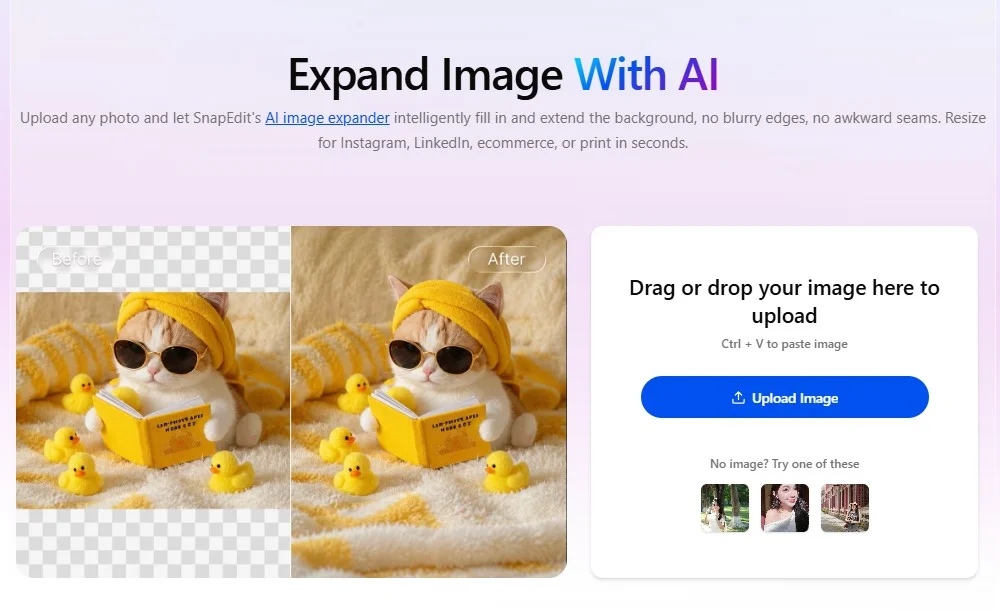
With SnapEdit AI Expand, you can turn a single image into multiple versions that fit different platforms, all without cropping away important details.
Upload your photo to https://snapedit.app/ai-expand. AI Expand works well with everything from portraits and travel shots to product photos.
Choose the format that matches where you'll publish your image:
- Instagram Feed: 1:1 (square) or 4:5 (portrait)
- Instagram Stories & Reels: 9:16
- TikTok: 9:16
- YouTube Thumbnail: 16:9
- LinkedIn Banner: Wide landscape format
Once you've selected the new format, AI Expand analyzes your photo and creates realistic extensions that match the lighting, colors, textures, and perspective of the original scene..
In just a few seconds, you'll have a version that's ready to post, without losing important details or compromising the look of your photo.
Instead of AI Expand, you can use SnapEdit's Auto Crop Tool to change the image radio before uploading to other channels.
Create once, post everywhere with AI Expand
AI Expand can do more than resize your photos. With a few smart techniques, you can create images that look more polished, adapt effortlessly to different platforms, and grab more attention in crowded feeds.
Leave room for text and graphics
If you're designing a YouTube thumbnail, blog cover, or promotional graphic, use AI Expand to create extra space around your subject. This gives you a clean area for headlines, logos, or call-to-action text without covering the main focus of the image.
Don't be afraid to regenerate
AI-generated results can vary slightly each time. If the first version isn't exactly what you envisioned, generate another one. Sometimes a second or third attempt produces an even more seamless extension that better matches your original photo.
Turn one photoshoot into weeks of content
Instead of creating separate images for every platform, use AI Expand to generate multiple aspect ratios from a single photo. One portrait can become an Instagram post, a YouTube thumbnail, a LinkedIn banner, and a blog cover, all while maintaining a consistent visual style.
Use the rule of thirds after expanding
One overlooked benefit of AI Expand is that you can improve composition, not just change the aspect ratio. After expanding, reposition your crop so the subject sits closer to a rule-of-thirds intersection instead of remaining centered.
Creating content for multiple social media platforms no longer means cropping away important details or designing separate images from scratch. With AI Expand, you can intelligently extend your photos to fit different aspect ratios while preserving the composition that made the original image work.