
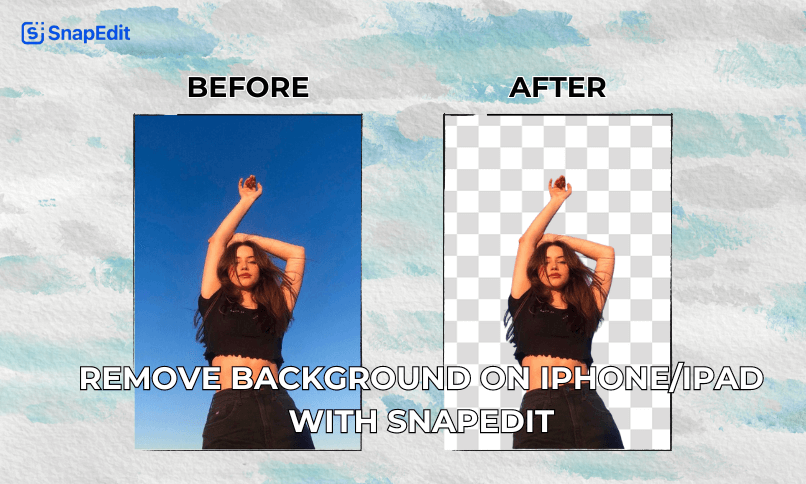
You can remove background on iPhone in four ways: lift the subject in the Photos app, use Quick Actions in the Files app, edit in the SnapEdit app, or use SnapEdit's background remover in Safari. The first two are built into iOS 16 and later. The two SnapEdit options also let you replace the background.
E-commerce sellers need clean product shots. Creators need eye-catching social media posts. Whatever your reason, this guide walks through each method step by step, then compares the pros and cons so you can pick the right one for your photo.
Method 1: Remove the Background in the Photos App
The Photos app removes a background when you touch and hold the subject of a photo. iOS outlines the subject, lifts it away from the background, and lets you copy, share, or save it. Apple introduced this feature, often called Lift Subject, in iOS 16.
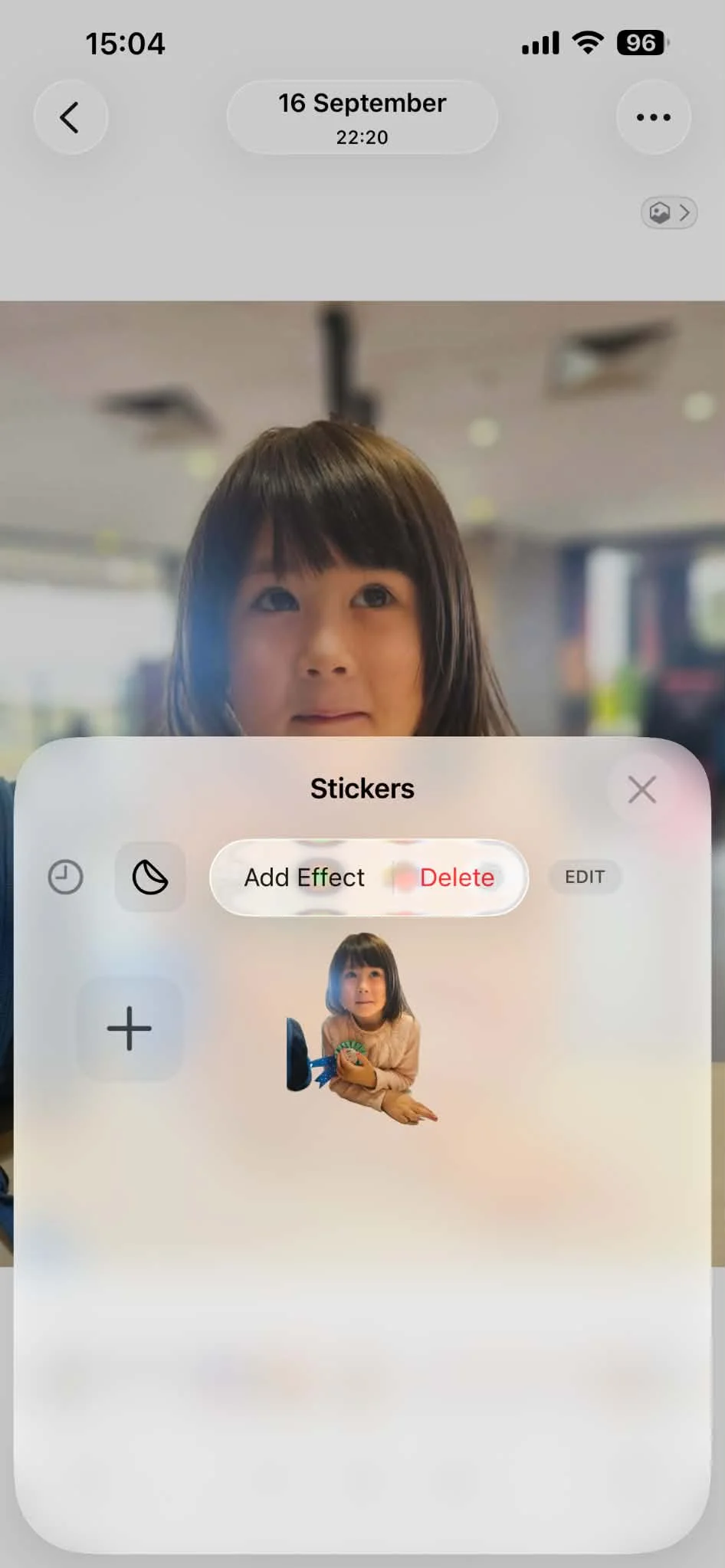
- Open a photo in full screen. Launch the Photos app and tap the picture you want to edit.
- Touch and hold the subject. Hold your finger on the person, pet, or object until a glowing outline appears around it, then lift your finger.
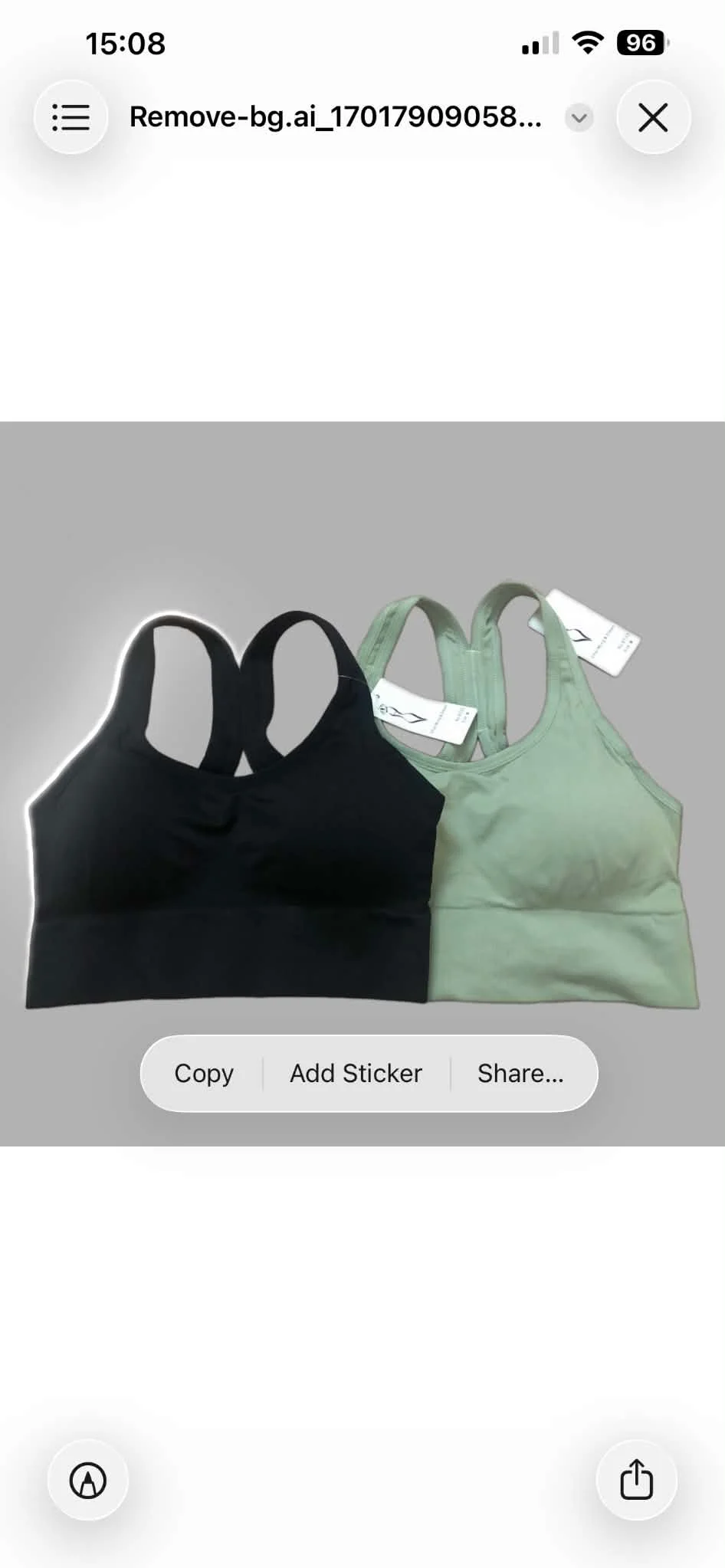
- Choose what to do with the cutout. A small menu appears above the subject:
- Tap Copy, then paste the subject into an email, text message, or note.
- Tap Add Sticker to save the subject as a sticker for Messages and other apps. This option needs iOS 17 or later.
- Tap Share, then choose AirDrop, Messages, or Mail.
- Save the cutout as a new image. Tap Share, then Save Image. The subject is saved to your library without its background.
You can also keep your finger on the subject, open another app with your other hand, and drop the subject straight into a document.
The same touch-and-hold gesture works on screenshots and on images in Safari and Messages. If you want to turn the cutout into a story sticker, see our guide to the Instagram cutout sticker.
One thing can look confusing. When you view the saved cutout in Photos, the empty area can appear black. The background is still transparent, and it displays correctly once you place the image in an app that supports transparency, such as Pages or Keynote.
Method 2: Remove the Background in the Files App
The Files app removes a background through a Quick Action and saves the result as a separate PNG file. This method suits you when you need a real transparent image file, or when you have several photos to process at once.
- Save the photo to Files. In the Photos app, open the picture, tap Share, then tap Save to Files and pick a folder.
- Find the image in the Files app. Open Files and go to the folder you chose.
- Touch and hold the image. A menu appears. Tap Quick Actions, then tap Remove Background.
- Open the new file. Files creates a copy of the image with the background removed and places it in the same folder. Your original photo stays untouched.
To remove the background from several photos at once, tap the More button (three dots) and choose Select. Tick each image, tap More at the bottom right, then tap Remove Background. Files creates one new PNG for every photo.
If you don't see Quick Actions, check that your iPhone runs iOS 16 or later and that the file is a standard image such as a JPEG, PNG, or HEIC.
Method 3: Remove the Background With the SnapEdit App
The SnapEdit app removes the background automatically and then lets you keep editing the same photo. After the cutout, you can add a new background, text, and shadow without leaving the app.

- Download SnapEdit from the App Store. Open the App Store on your iPhone and search "SnapEdit," or use this App Store link. Install the app on your device.
- Allow SnapEdit to access your Photos. When opening SnapEdit for the first time, you'll be asked to grant access to your device's photos. Allow the app to access your photo library in order to select photos for editing.
- Select the image you want to edit. Choose the cutout tool, then pick the photo. SnapEdit imports it and removes the background automatically.
- Edit the result (optional). After removing the background, you can add a new background to the current photo, along with text, shadow, and other built-in features.
- Save the image. Once you are satisfied with the result, save your edited image directly to your camera roll.
Having the app is a convenient way to get the photo you want when you edit pictures on your iPhone often.
Method 4: Remove the Background Online in Safari
SnapEdit's background remover is a web application, so it works on an iPhone without installing anything. You open it in Safari, upload a photo, and download the result. The same steps work on an iPad.
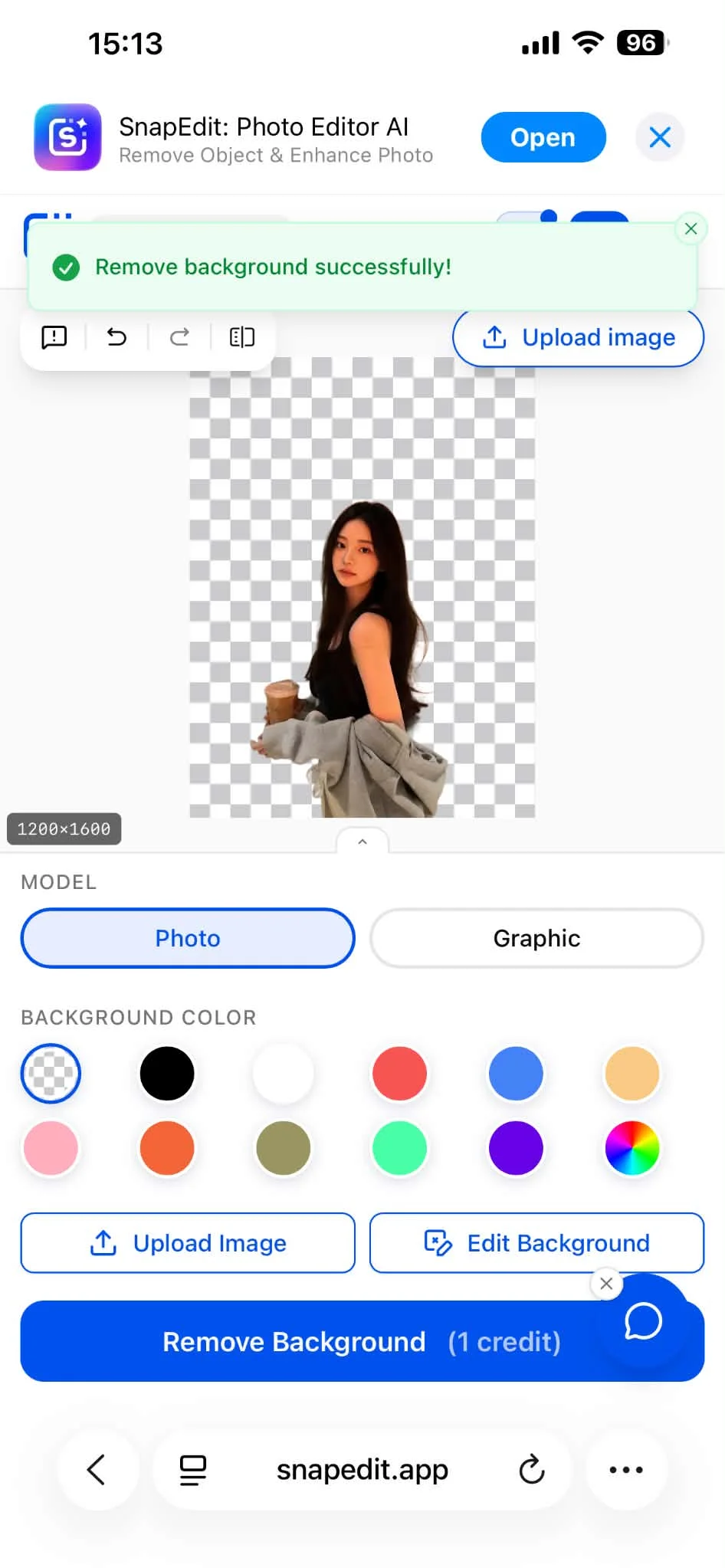
- Open the website. Start by accessing the SnapEdit background remover from a browser like Safari, Chrome, Firefox, or Microsoft Edge.
- Upload your image. Tap Upload Image and choose a picture from your photo library. Whether it's a portrait, a product photo, or anything in between, SnapEdit AI can handle it. The tool supports JPG and PNG files.
- Let AI remove the background. SnapEdit automatically detects the subject and removes the background from your image in a few seconds.
- Edit the background (optional). Keep the background transparent, choose a different background color, or replace the background with a template or your own image. For marketplace listings, you can add a white background. For a lifestyle scene, try the AI background generator.
- Download your edited image. Once you're satisfied with the result, download your image. It is ready for professional projects, social media, or personal use.
Pros and Cons of Each Way to Remove Background on iPhone
Each method fits a different job. The built-in tools are the fastest way to remove background on iPhone, while SnapEdit gives you more control over what replaces the background.
| Method | Pros | Cons | Best for |
|---|---|---|---|
| Photos app | No install, free, takes a few seconds | You can't choose the subject, hair and fur edges can look soft, no background replacement | Pasting a subject into a message or note, making stickers |
| Files app | Saves a separate PNG file, handles several photos at once, free | The photo must be saved to Files first, no edge editing, no new background | Transparent image files, batches of photos |
| SnapEdit app | Adds a new background, text, and shadow after the cutout | Needs an install, some features require SnapEdit Pro | Regular photo editing on your phone |
| SnapEdit in Safari | No install, changes the background color or image, works on iPad | Needs an internet connection and an upload | Product photos, white or custom backgrounds |
A few of these limits deserve a closer look.
The built-in tools pick the subject for you. iOS decides what counts as the subject. If a second person stands next to you, the iPhone may lift both of you together, and there is no way to deselect one.
Fine edges are the hardest part. Hair, fur, and semi-transparent objects are difficult for any background remover. Results are cleaner when the subject stands out clearly from a plain background.
The built-in tools stop at the cutout. Photos and Files remove the background but don't add a new one. If you need a white, colored, or custom background, use one of the SnapEdit methods. If you have a large catalog, you can also remove backgrounds in bulk on the web.
Alternatives to SnapEdit: Other iPhone Background Remover Apps
SnapEdit isn't the only app for removing backgrounds on your iPhone. Based on your needs, you can choose the most suitable one.
| Tool | Auto Background Removal | Manual Editing Tools | Other Key Features |
|---|---|---|---|
| Adobe Photoshop Express | Yes | Basic selection tools | Filters, adjustments, Adobe integration |
| Background Eraser | Yes (main feature) | Limited | Simple, focused interface |
| Snapseed | No dedicated one-tap tool | Brush and selective editing tools | Powerful filters and editing suite |
| Picsart | Yes | Layers, blending modes, drawing tools | Large sticker and graphic library |
| Photoroom | Yes (main feature) | Background replacement | Optimized for product and model photos |
Background Eraser and Photoroom focus on quick, automated removal. Snapseed and Adobe Photoshop Express offer more general editing controls. Picsart fits you if you need layers, blending modes, and a large library of graphics and stickers to dress up your background-free images.
Frequently Asked Questions
Can I remove background on iPhone without an app?
Yes. An iPhone running iOS 16 or later can remove a background with two built-in tools. In the Photos app, touch and hold the subject, then copy or share it. In the Files app, touch and hold an image, tap Quick Actions, then tap Remove Background.
Which iPhones can remove a photo background?
The built-in background removal works on iPhone XS, iPhone XR, and later models running iOS 16 or newer. The Add Sticker option needs iOS 17. On an older iPhone, you can still remove a background with SnapEdit in Safari.
Should I save the cutout as PNG or JPEG?
Save it as PNG. A PNG file keeps the background transparent, so you can place the subject on any color or image later. A JPEG file can't store transparency and fills the empty area with a solid color. JPEG is fine for a finished photo that already has its new background.
How do I remove a background from a photo on iPad?
The steps on an iPad match the steps on an iPhone. Supported iPad models with iPadOS 16 or later offer the same Photos and Files tools. SnapEdit's web version also runs in Safari on any iPad.
Is SnapEdit's background remover free?
You can remove a background with SnapEdit for free, and the web tool doesn't require a login. Paid plans unlock additional features. See the pricing page for current details.