
You can remove background from image on Android in three ways: use the built-in Image Clipper in Samsung Gallery, open SnapEdit's background remover in Chrome, or install the SnapEdit app. The Samsung method only works on supported Galaxy phones. The other two work on any Android phone.
Android differs from iPhone in one important way. There is no single built-in tool that every Android phone shares, so the right method depends on the phone in your hand. This guide walks through each method step by step, then compares the pros and cons.
How To Remove the Background in Samsung Gallery
Samsung Galaxy phones remove a background with a feature called Image Clipper. You touch and hold the subject of a photo in the Gallery app, and the phone lifts it away from the background. Image Clipper is part of One UI 5.1 and later.
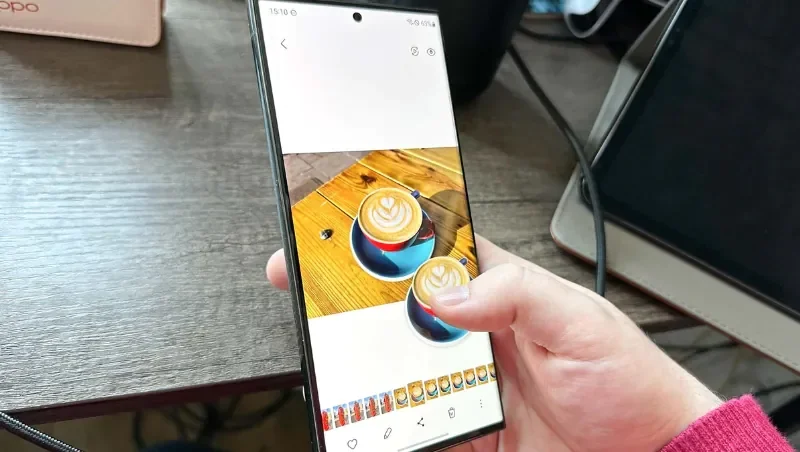
- Open the photo in Samsung Gallery. Use Samsung's own Gallery app, the one with the flower icon. The feature doesn't work in Google Photos.
- Touch and hold the subject. Keep your finger on the person, pet, or object. After a short animation, the phone outlines the subject and lifts it from the photo.
- Choose what to do with the cutout. A small menu appears:
- Tap Copy to paste the subject into a message, note, or another app.
- Tap Share to send it straight to another app.
- Tap Save as image to store the cutout as a new picture.
- Find the new image. The saved cutout appears in your Gallery next to the original photo, which stays untouched.
Image Clipper also works in the Samsung Internet browser. Press and hold an image on a web page, then choose the option to clip the subject from the background.
Two things are worth knowing. First, the saved cutout can appear on a black background when you view it in Gallery. Second, not every Galaxy model supports Image Clipper, even on a recent One UI version. If touch and hold does nothing on your phone, use Method 2 or Method 3.
How To Remove the Background Online by Chrome on Android Phones
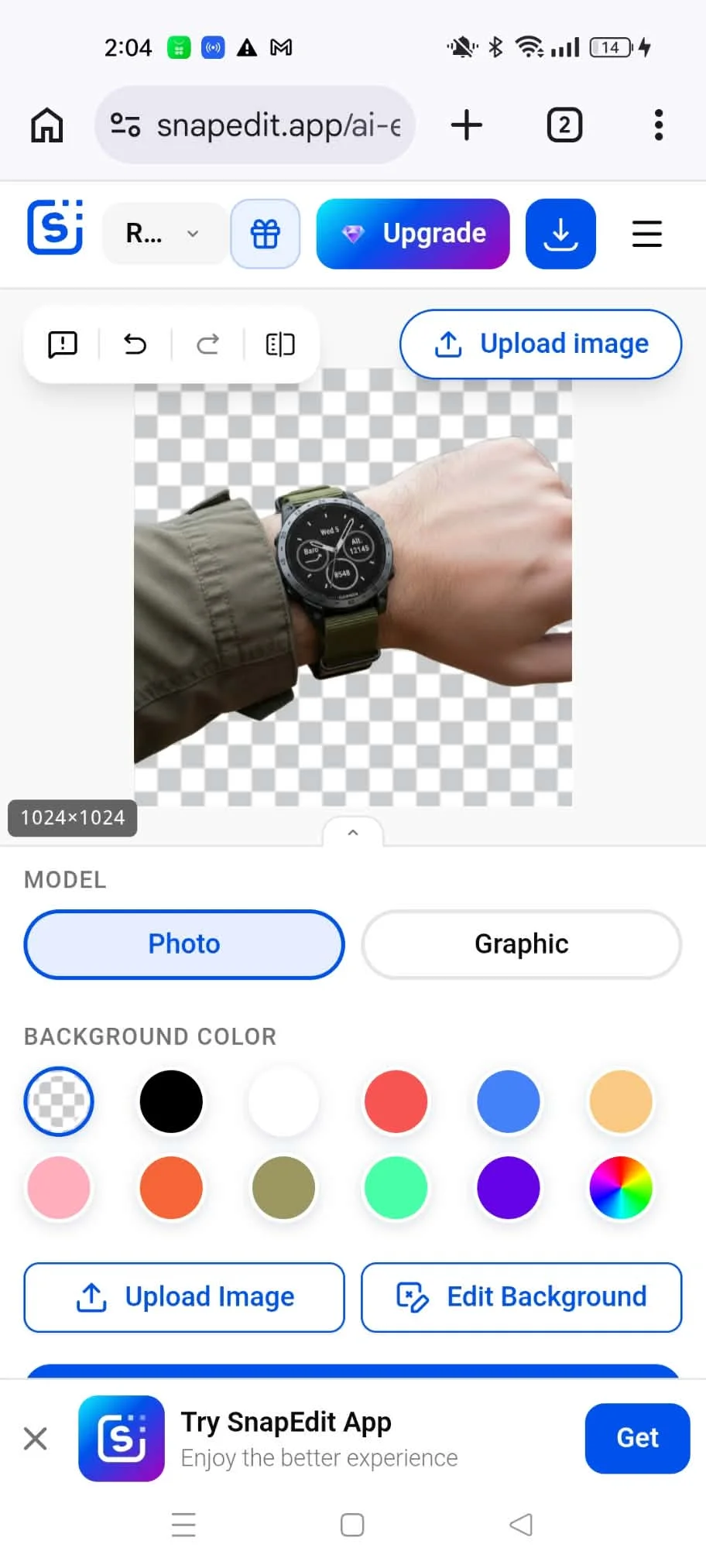
SnapEdit's background remover is a web-based app, so it can be used on every version of Android. Whether you are using a Samsung Galaxy, Google Pixel, OnePlus, or Xiaomi phone, SnapEdit can remove the background with no installation and no login.
- Open the website. Open the SnapEdit background remover from your browser, such as Chrome, Samsung Internet, Firefox, or Microsoft Edge.
- Upload your image. Tap Upload Image and choose a picture from your gallery. Whether your purpose is personal social platforms, business branding, or graphic design, SnapEdit can do a good job of getting rid of the unwanted background. The tool supports JPG and PNG files.
- Let AI remove the background. SnapEdit automatically detects the subject and removes the background from your image in a few seconds.
- Edit the background (optional). Keep the background transparent, choose a different background color, or replace it with a template or your own image. For marketplace listings, you can add a white background. For a lifestyle scene, try the AI background generator.
- Download your edited image. Once you're satisfied with the result, tap Download. On most Android phones, the file lands in the Downloads folder and also shows up in your gallery app.
This is the simplest way to remove background on Android when your phone has no built-in tool, because it needs nothing but a browser.
How To Remove the Background With the SnapEdit App On Android
The SnapEdit app is a more convenient option if you edit pictures on your Android phone or tablet often. It removes the background automatically, then lets you keep editing the same photo.
- Download SnapEdit from Google Play. Open the Google Play Store on your Android phone and search "SnapEdit," or use this Google Play link. Tap Install.
- Allow SnapEdit to access your photos. When opening SnapEdit right after downloading, you'll be asked to allow access to your photo library. Then you can use the application to edit images.
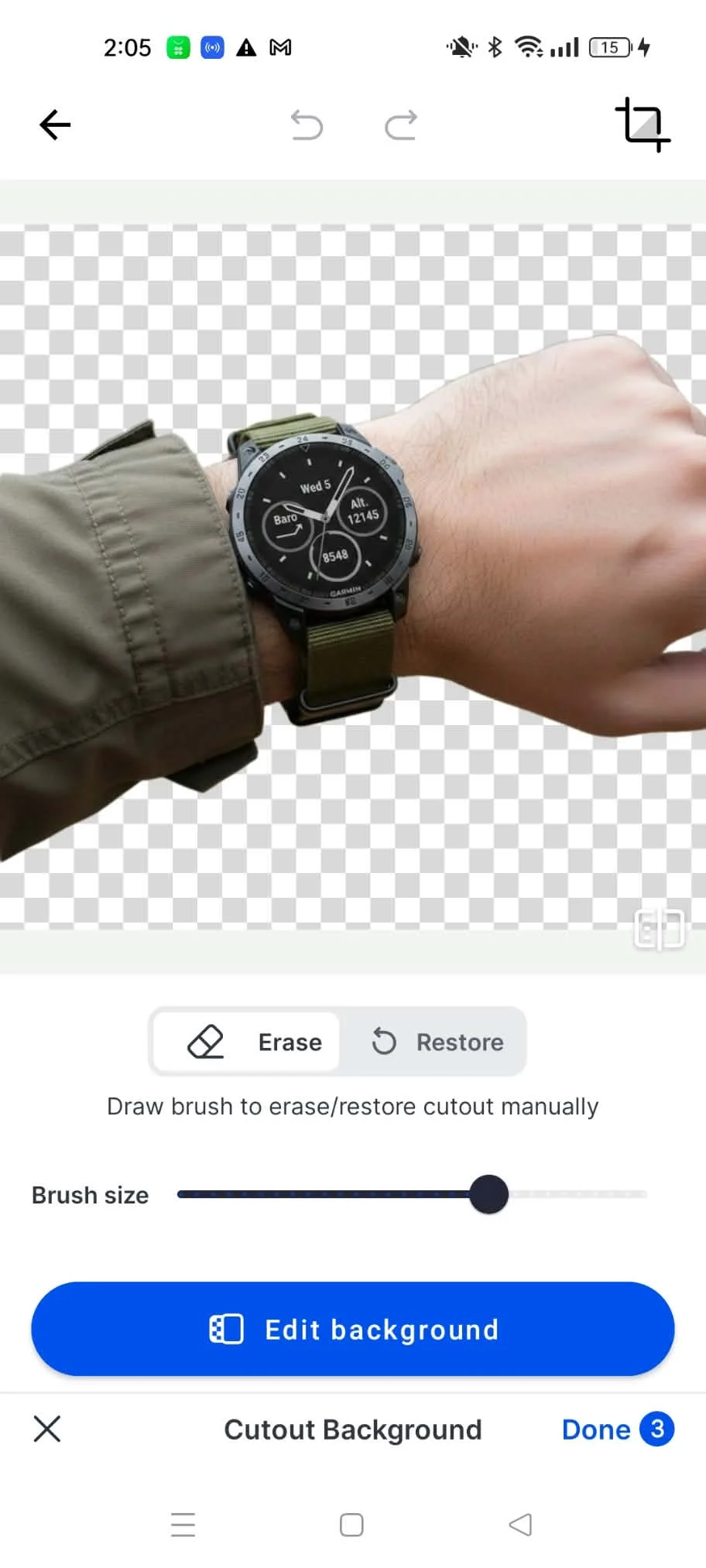
- Select the image you want to edit. Choose the background removal tool, then select the photo you wish to modify. SnapEdit imports the chosen image and removes the background automatically.
- Edit the result (optional). You can adjust the cutout by hand, change or add a new background, and add text or shadow to the image.
- Save the image. When you are satisfied with the result, save your edited image directly to your gallery.
Pros and Cons of Each Way to Remove Background on Android
Each way to remove background from image on Android fits a different phone and a different job. Samsung Gallery is the fastest option if your phone supports it. SnapEdit works on any Android phone and gives you control over what replaces the background.
| Method | Works on | Pros | Cons | Best for |
|---|---|---|---|---|
| Samsung Gallery | Supported Galaxy phones with One UI 5.1 or later | No install, free, takes a few seconds | Not available on every Galaxy model, no edge editing, no new background | Quick cutouts to paste or share |
| SnapEdit in Chrome | Any Android phone with a browser | No install, no login, changes the background color or image | Needs an internet connection and an upload | Product photos, white or custom backgrounds |
| SnapEdit app | Any Android phone with Google Play | Adds a new background, text, and shadow after the cutout | Needs an install, some features require SnapEdit Pro | Regular photo editing on your phone |
A few of these limits deserve a closer look.
The built-in tool depends on your phone. Image Clipper belongs to Samsung, not to Android itself. Owners of other brands, and of some Galaxy models, need a browser tool or an app to remove a photo background.
Fine edges are the hardest part. Hair, fur, and semi-transparent objects are difficult for any background remover. Results are cleaner when the subject stands out clearly from a plain background.
Samsung Gallery stops at the cutout. It removes the background but doesn't add a new one. If you sell online and need consistent listing photos, see how to remove the background from secondhand clothes photos. If you have a large catalog, you can also remove backgrounds in bulk on the web.
Using an Apple device as well? Here is how to remove background on iPhone.
SnapEdit vs Other Background Remover Apps for Android
SnapEdit provides various image editing features beyond background removal, including a photo enhancer and tools for adding text and resizing images. Here is how it compares with other popular background remover apps for Android.
| Tool | Main features | Pros | Cons |
|---|---|---|---|
| SnapEdit | Removes the background automatically with AI. Lets you edit the cutout by hand, change or add a new background, and add text or shadow | Fast and convenient, easy to use, works on every device: PC, iOS, Android | Doesn't offer much customization. Detection can be incorrect at times |
| remove.bg | Removes the background automatically. Lets you add a new background. Integrates with other editing platforms like Canva | Fast and convenient, several ways to customize your pictures | Free downloads are low resolution, and full resolution uses credits |
| Canva | Background removal as one tool inside a full design app | Many photo editing features, integration with other design tools | Requires an account, and background removal needs a paid plan. Takes more steps to get the photo you need |
| Adobe Express | One-tap background removal inside a design app, with text, shapes, and new backgrounds | Many design templates and tools in one place | Requires an Adobe account. More features than you need for a simple cutout |
In short, each tool has its own pros and cons, and the best app to remove background from image on Android depends on your specific needs and skill level. SnapEdit is a suitable choice for beginners in photo editing.
Frequently Asked Questions
Does Android have a built-in background remover?
It depends on the phone maker. Samsung Galaxy phones with One UI 5.1 or later include Image Clipper in the Gallery app. Android doesn't include a background remover as a standard feature on every phone, so on other brands you need a browser tool or an app.
Why doesn't touch and hold work on my Samsung phone?
Image Clipper needs One UI 5.1 or later, and some Galaxy models don't support it even after the update. Check that you are using the Samsung Gallery app and that your software is up to date. If it still doesn't work, remove the background in Chrome with SnapEdit.
How do I save a transparent PNG on Android?
Remove the background, keep the background set to transparent, then download the result as a PNG file. A PNG keeps the transparent background, so you can place the subject on any color or image later. A JPEG file can't store transparency.
How do I get a cleaner cutout?
Start with a sharp, well-lit photo where the subject stands out from the background. A dark subject on a light background, or the reverse, gives the AI a clear edge to follow. Use the original photo, not a copy that was compressed by a messaging app.
Is SnapEdit's background remover free?
You can remove a background with SnapEdit for free, and the web tool doesn't require a login. Paid plans unlock additional features. See the pricing page for current details.